

This tutorial explains how to add a new inventory location and set it as a priority. Let's look at the steps:
Step 1: Open Settings and Start Adding
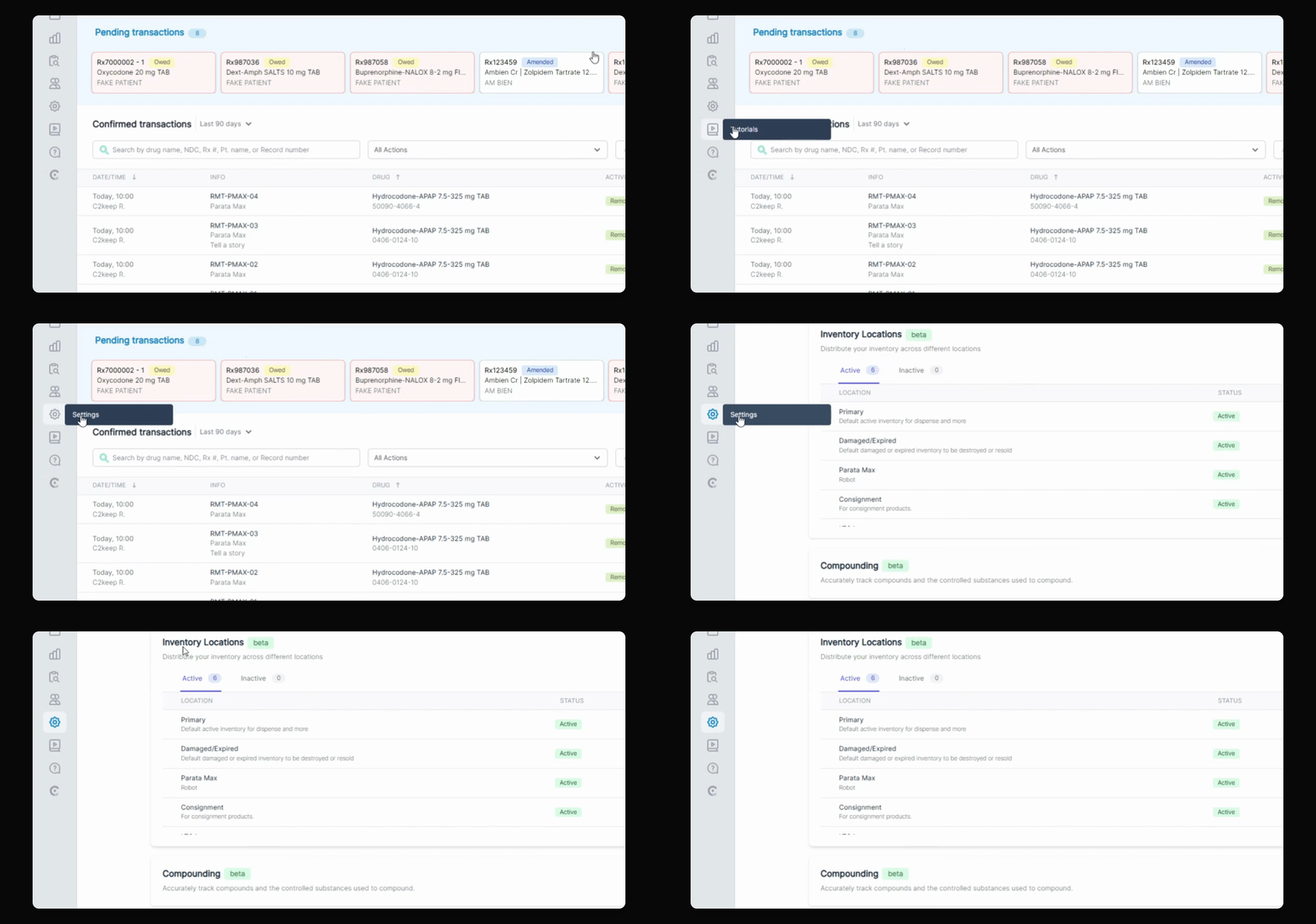
Go to the Settings page. In the Inventory Locations section, Click Add new.
Step 2: Review Abbreviation
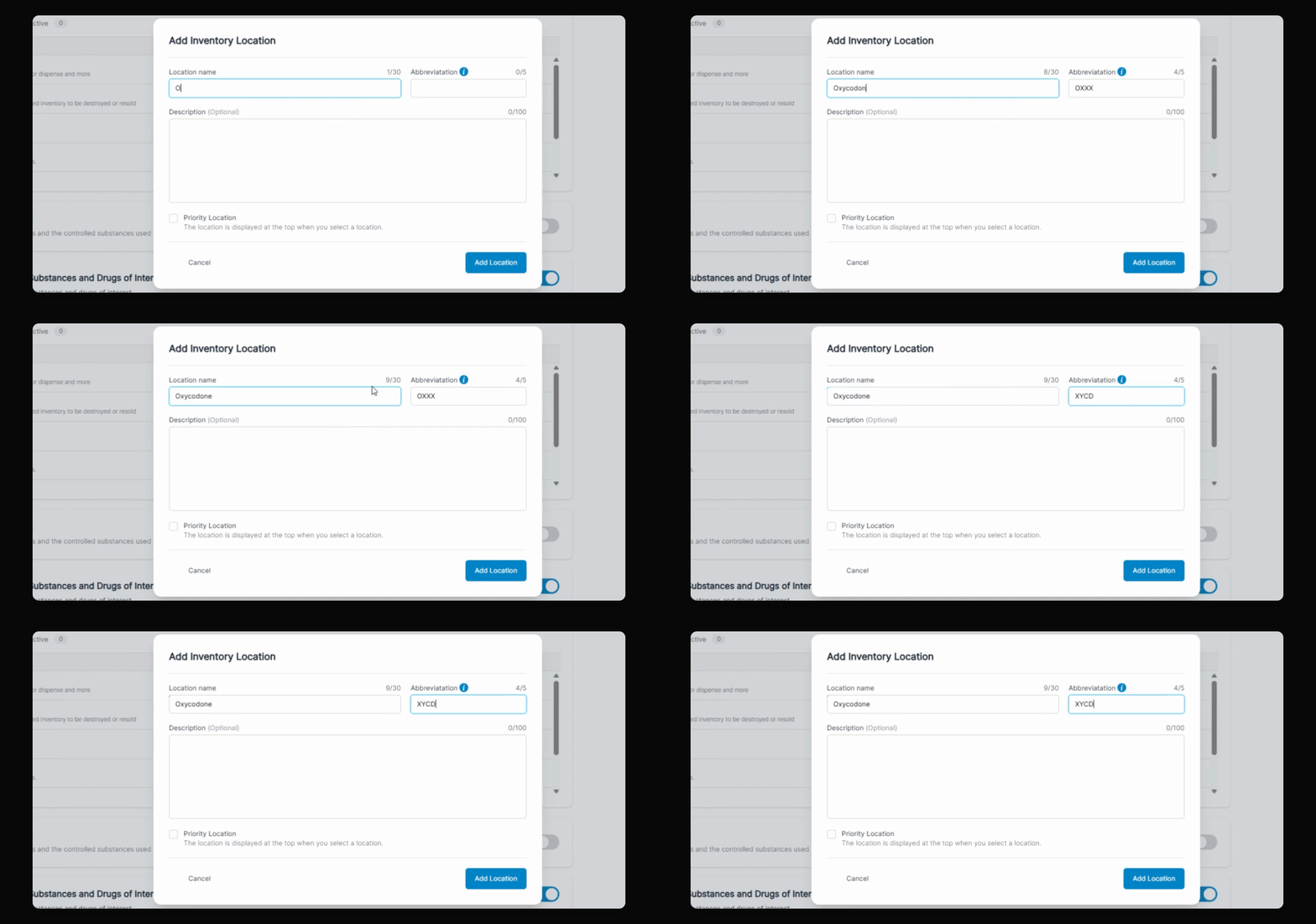
Type in your location's name. The system will automatically generate an abbreviation for the new location. You can edit the abbreviation if you need.
Step 3: Enter Description and Set Priority
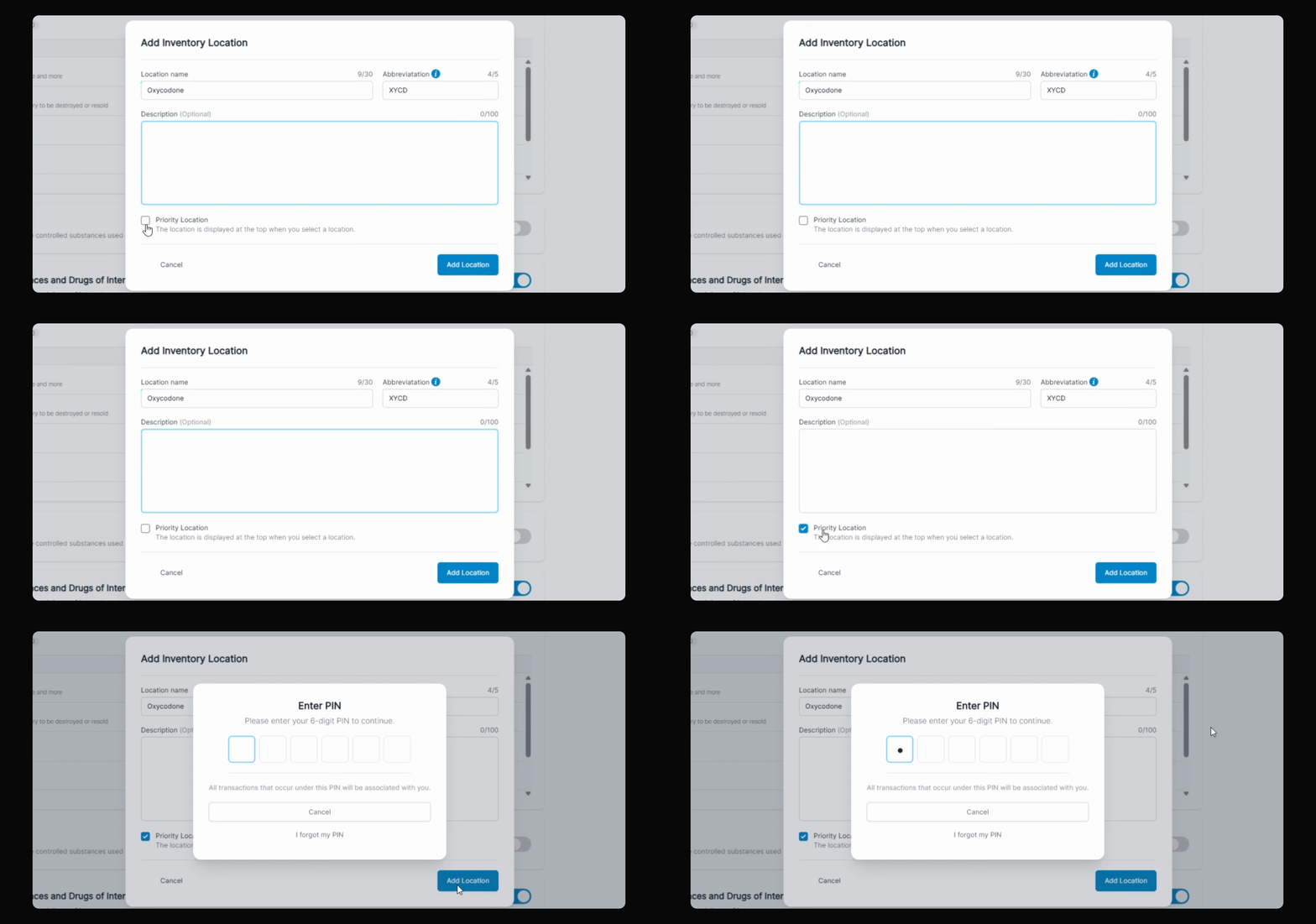
Optionally, enter a description for the location. You can also set this location as a priority so it appears at the top of the locations list.
Step 4: Add Location and Confirm
Click Add, enter your PIN, and the new location will be added. If you set it as a priority, it will show up at the top of your location list.