

In this tutorial, we will explain how to connect two or more pharmacy management systems into one C2 Keep account. Let's look at the steps:
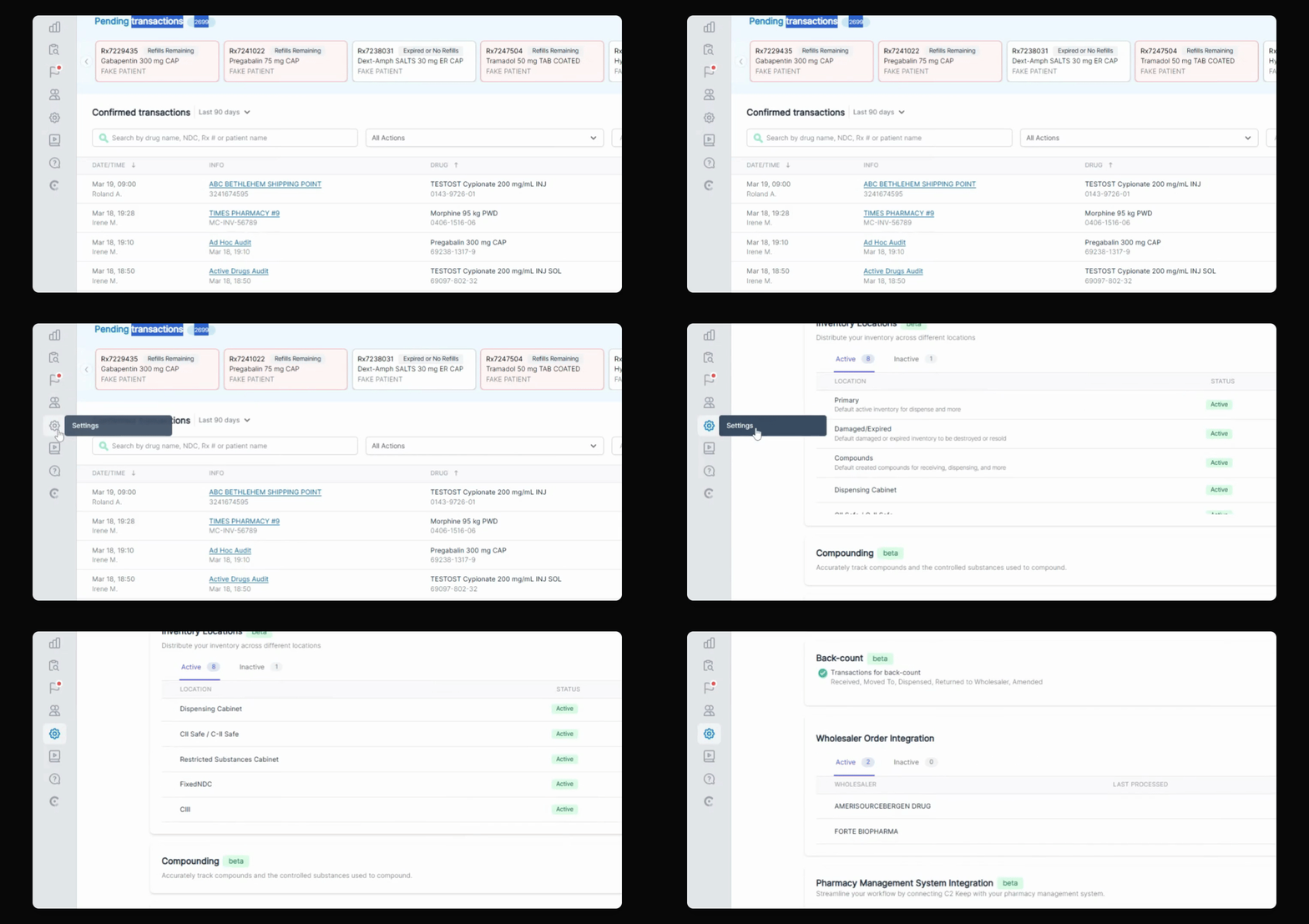
Step 1: Navigate to Settings
Go to the settings page and scroll down to Pharmacy Management System Integration.
Step 2: Add Integration
If you want to add another Liberty integration, ensure the pharmacy has a unique NPI different from the already connected one. Click Setup, search for Liberty, update the NPI, and then click Connect to test the connection.
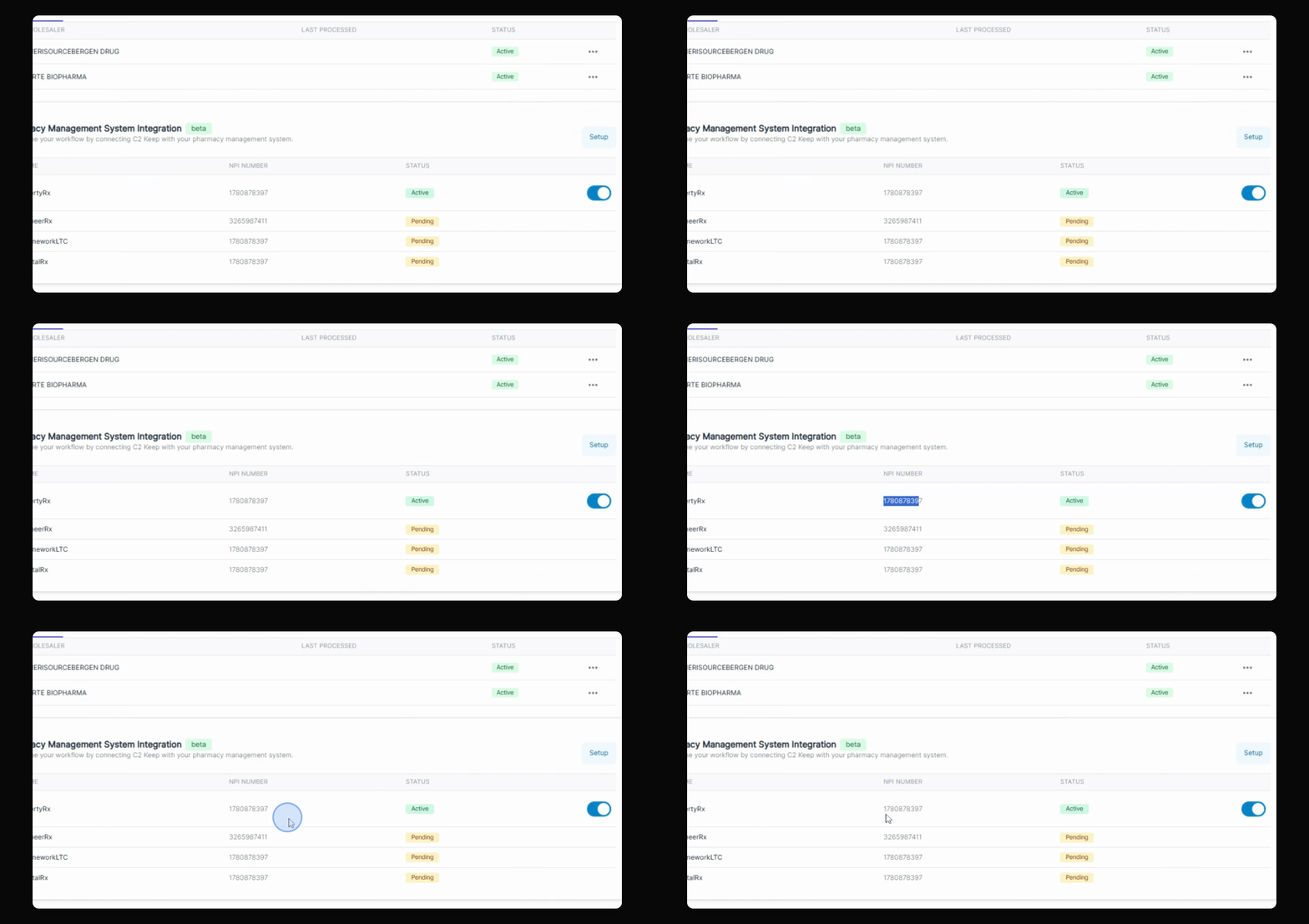
Step 3: Enter NPI Number
If you are connecting a new pharmacy, make sure to enter the NPI number. For an existing pharmacy, the NPI number will auto-populate.
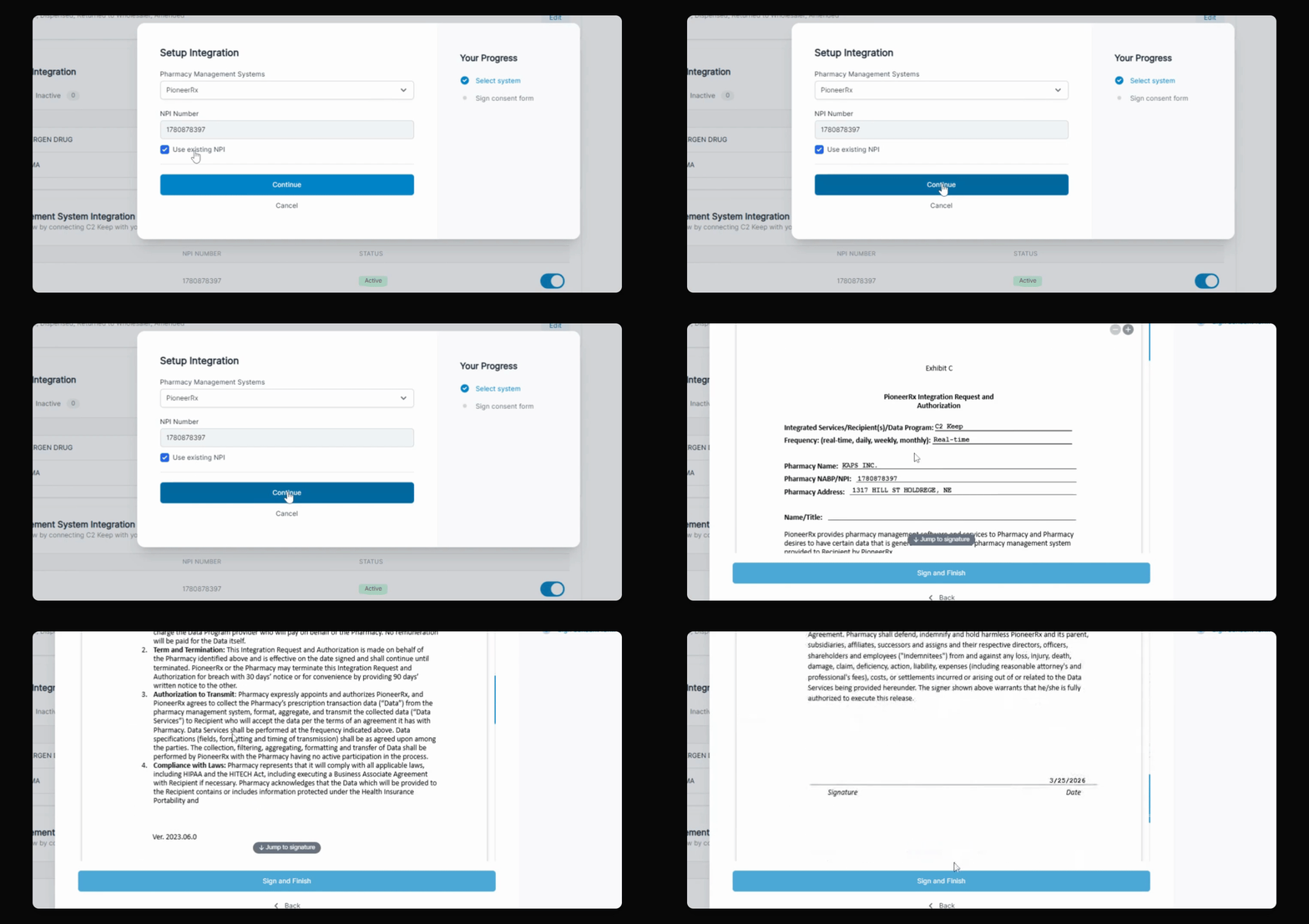
Step 4: Finalize Setup
Select the pharmacy management system, confirm the NPI, click Continue, and follow the prompts to complete the integration setup.
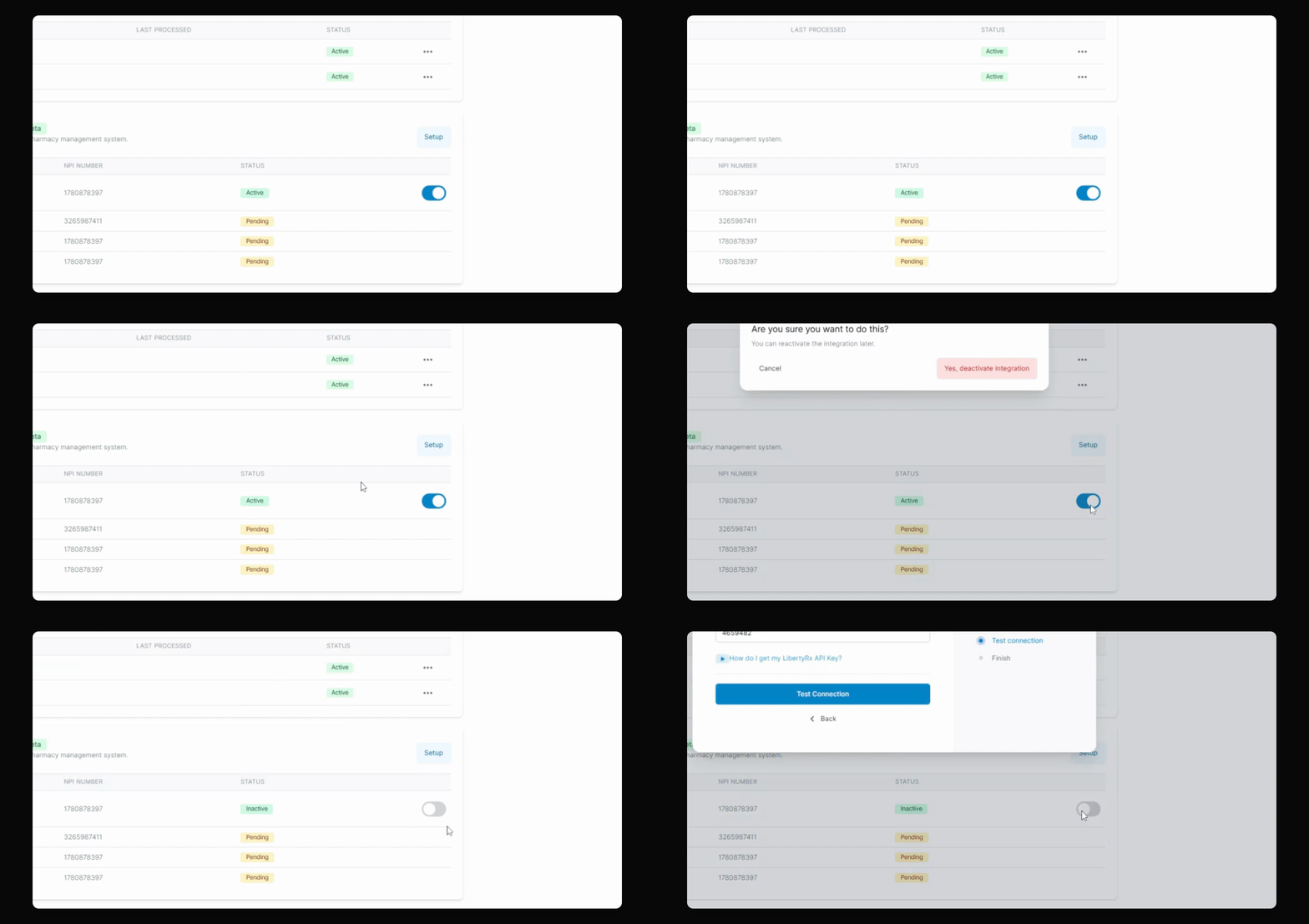
Step 5: Activation
By default, the integration will be in a pending state until scripts are received. Then, it will switch to a toggle state for activation or deactivation.
And that's an easy way to set up multiple pharmacy management system integrations with C2.