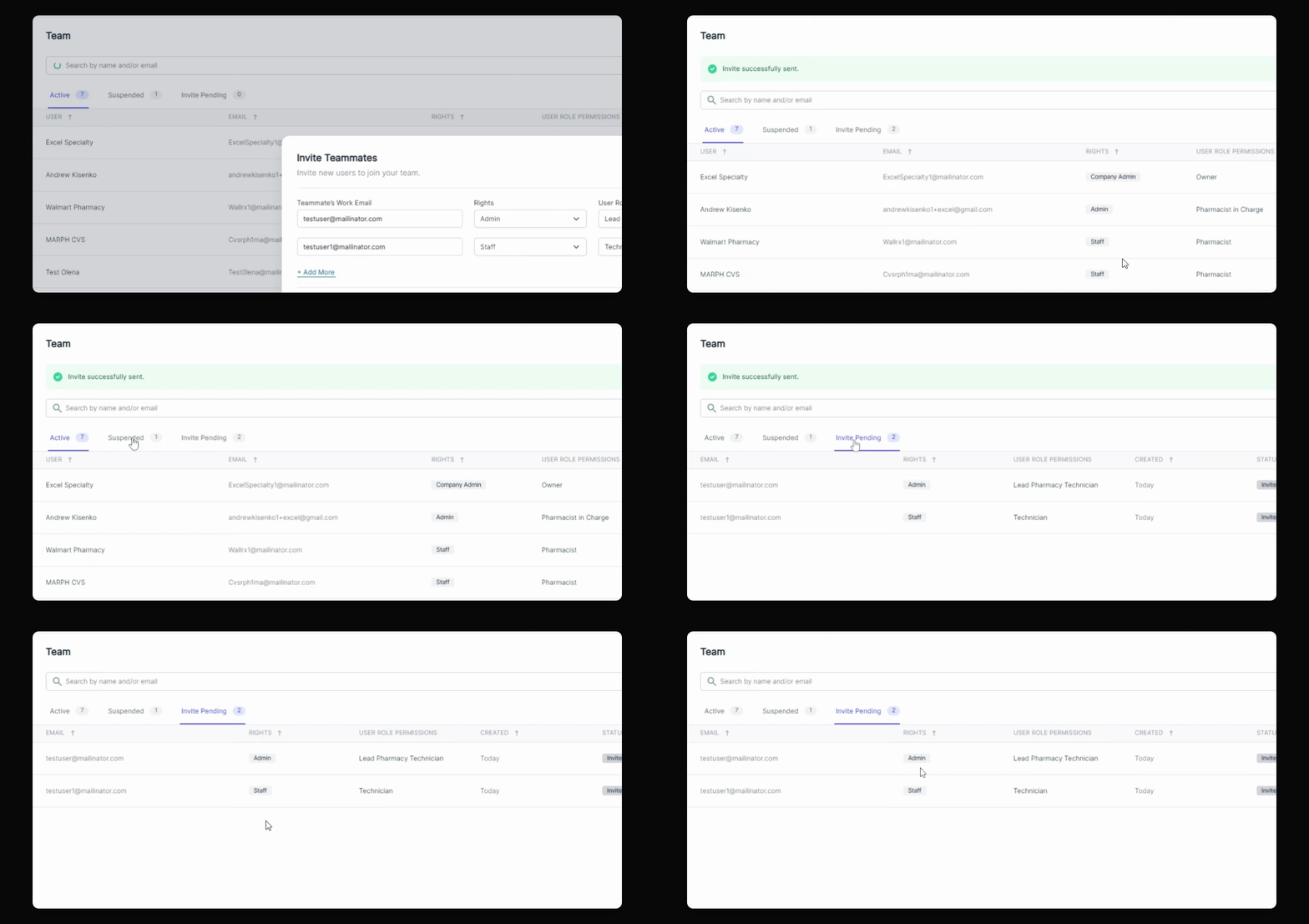
Since we now have user permissions, the way to invite teammates is a little different but still very intuitive. Let's look at the steps:
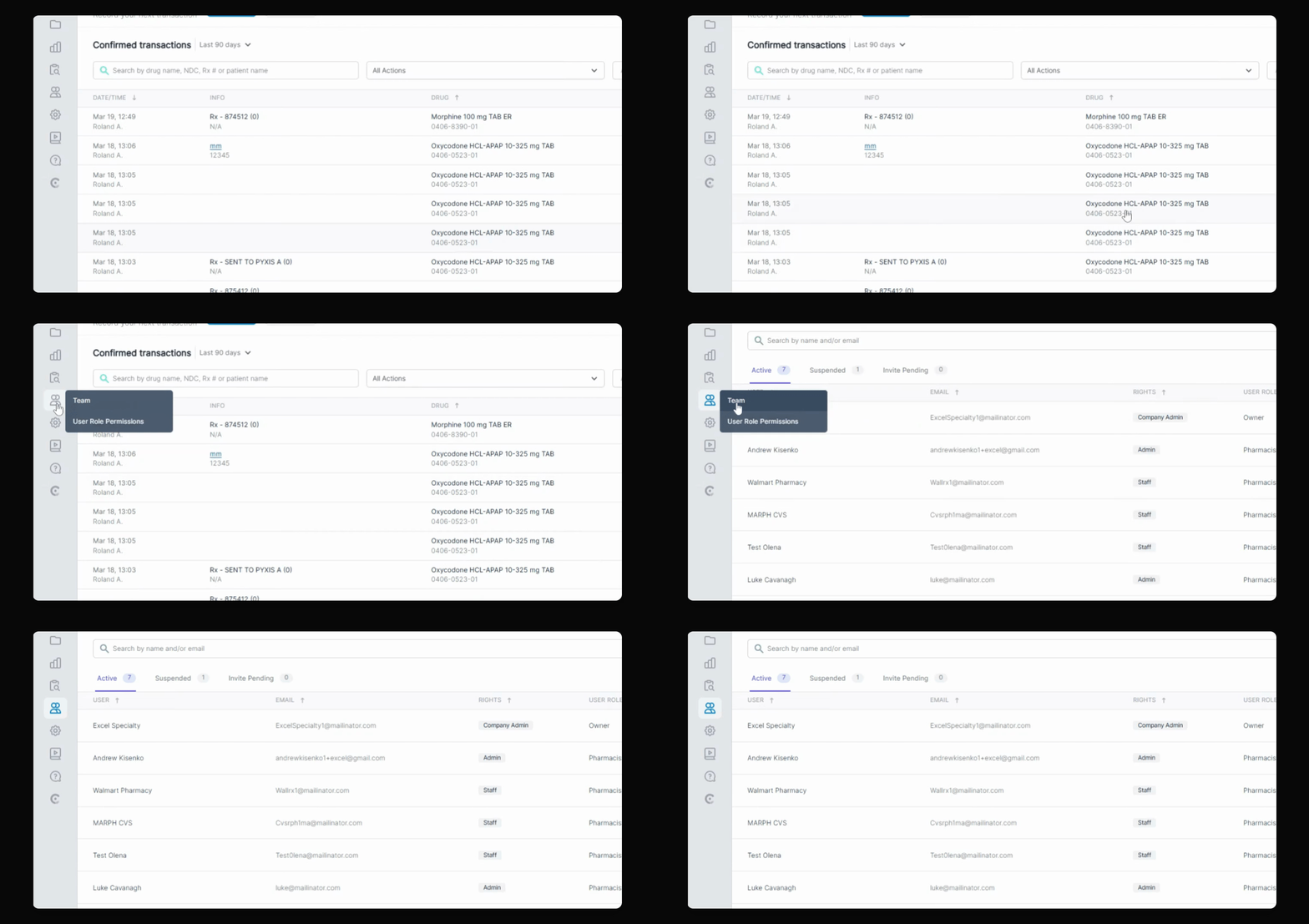
Step 1: Navigate to Team Section
As an admin, navigate to the team section and then click on Invite in the top right.
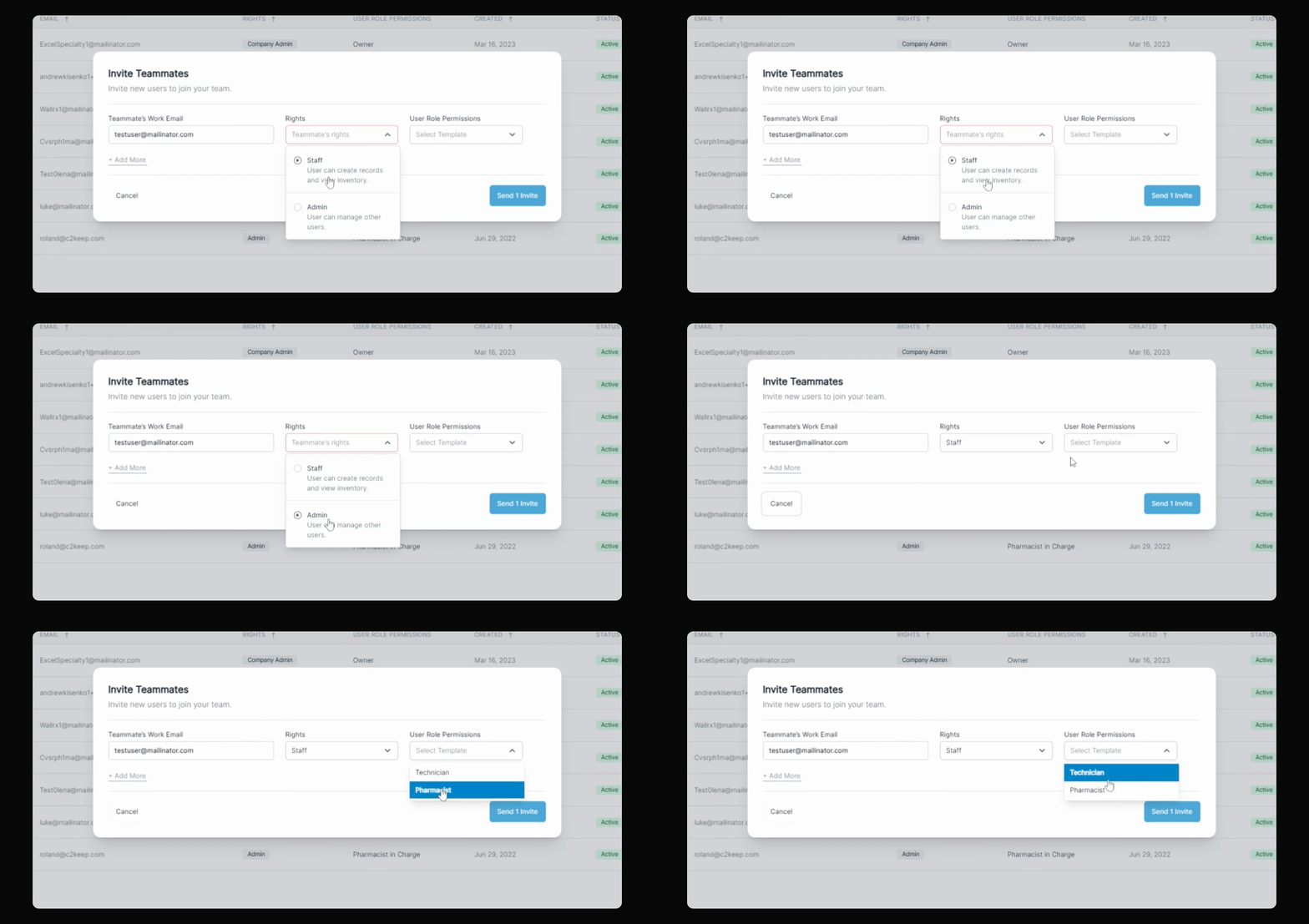
Step 2: Enter User Email
Enter the user's email. In this case, we can invite test user.
Step 3: Select User Rights
You will be able to select user rights, either staff or admin, and then assign the user role permissions based on your selection.
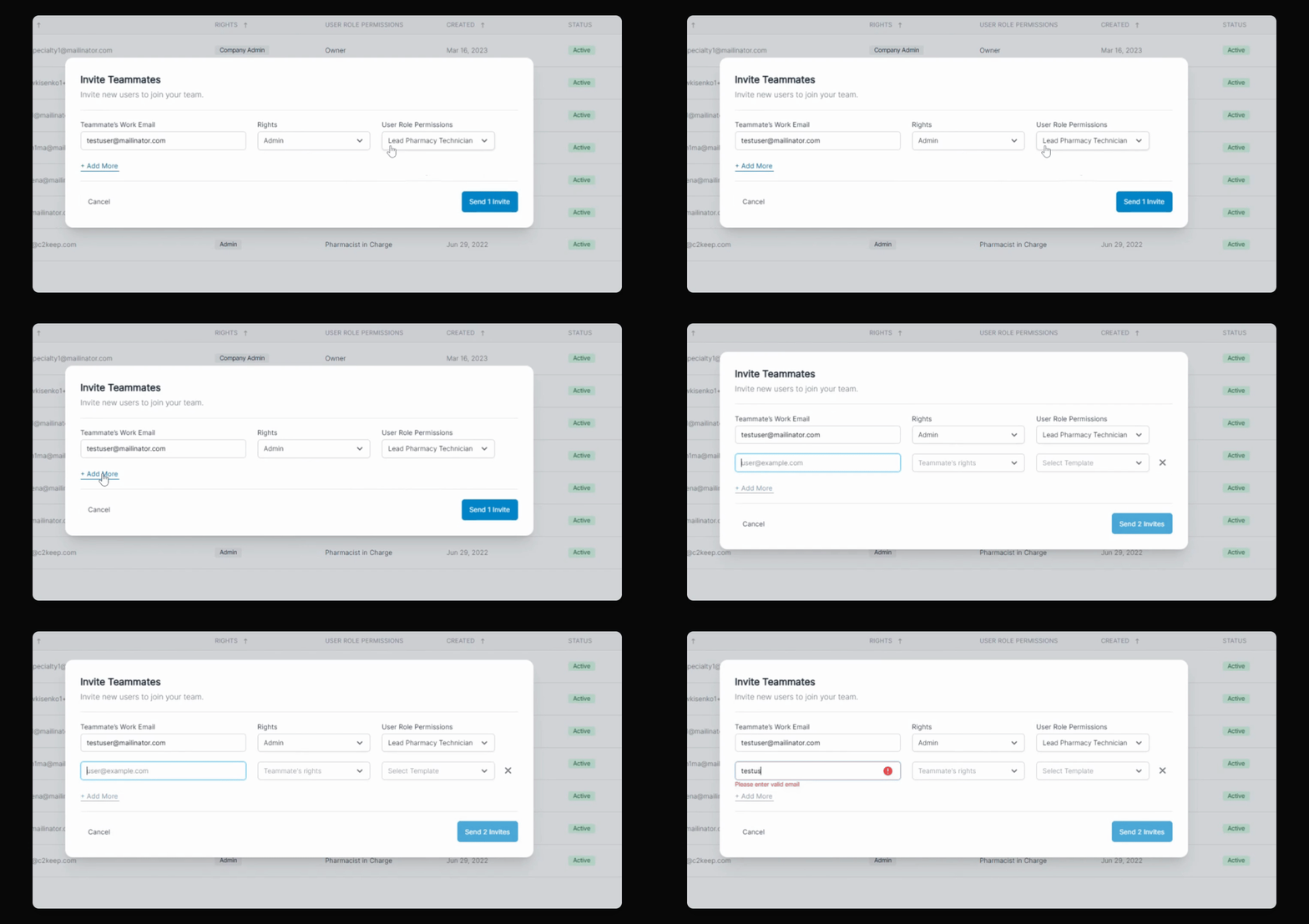
Step 4: Invite More Users
You can invite more users at the same time and select their rights as well as their user permissions.
Step 5: Send Invite
Send the invite and enter your PIN.
Step 6: Check Invite Status
The invited users will show in the Invite pending section. Once these users' invitations have been confirmed, they'll show up in the active section of your team. If they're suspended users, they'll appear in the suspended section.