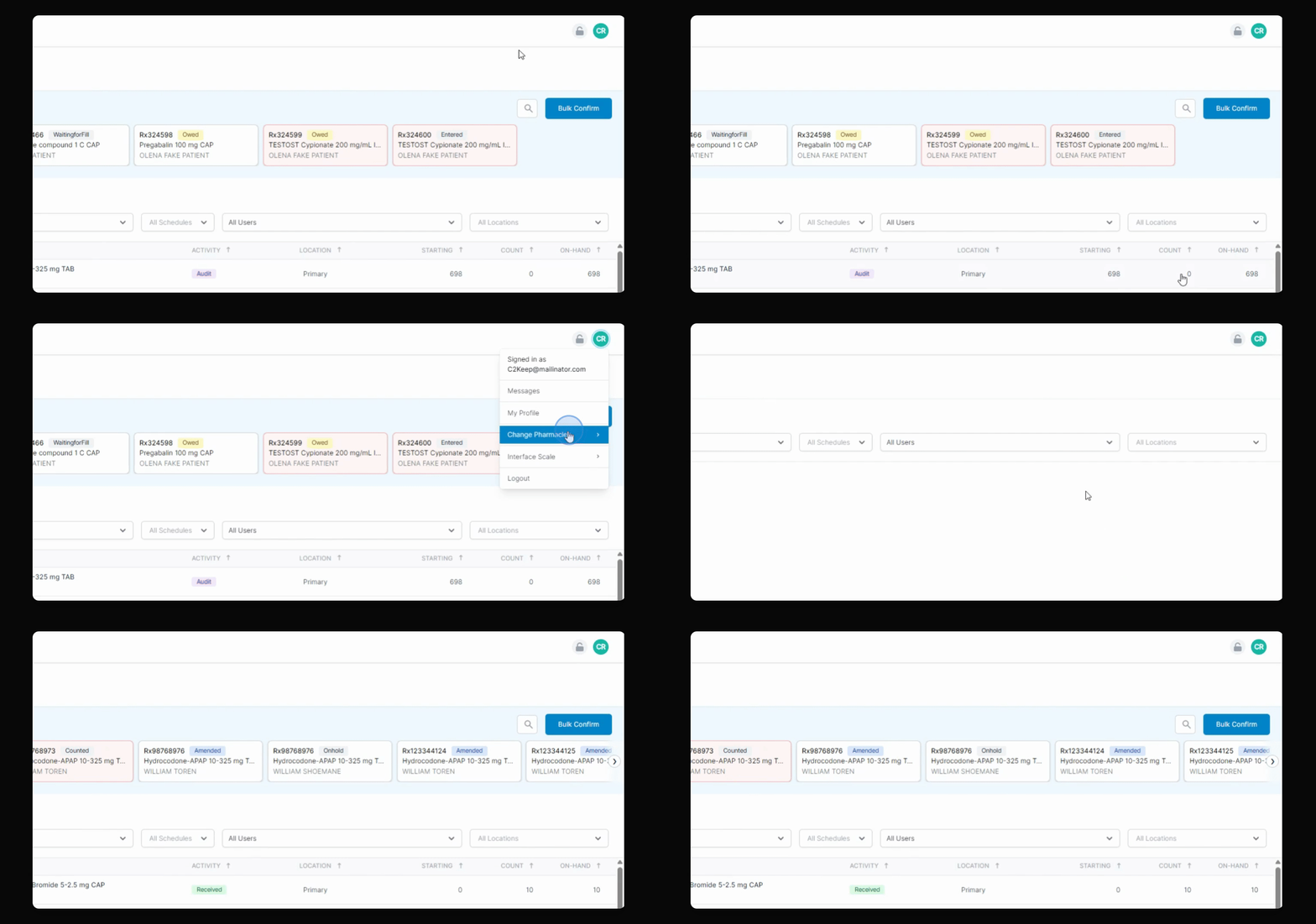
A new setting we've included is setting to control the two factor authentication, which sends a one time password to a user when they log in. Let's look at the steps:
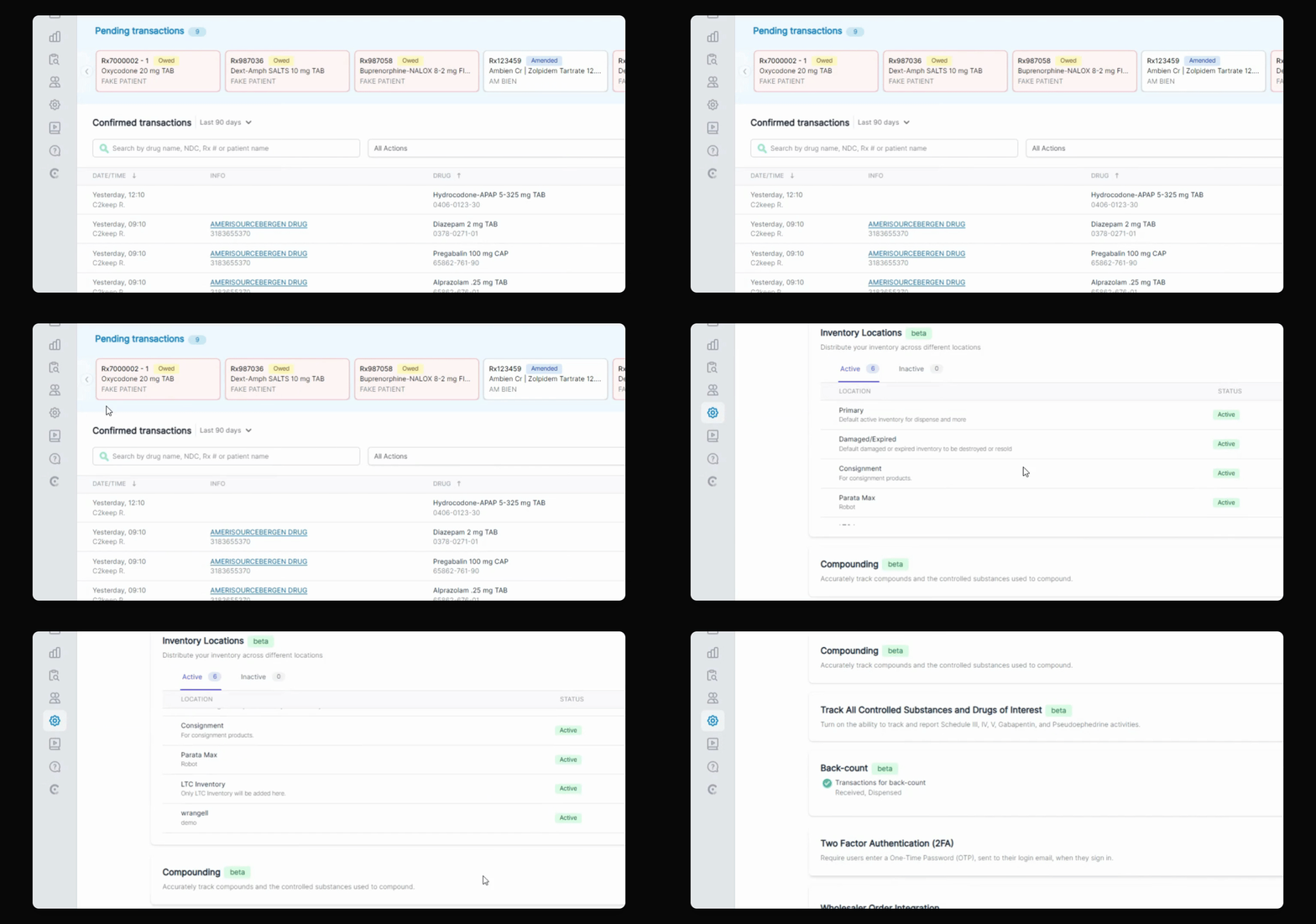
Step 1: Access Settings Page
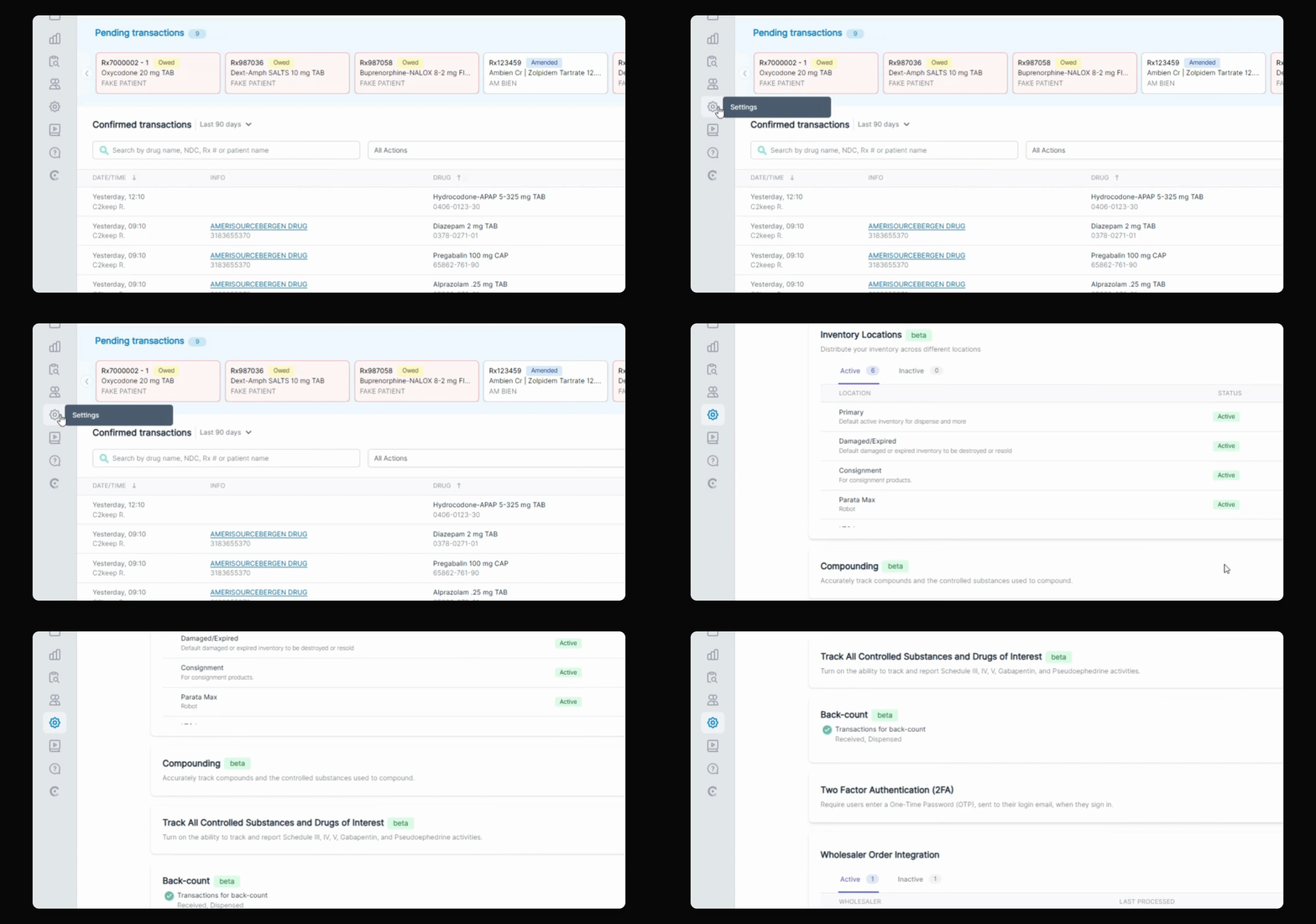
An administrator in the pharmacy can go into the settings page and turn on or off this setting.
Step 2: Enable Two Factor
By default it's going to be on. When it's on, the user is going to be required to enter a one time password when they sign into that pharmacy.
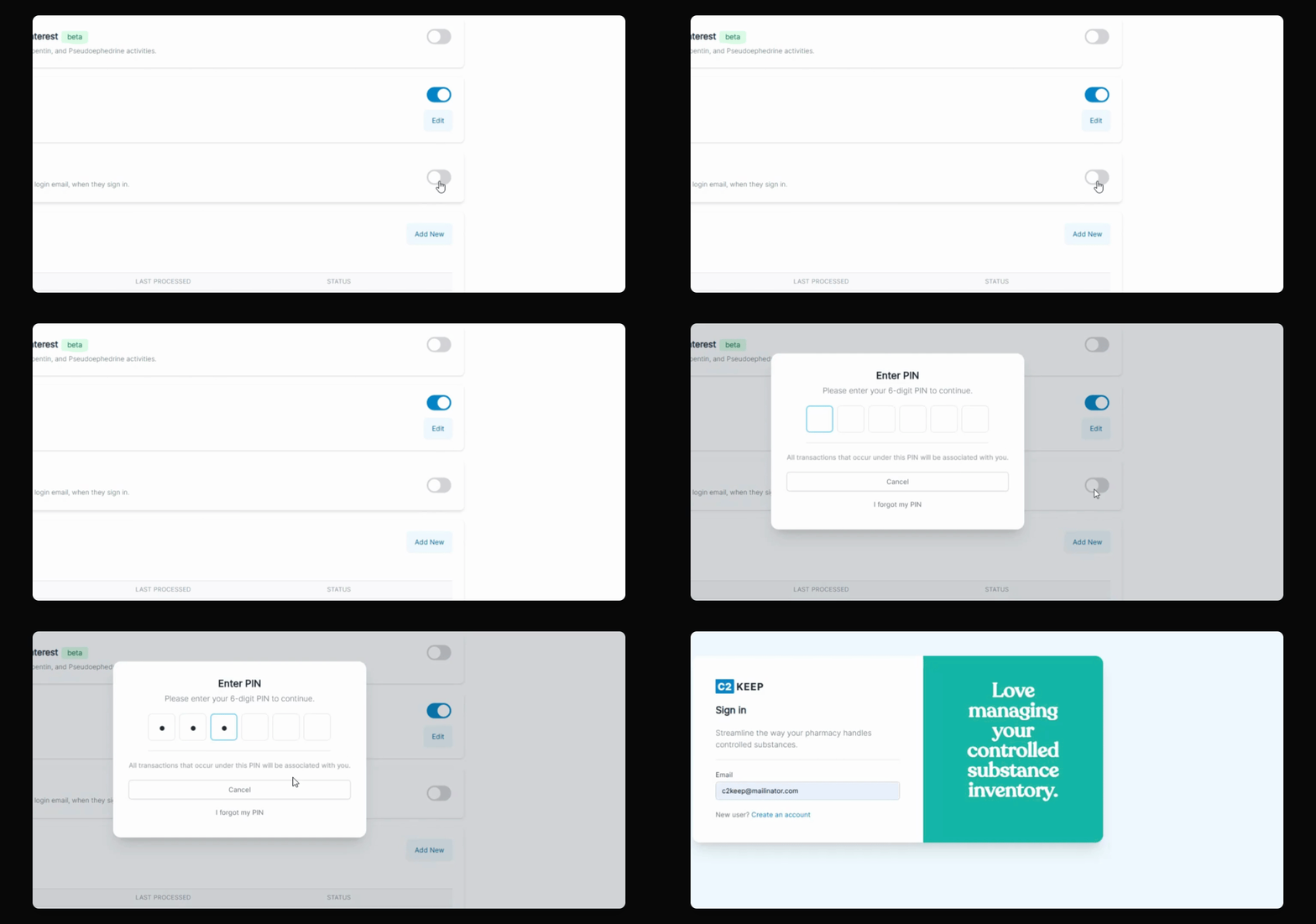
Step 3: Sign In
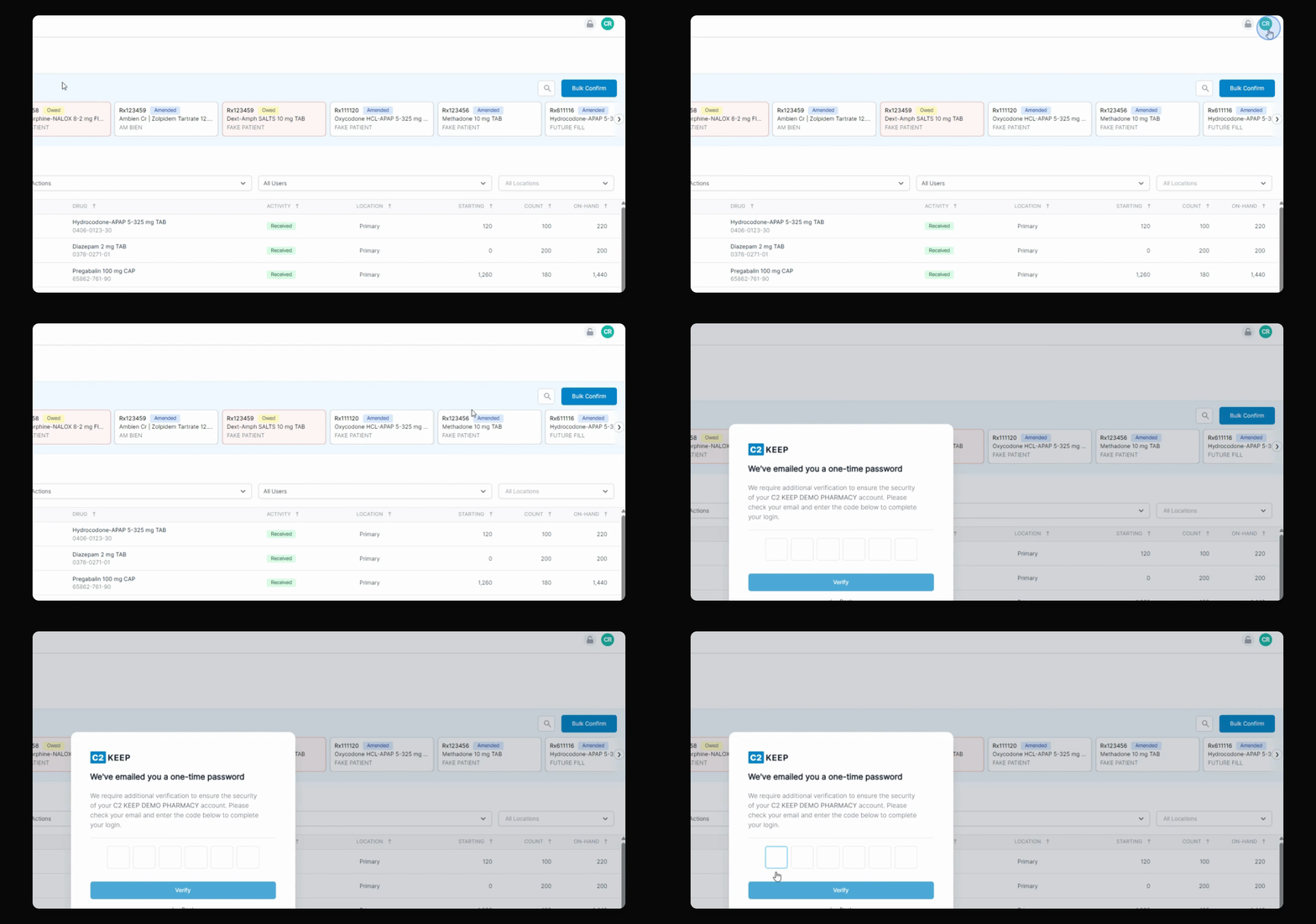
After they try to sign in, the system is going to ask them to enter the two factor or the one time password and they can log in.
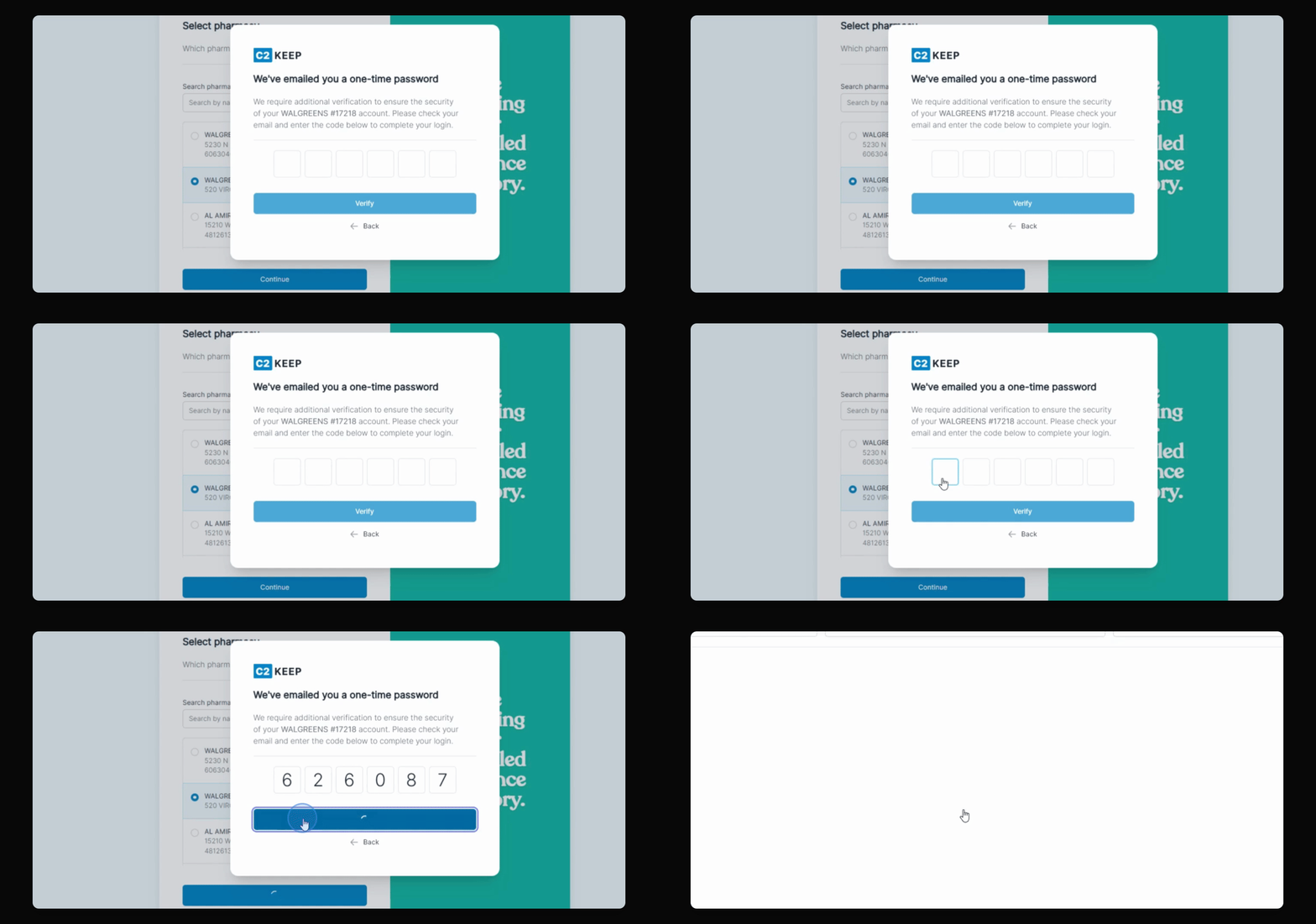
Step 4: Toggle Off
If the toggle is turned off, then users in that pharmacy can log in without requiring a one time password if they select the pharmacy.
Step 5: Switching Pharmacies
If you have access to multiple pharmacies and you sign in initially and pick a pharmacy that does not require the one time password, when you switch to another pharmacy that requires it, the system will email you a one time password which you would then be able to enter and then access that pharmacy.
Step 6: Enter Once
You only need to enter the one time password one time as long as you're logged in. If you switch to any other pharmacy, even if they do require a one time password, as long as you've entered it once, you don't have to enter it again.