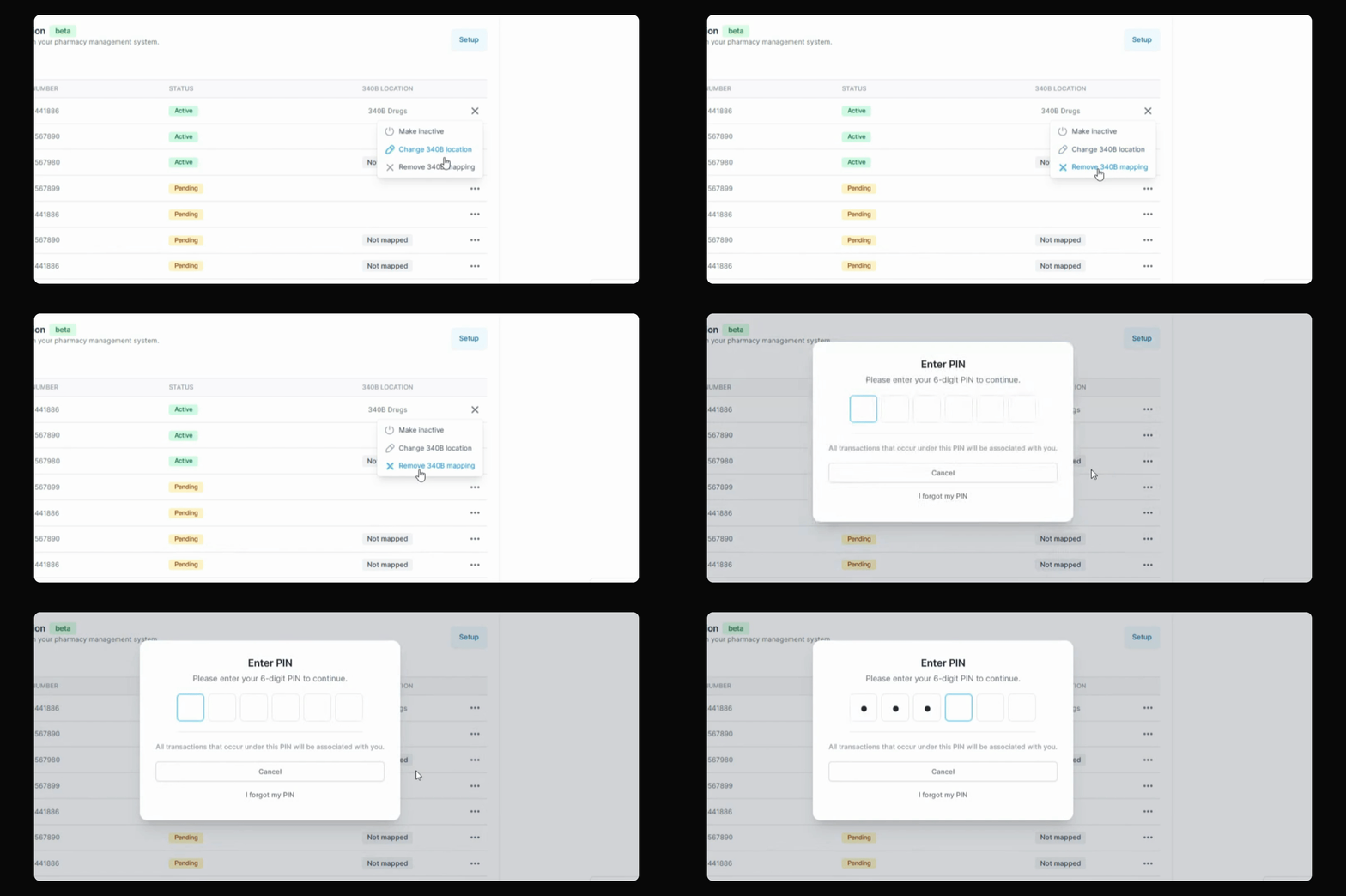
This guide explains how to change or un-map a 340B location from your pharmacy management system. Let's look at the steps:
Step 1: Go to PMS Integrations
Navigate to the Settings tab and scroll down to Pharmacy Management System integrations.
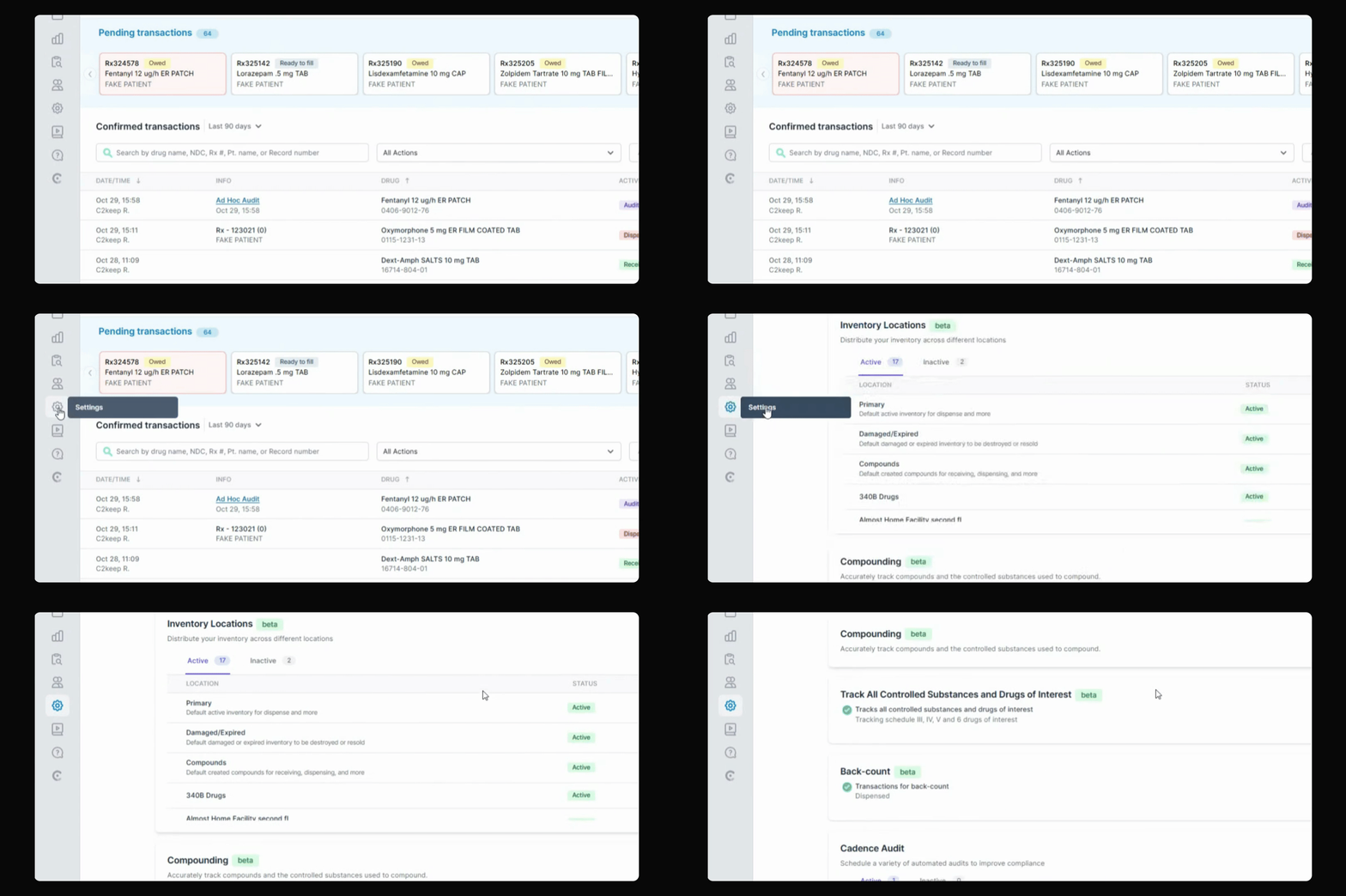
Step 2: Open 340B Location Options
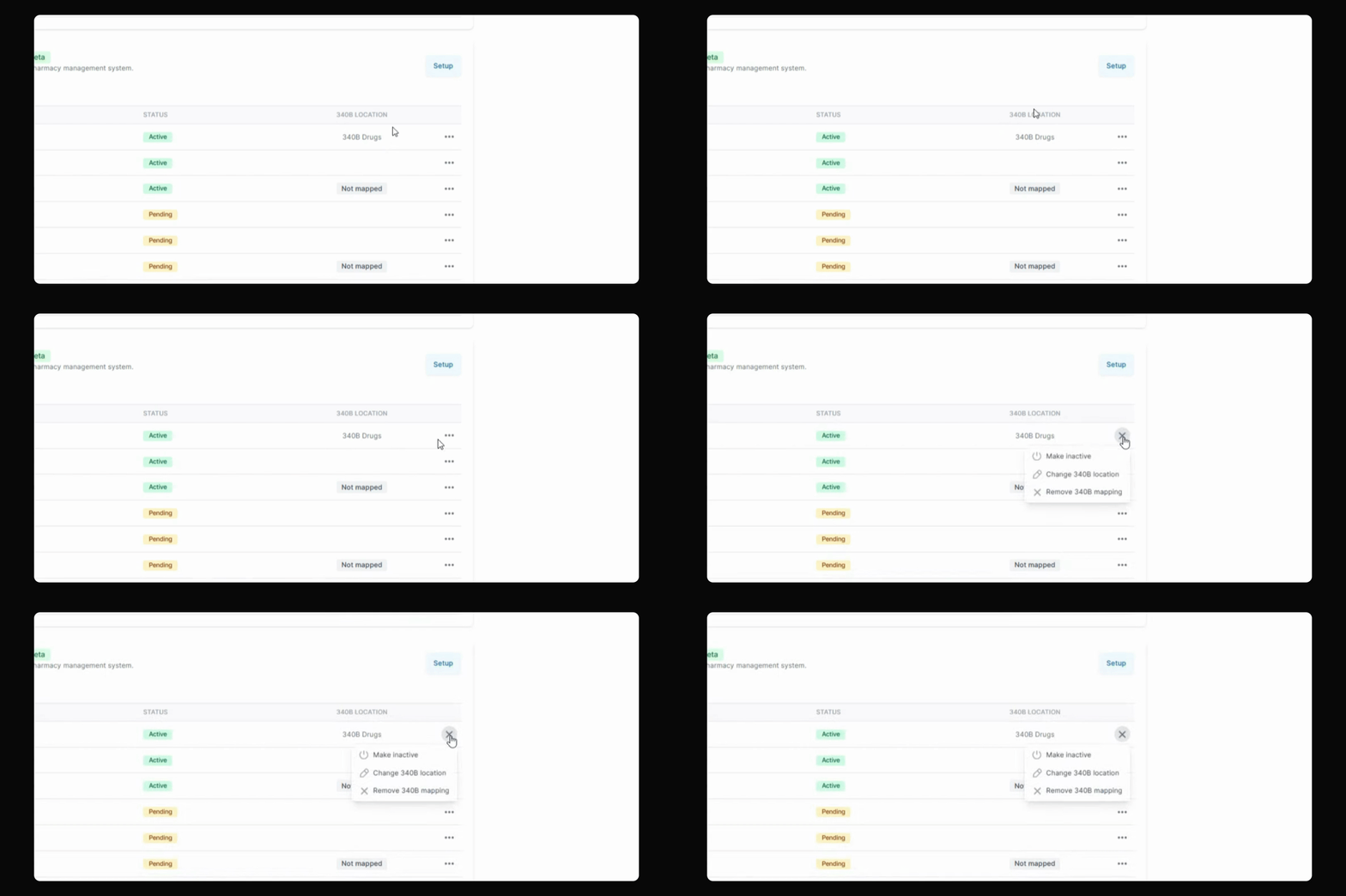
Find the mapped 340B location in the list. Click on the three dots on the right-hand side and select Change 340B location to change it to a different location.
Step 3: Remove 340B Mapping
To un-map, choose to remove the 340B mapping. Enter your PIN when prompted to confirm and complete the un-mapping process.