

To ensure smooth integration with other systems and enable new time-dependent features, it's important to set your pharmacy's business hours and time zone in the C2 Keep application. Let's look at the steps:
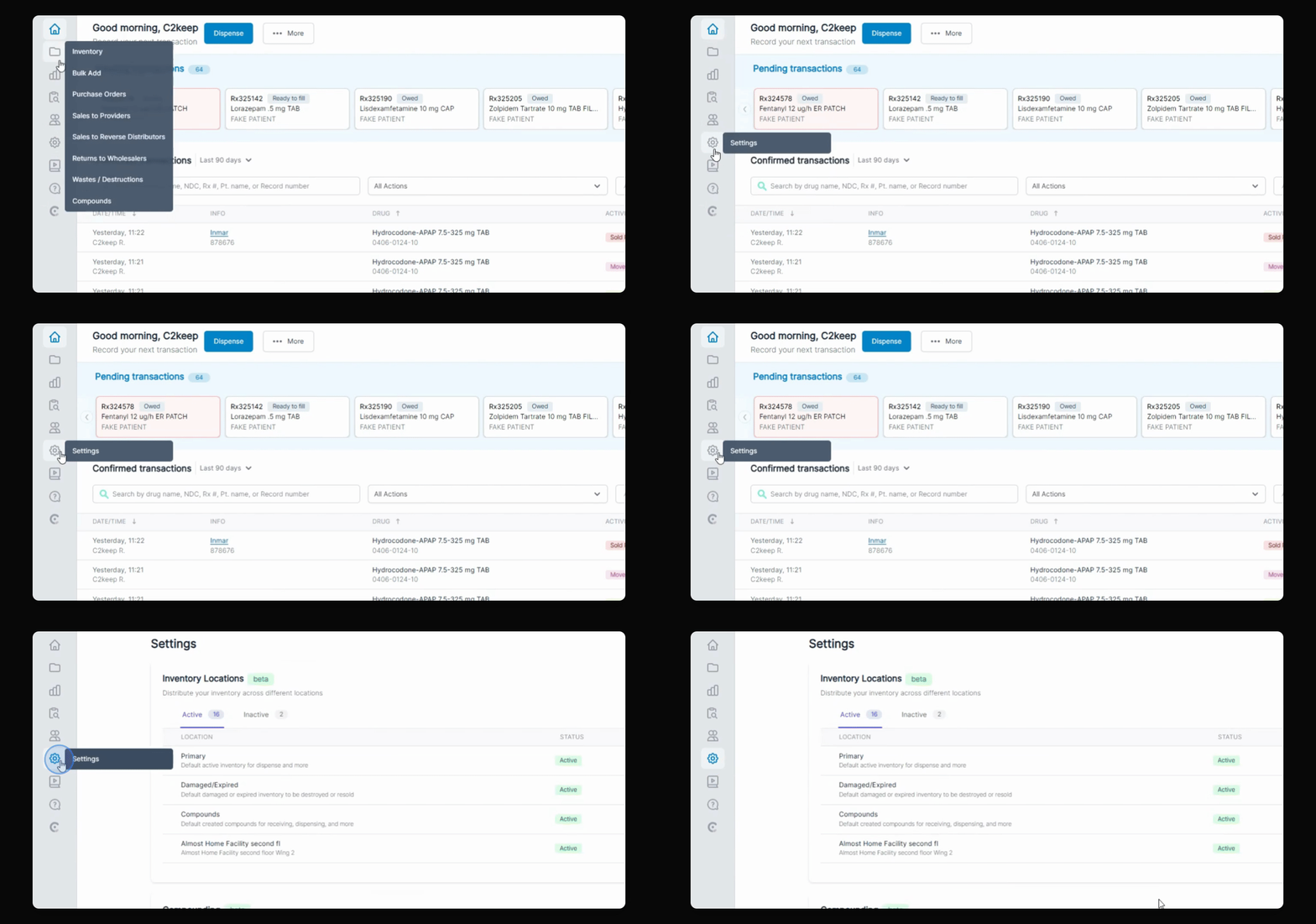
Step 1: Navigate to Settings
As an administrator, go to Settings in your C2 Keep dashboard. Scroll down to Configure Business Hours and Time Zone and click Set.
Step 2: Review Default Hours
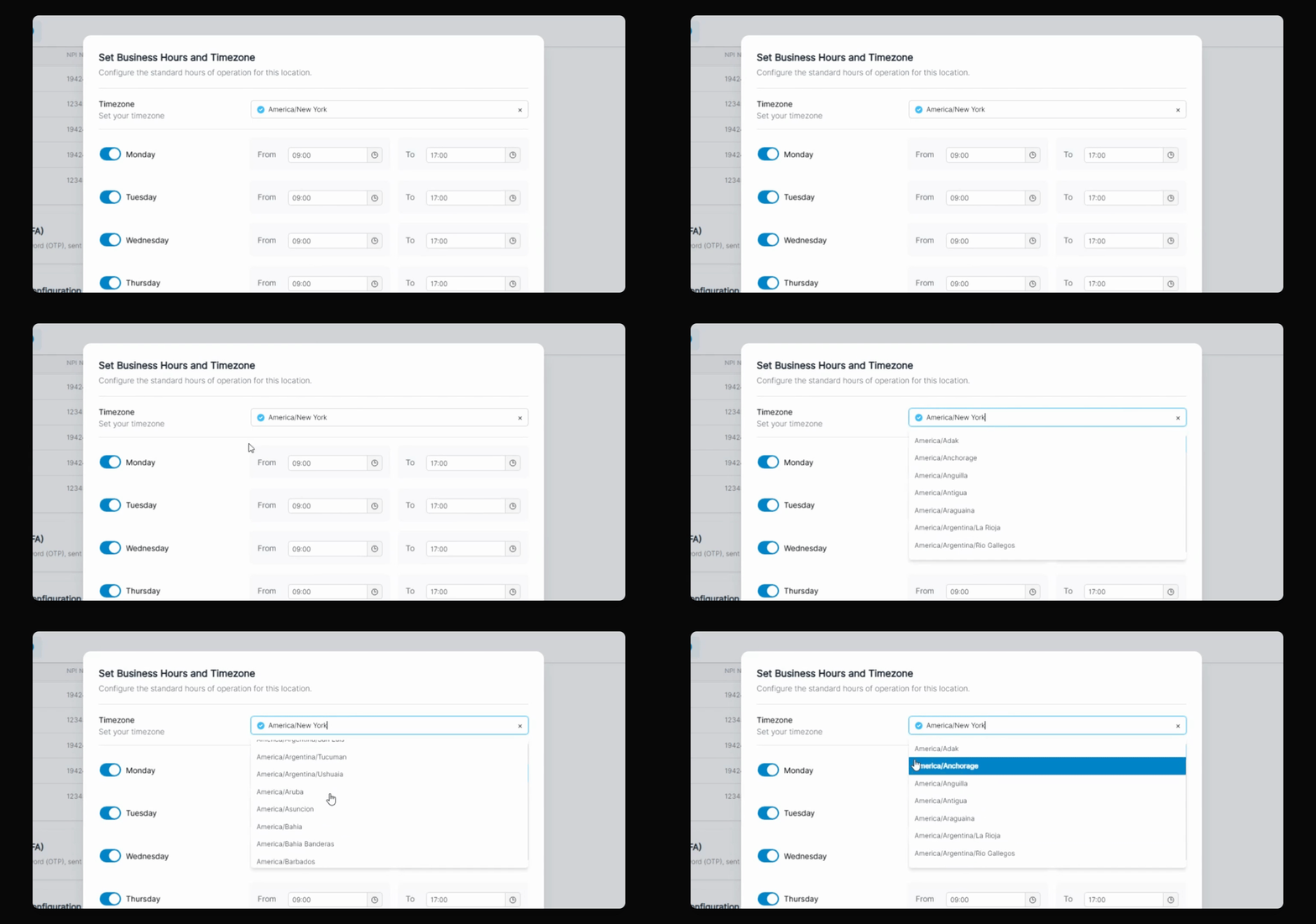
Some business hours may already be pre-filled by default. Check these to see if they are accurate for your pharmacy.
Step 3: Set Time Zone and Hours
Select the time zone your pharmacy operates in. For each day your pharmacy is open, set the correct business hours.
Step 4: Save Changes
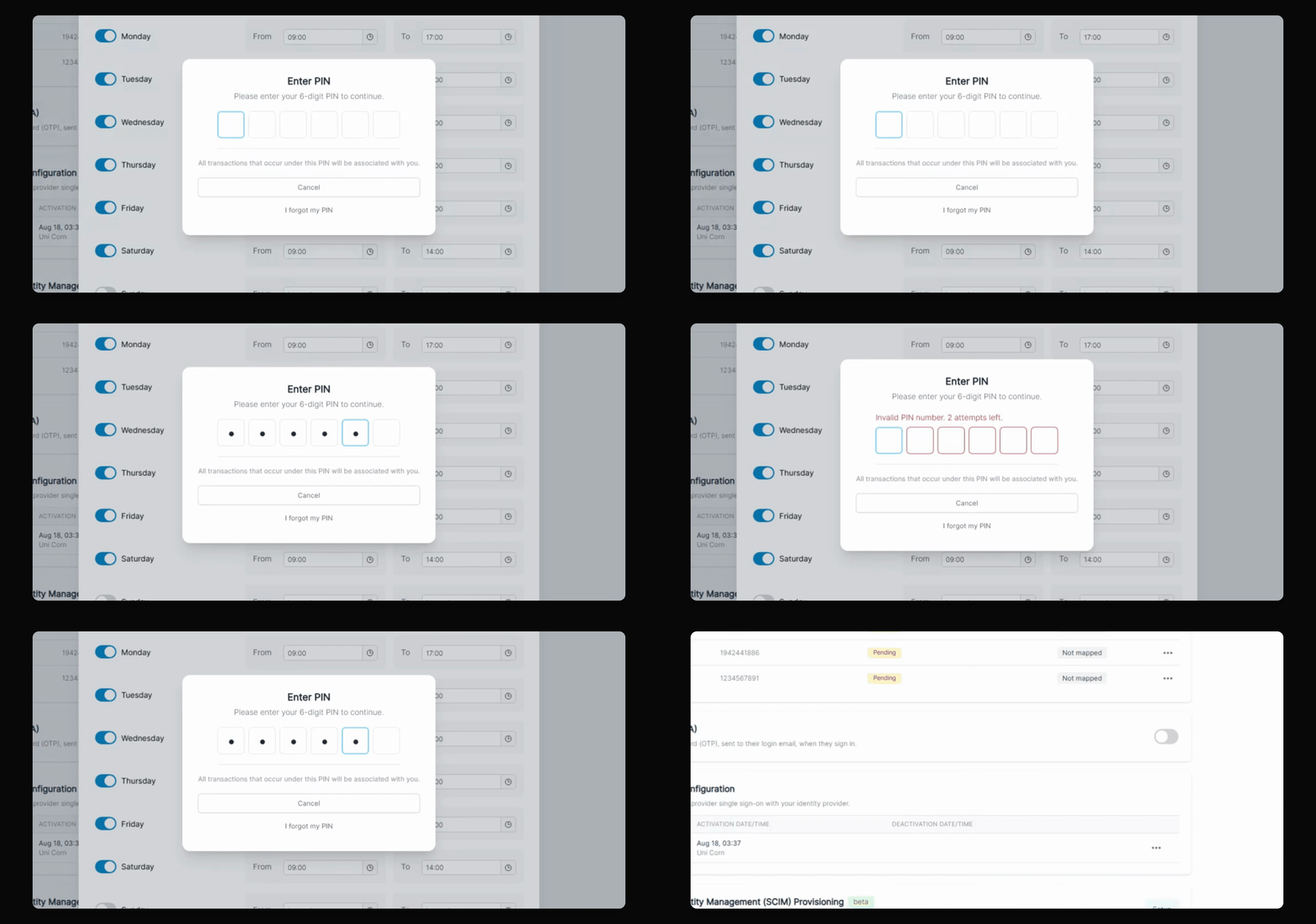
When finished, click Save and enter your PIN to confirm the changes.
The system will now use your specified business hours and time zone to improve integrations and enable new features that depend on accurate timing.