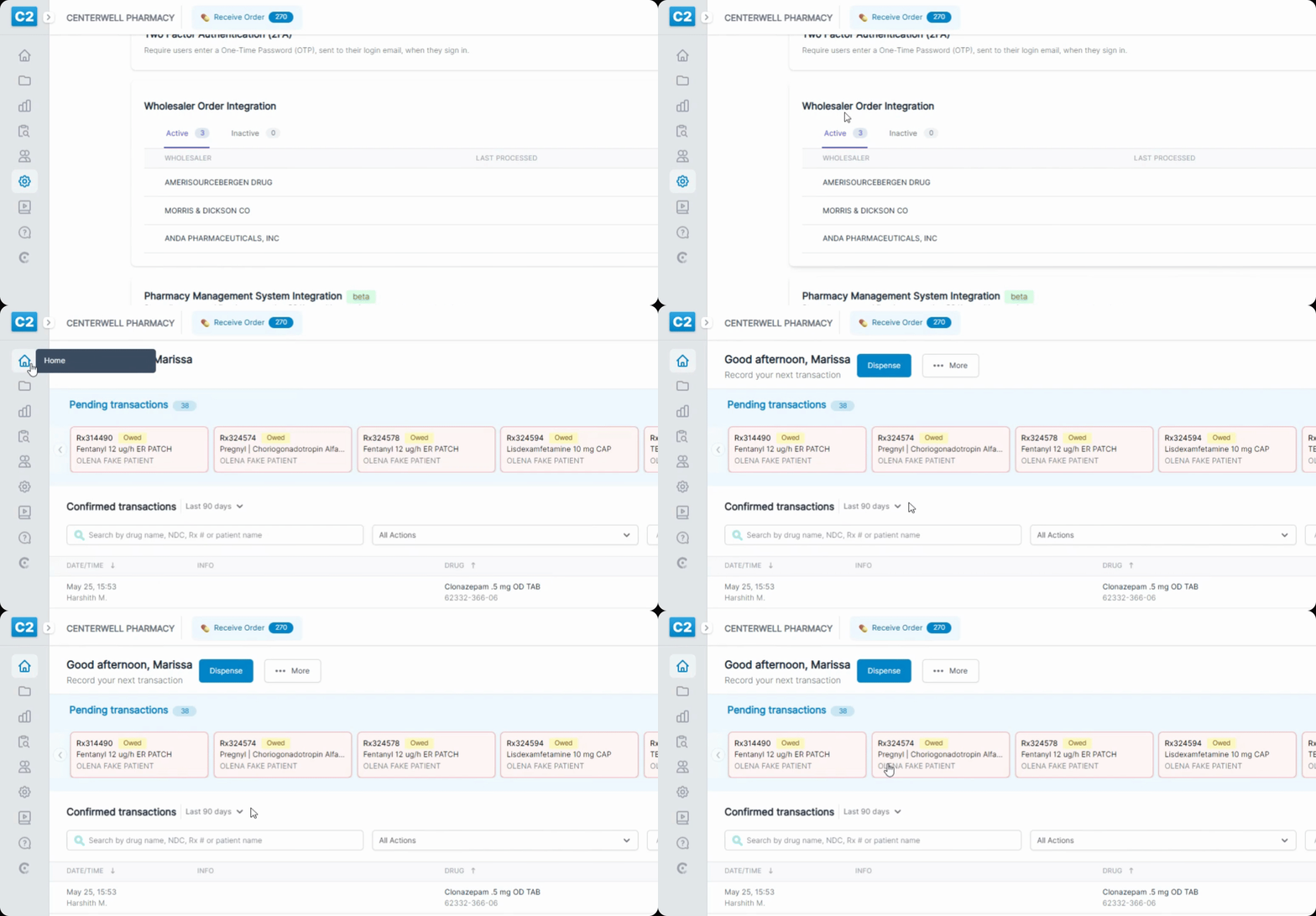
This guide explains how to set up the Best Rx integration with C2 Keep, enabling prescription data syncing between the two platforms. Let's look at the steps:
Step 1: Go to Settings
From the C2 Keep home page, navigate to the Settings page.
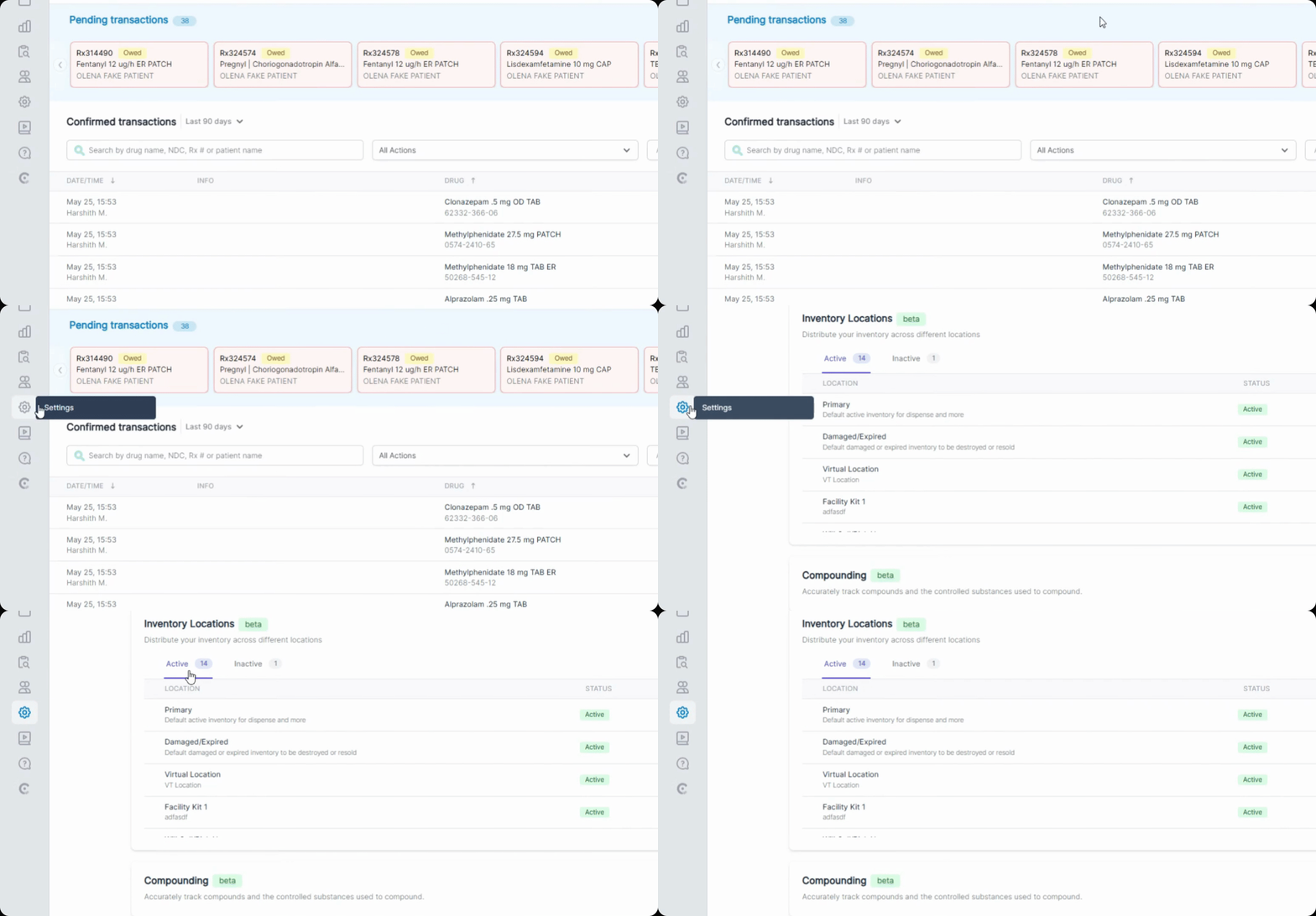
Step 2: Start Pharmacy Management Integration
Scroll down in Settings until you find the Pharmacy Management integration section, then click Setup.
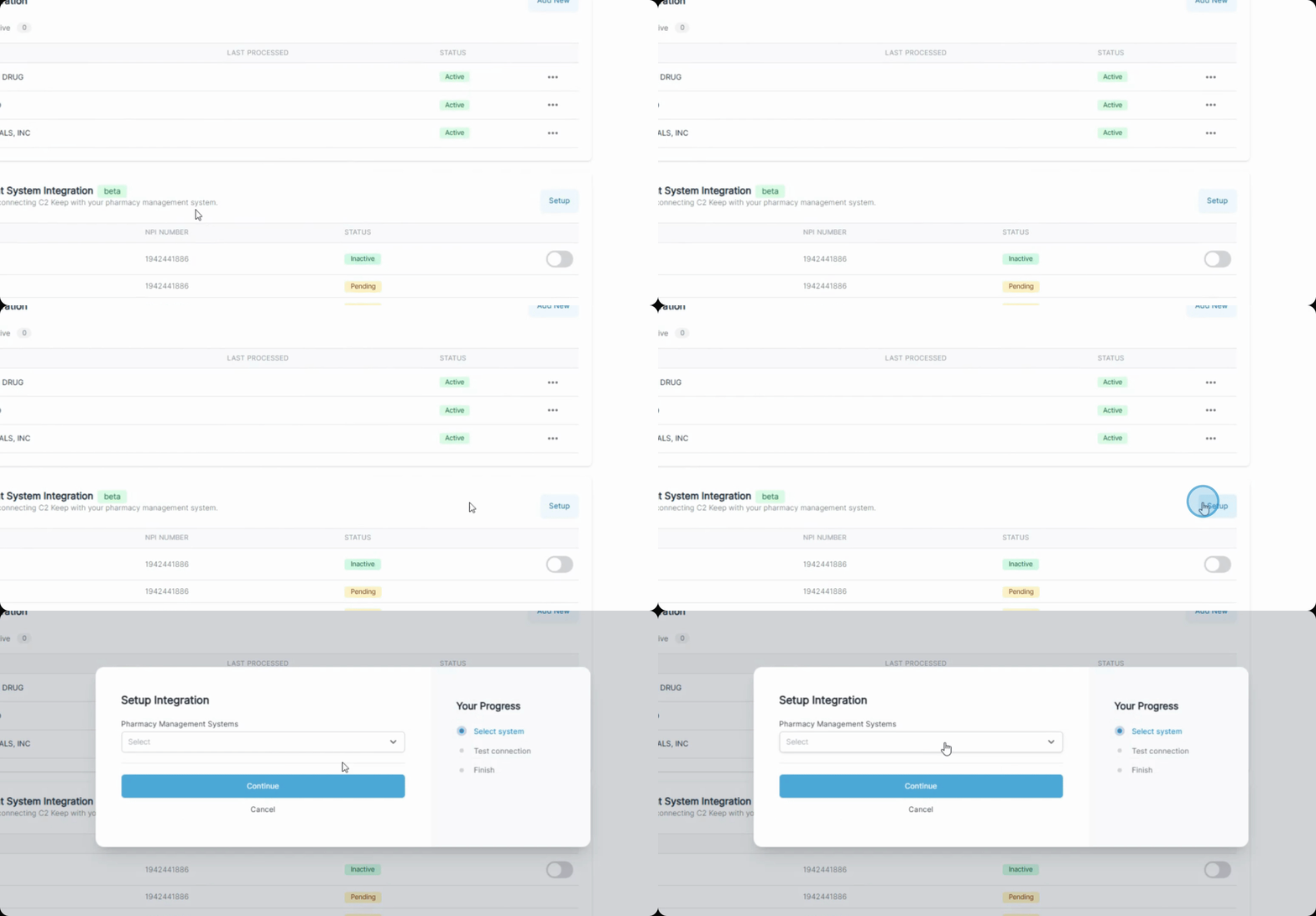
Step 3: Select Best Rx
Choose Best Rx as your integration option.
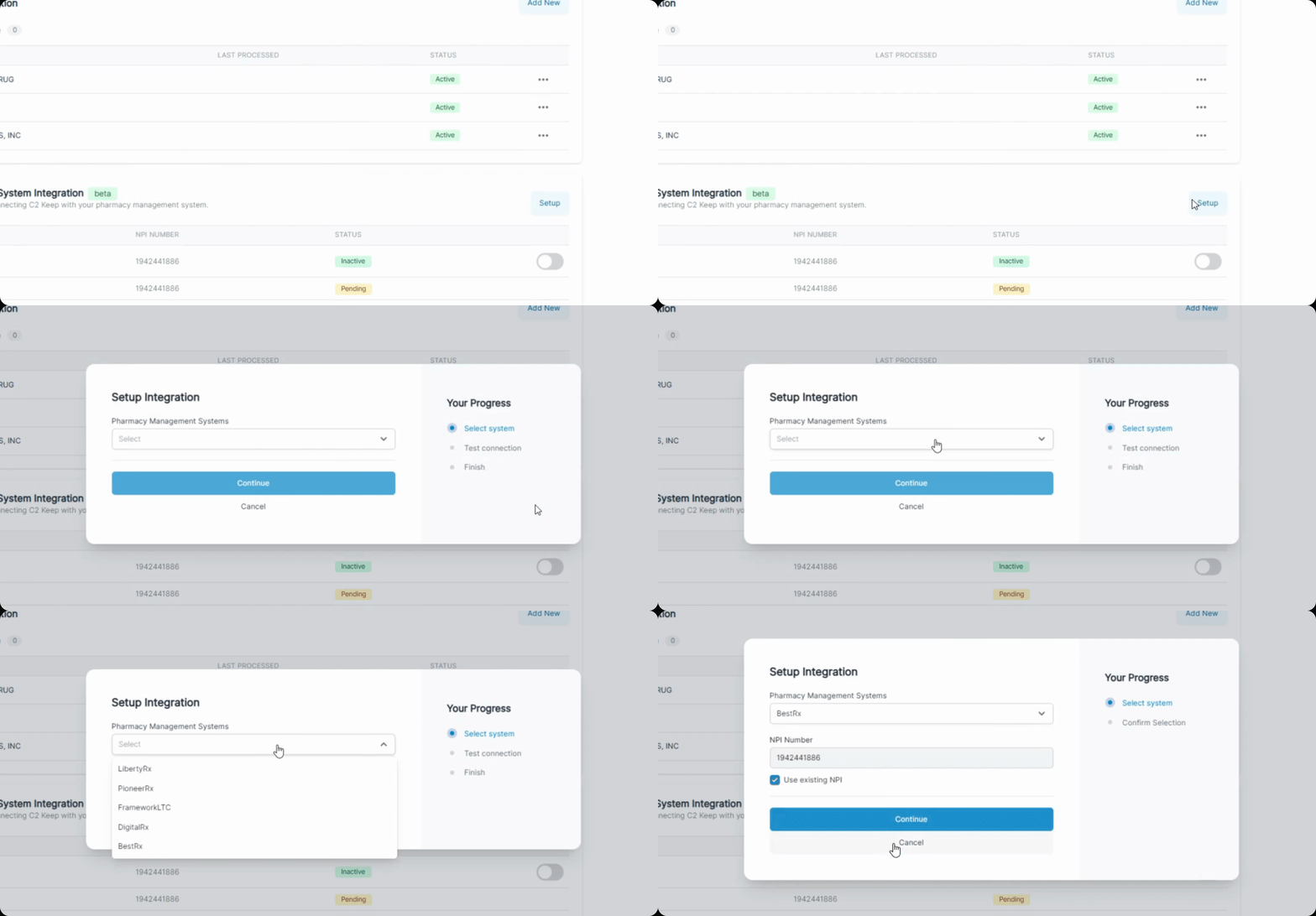
Step 4: Choose or Add NPI
You can use your existing NPI or add a new one as needed.
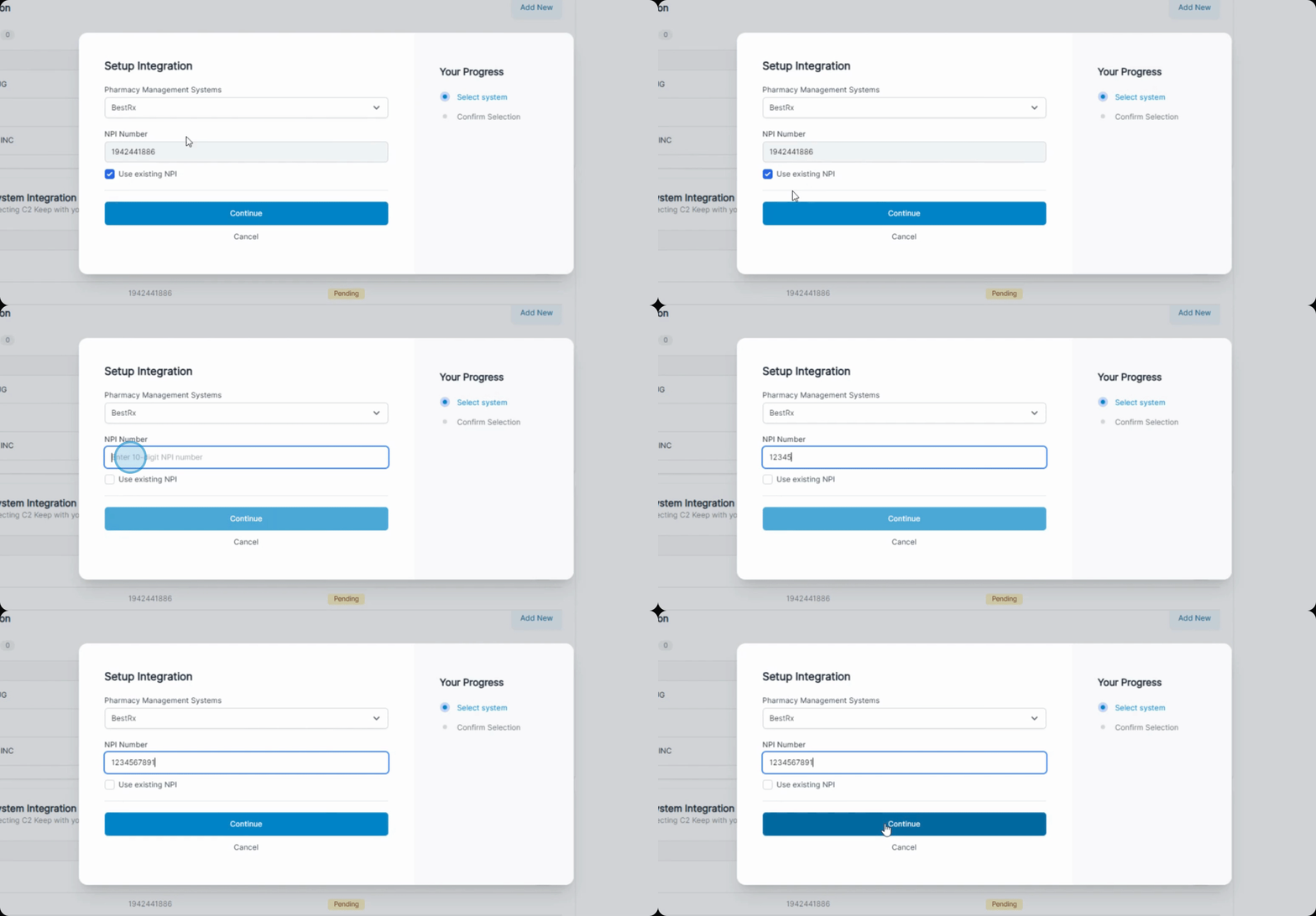
Step 5: Continue to Consent Form
Click Continue to proceed to the consent form.
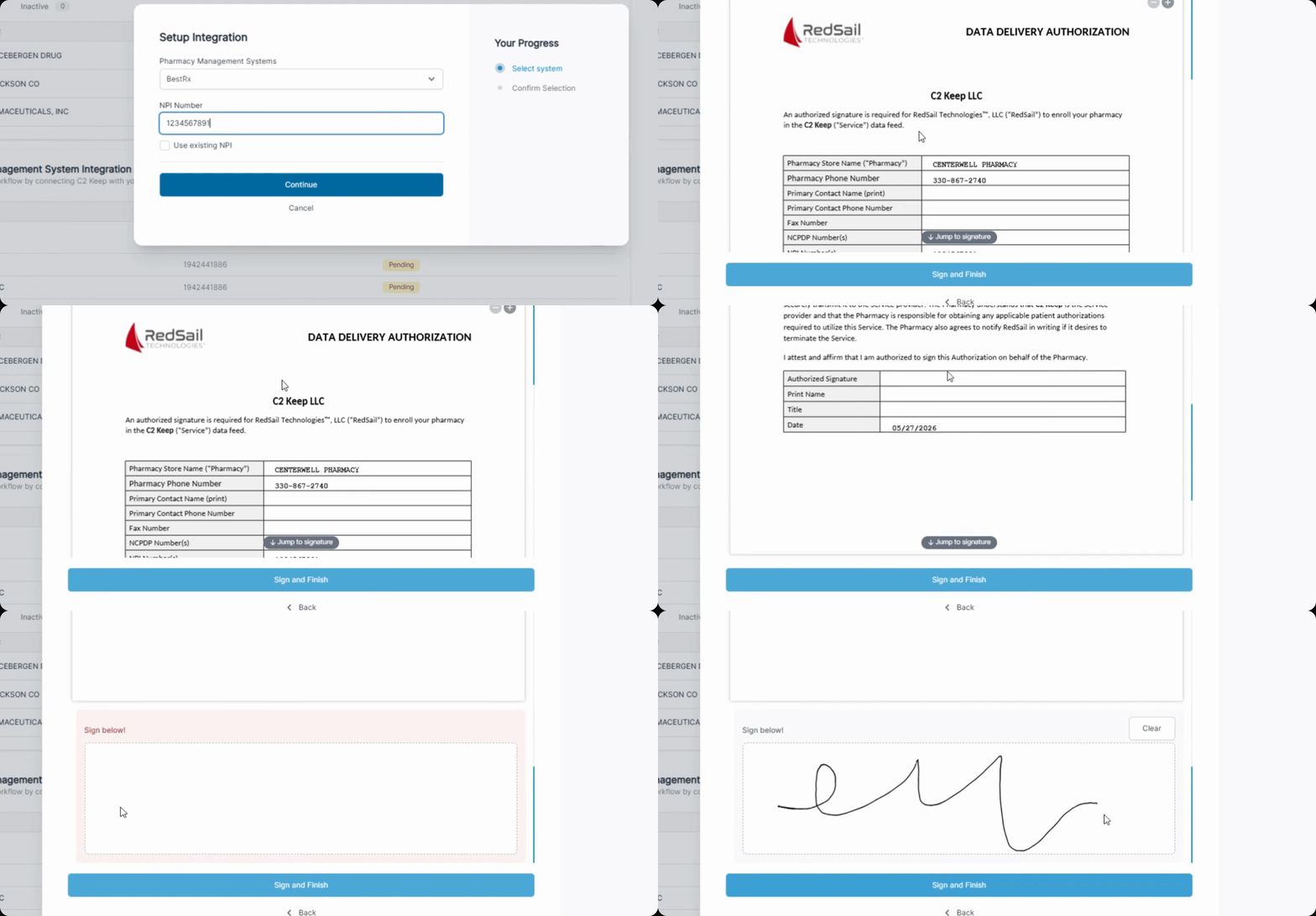
Step 6: Sign Consent Form
Review and sign the consent form to authorize integration.
Step 7: Complete Signing
Finish the signing process as prompted.
Step 8: Enter Your PIN
After signing, enter your PIN to confirm your identity.
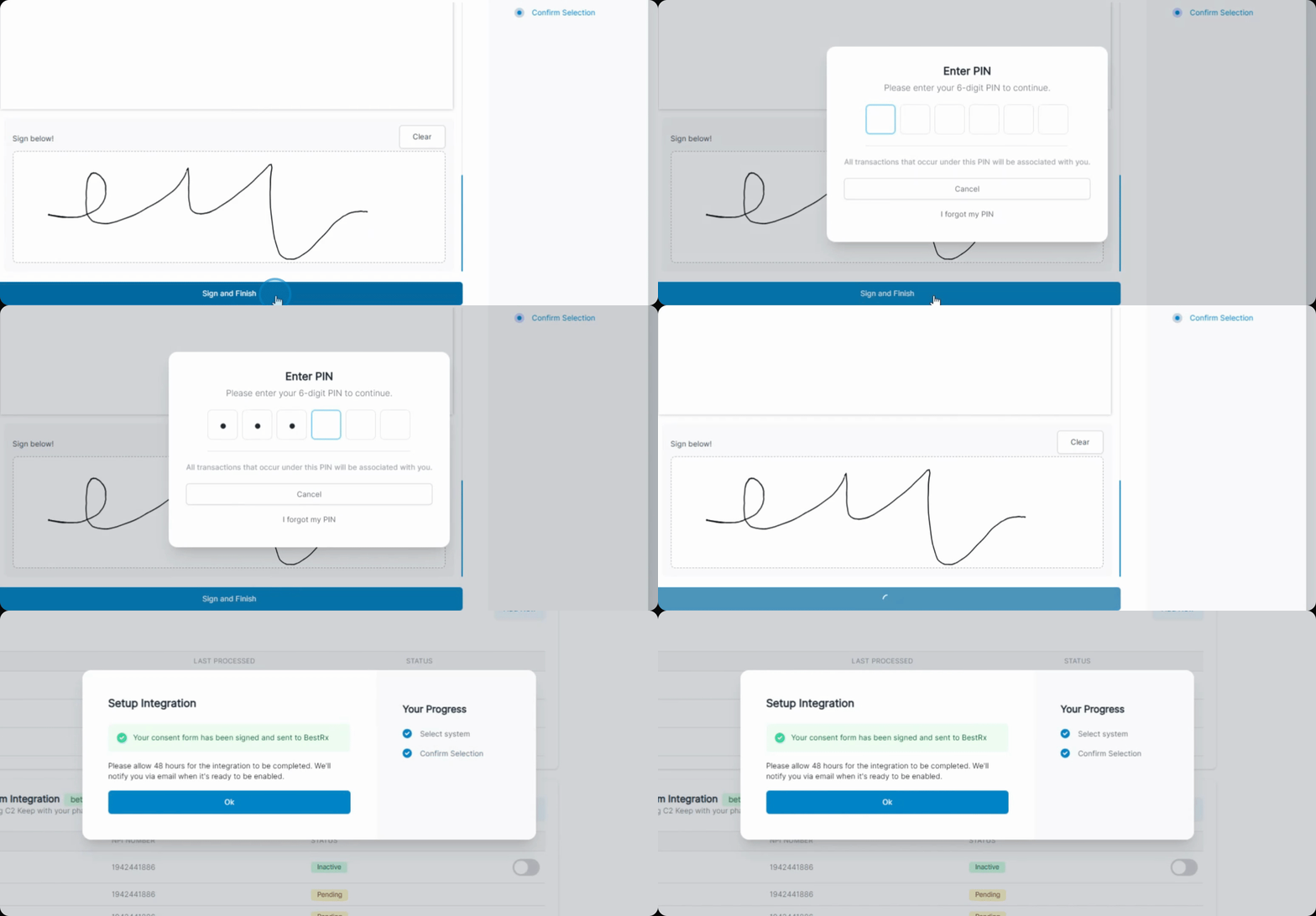
The consent form you signed will be sent to Best Rx to activate the integration with C2 Keep.
While activation is processing, your Best Rx integration status will be set to pending.
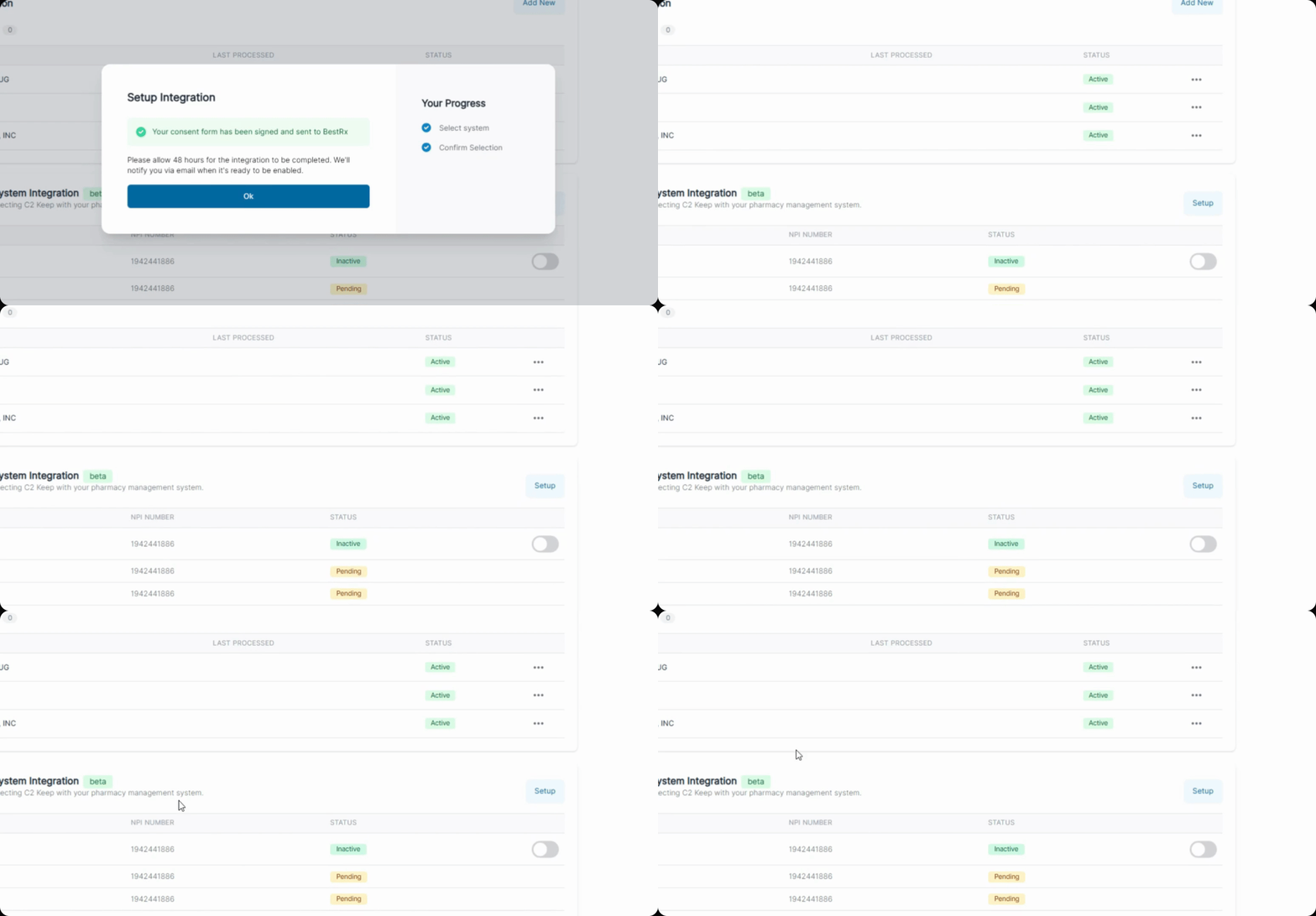
Once C2 Keep begins receiving your data, you will get an email notification. When ready, return to C2 Keep and turn on the Best Rx integration.
After enabling, prescriptions that qualify as controlled substances will appear in C2 Keep for confirmation.