

This tutorial introduces the new Cadence Audits feature, which helps you schedule and automate different types of audits so you never miss state requirements. Let's look at the steps:
Step 1: Go to Cadence Audits
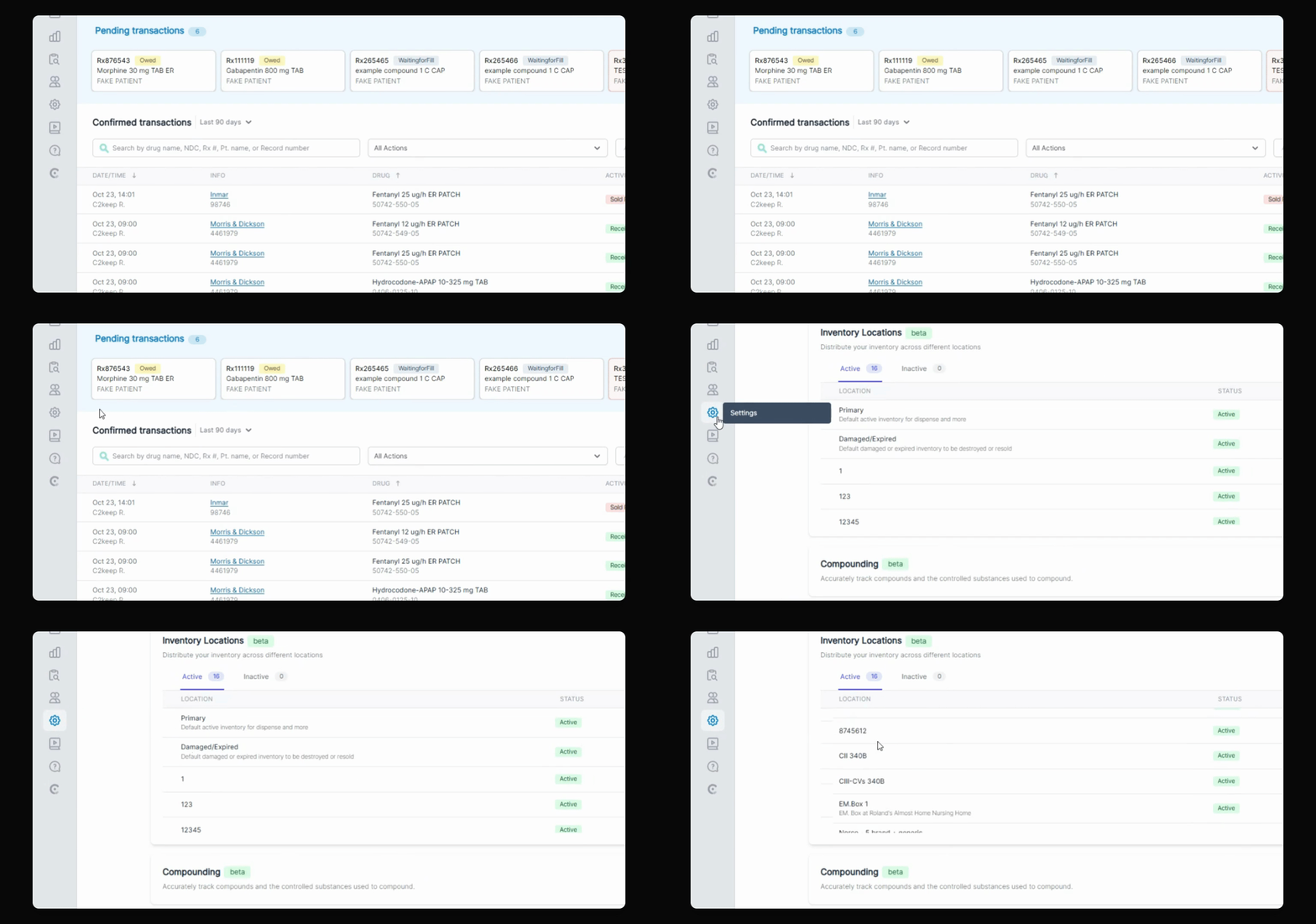
Navigate to the Settings page and scroll down to Cadence Audits.
Step 2: Start Audit Setup
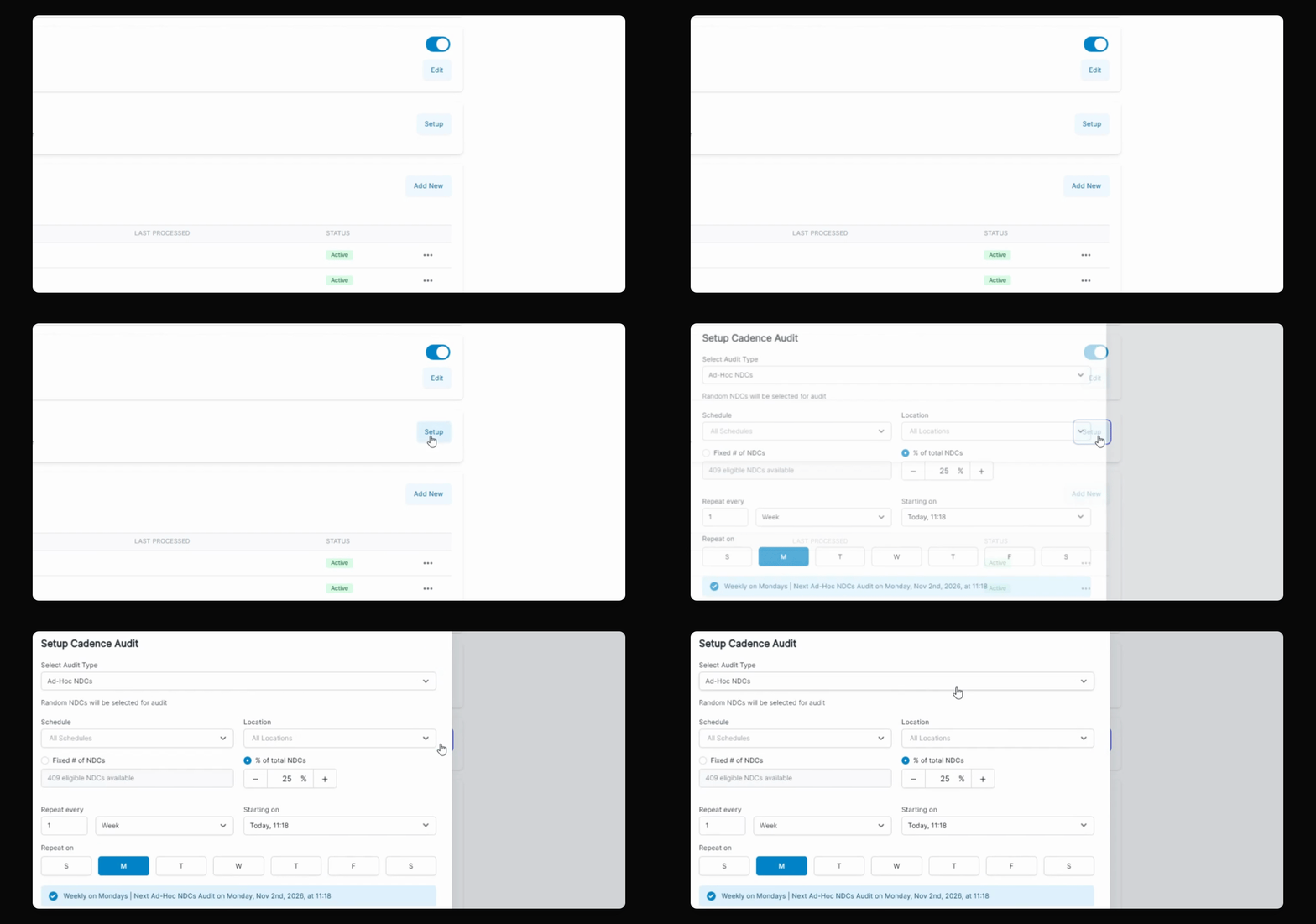
Click Setup to begin creating a cadence audit. You will see several audit types available for selection.
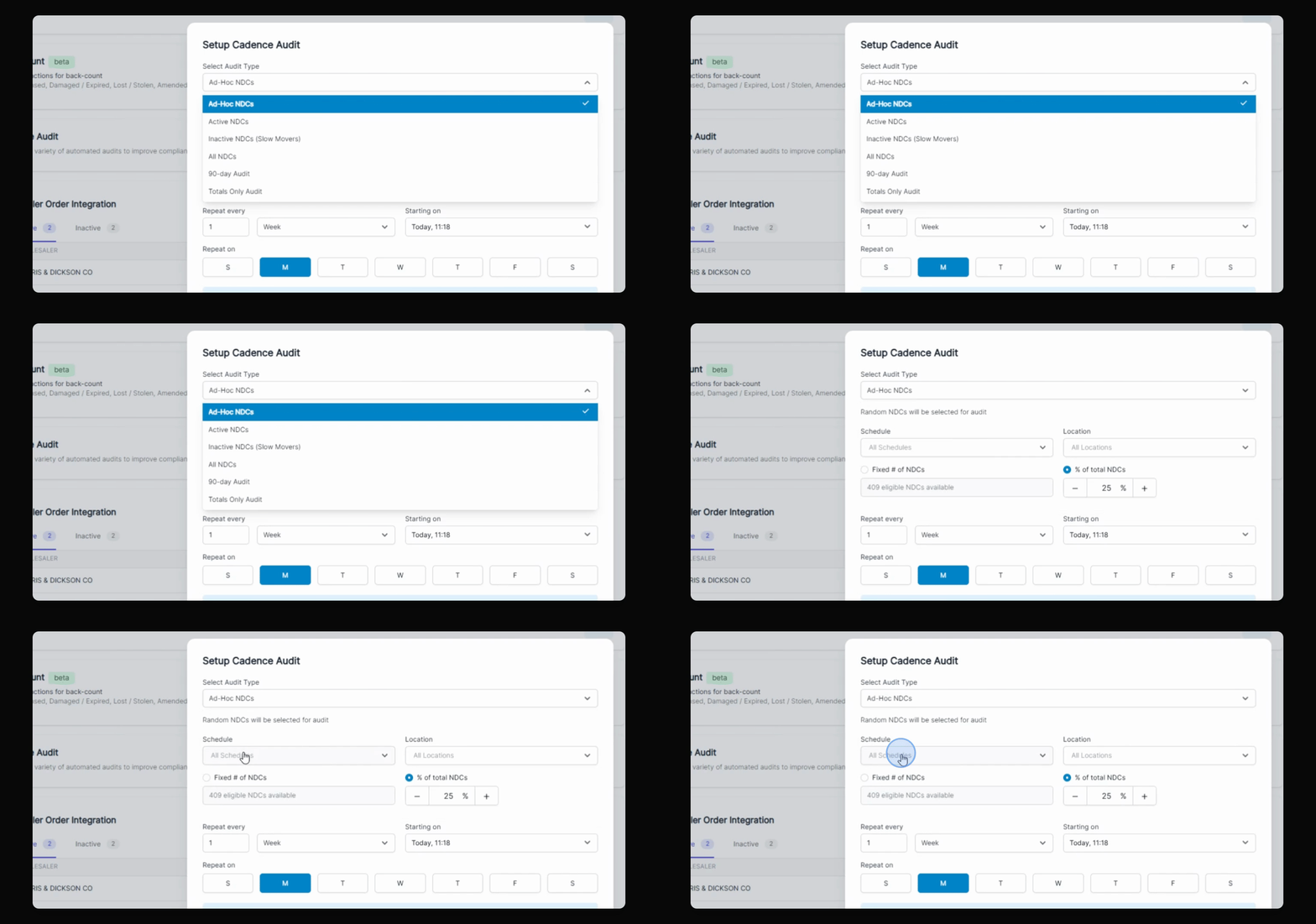
Available audit types include ad hoc audits for random NDCs or a set number of NDCs, active NDCs within a period, slow movers, audits for all NDCs, California 90 day audits, and totals only audits.
Step 3: Choose Ad Hoc Audit
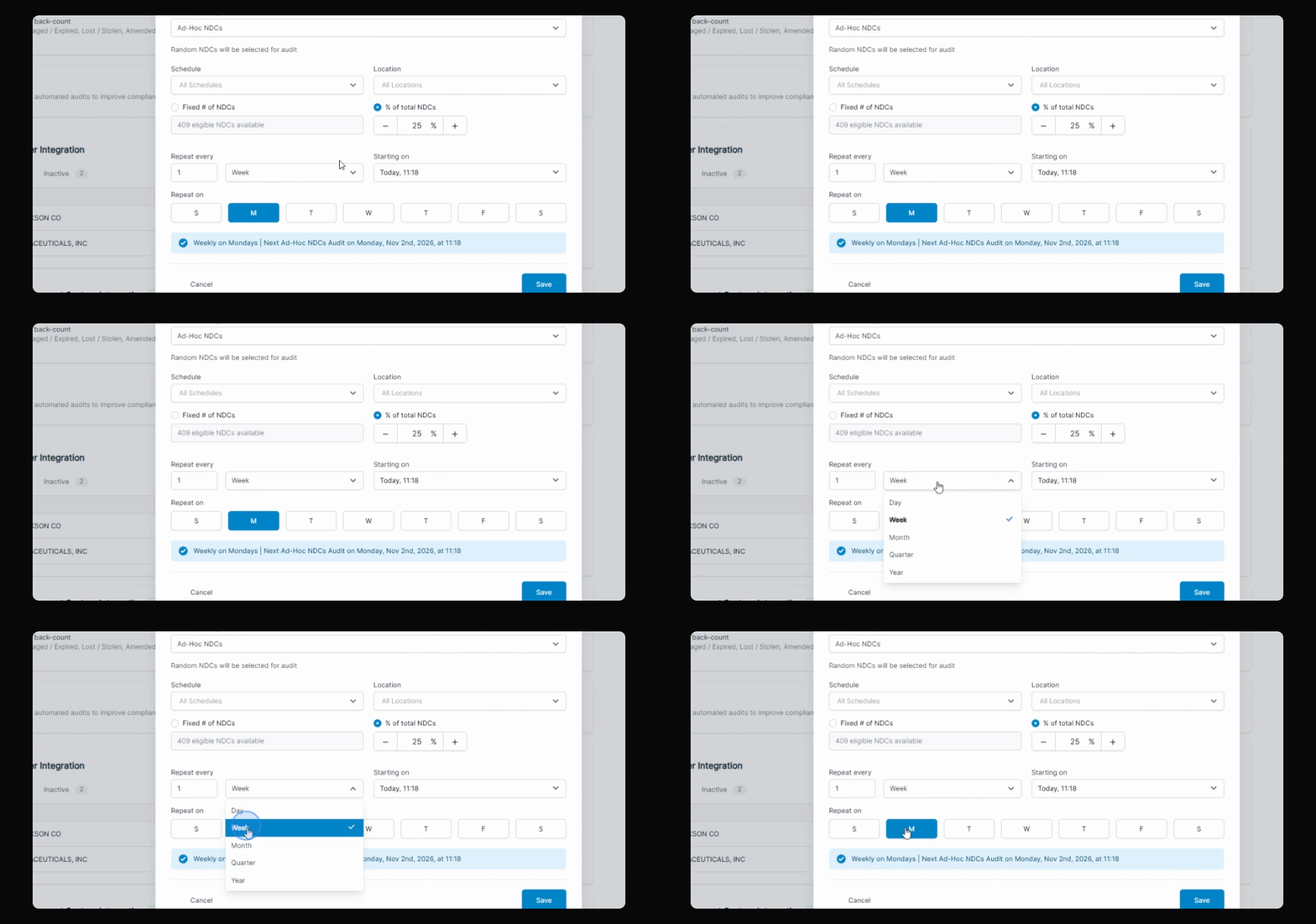
For this example, select Ad Hoc audit. You can filter by schedule and inventory location.
Step 4: Configure Audit Details
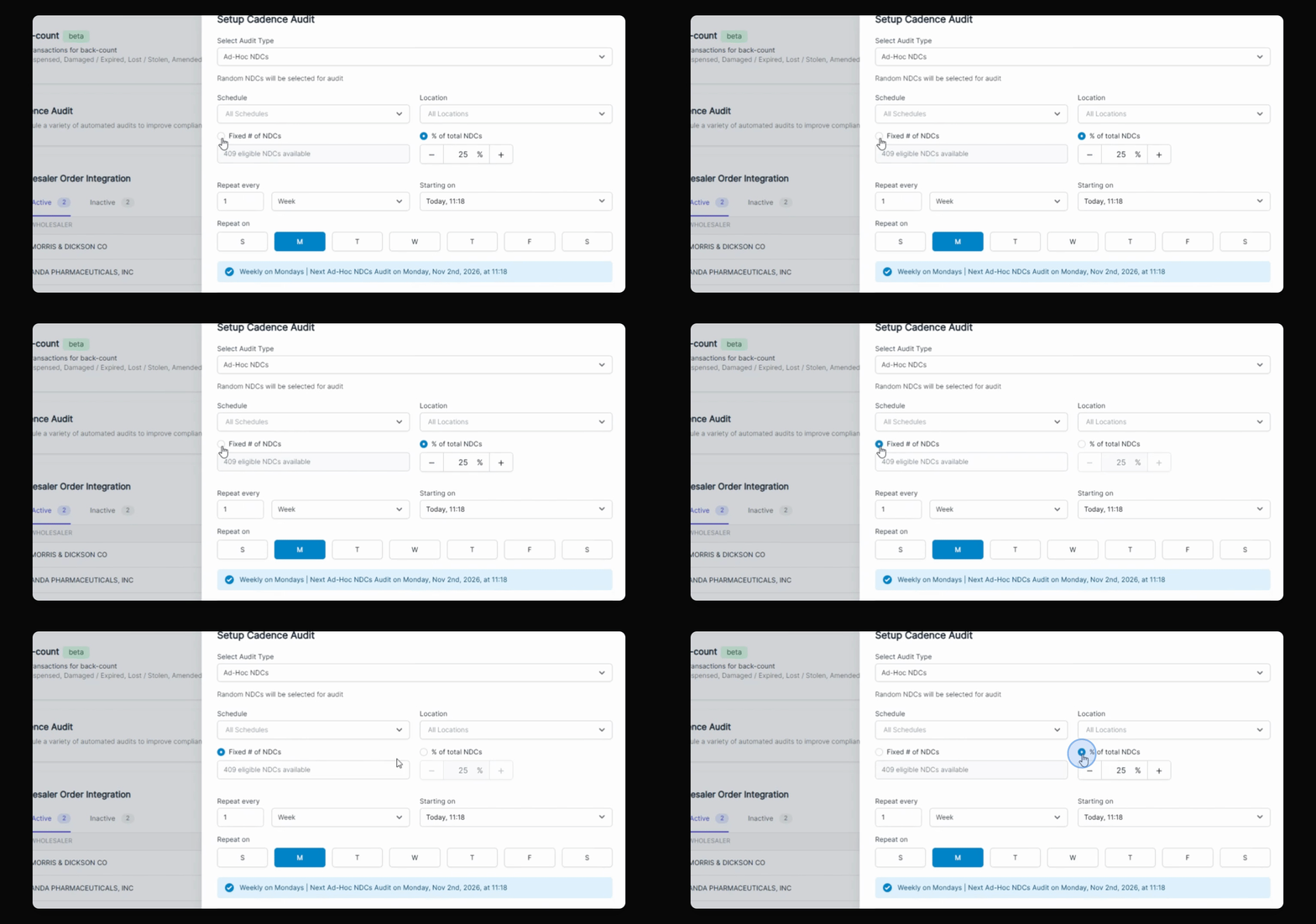
Choose whether to audit a fixed number or a percentage of random NDCs. Adjust the number as needed. Set how often the audit should run.
Step 5: Set Audit Schedule
Specify the frequency (e.g., weekly), start date, and time. For example, set it to run every week starting today at a specific time.
Step 6: Save and Confirm
Click Save and enter your PIN to confirm the scheduled cadence audit.
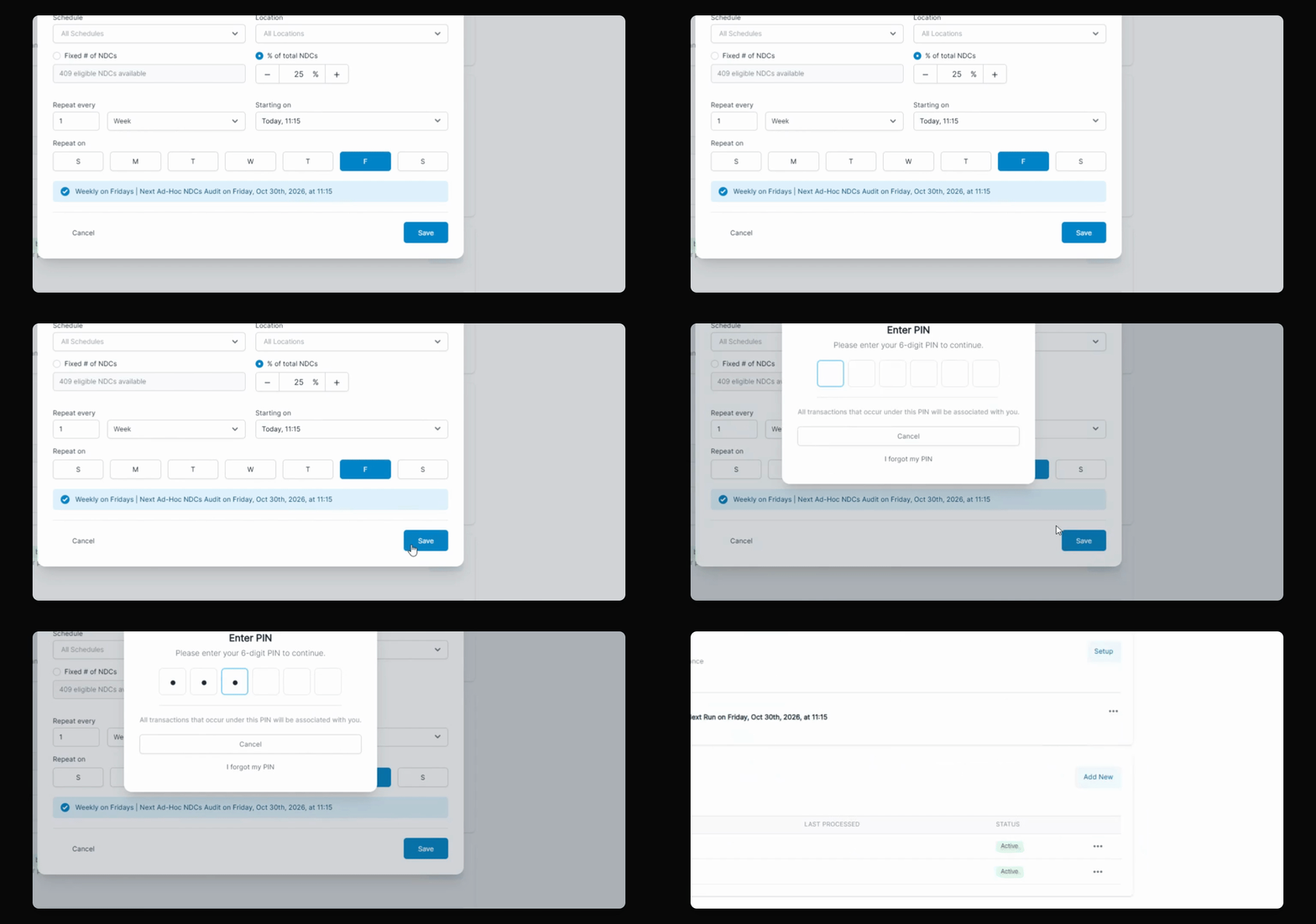
Once saved, the cadence audit will be scheduled and the entire staff will be notified when it is ready to run.
You can create multiple cadence audits, each with different features and schedules. Options include daily, monthly, quarterly, or yearly runs. For monthly audits, you can select the specific day. The start time determines when the audit is created.
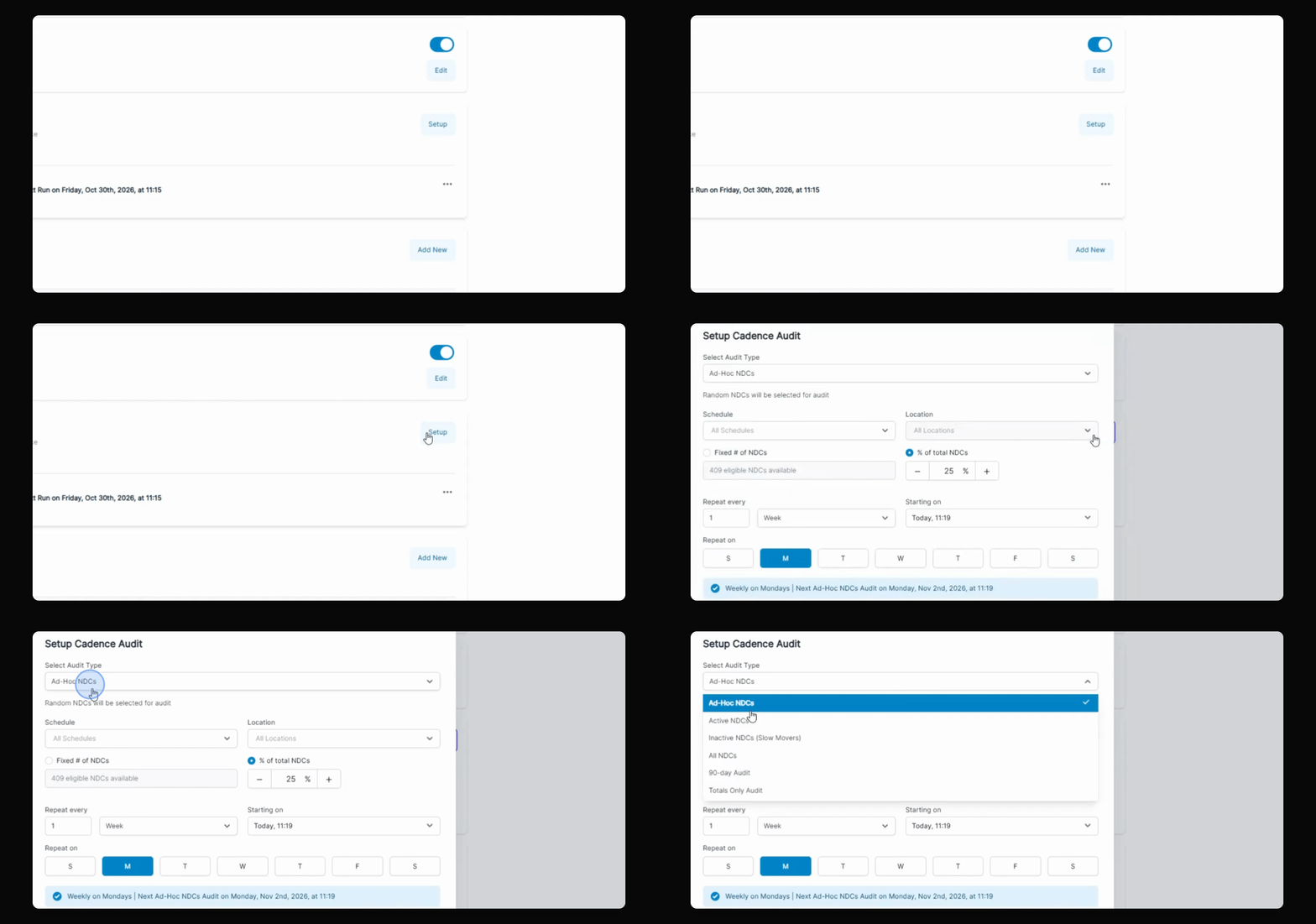
Business hours are used to ensure audits are created at appropriate times. If an audit is scheduled for a day your business is closed, it will be created the day before when you are open.
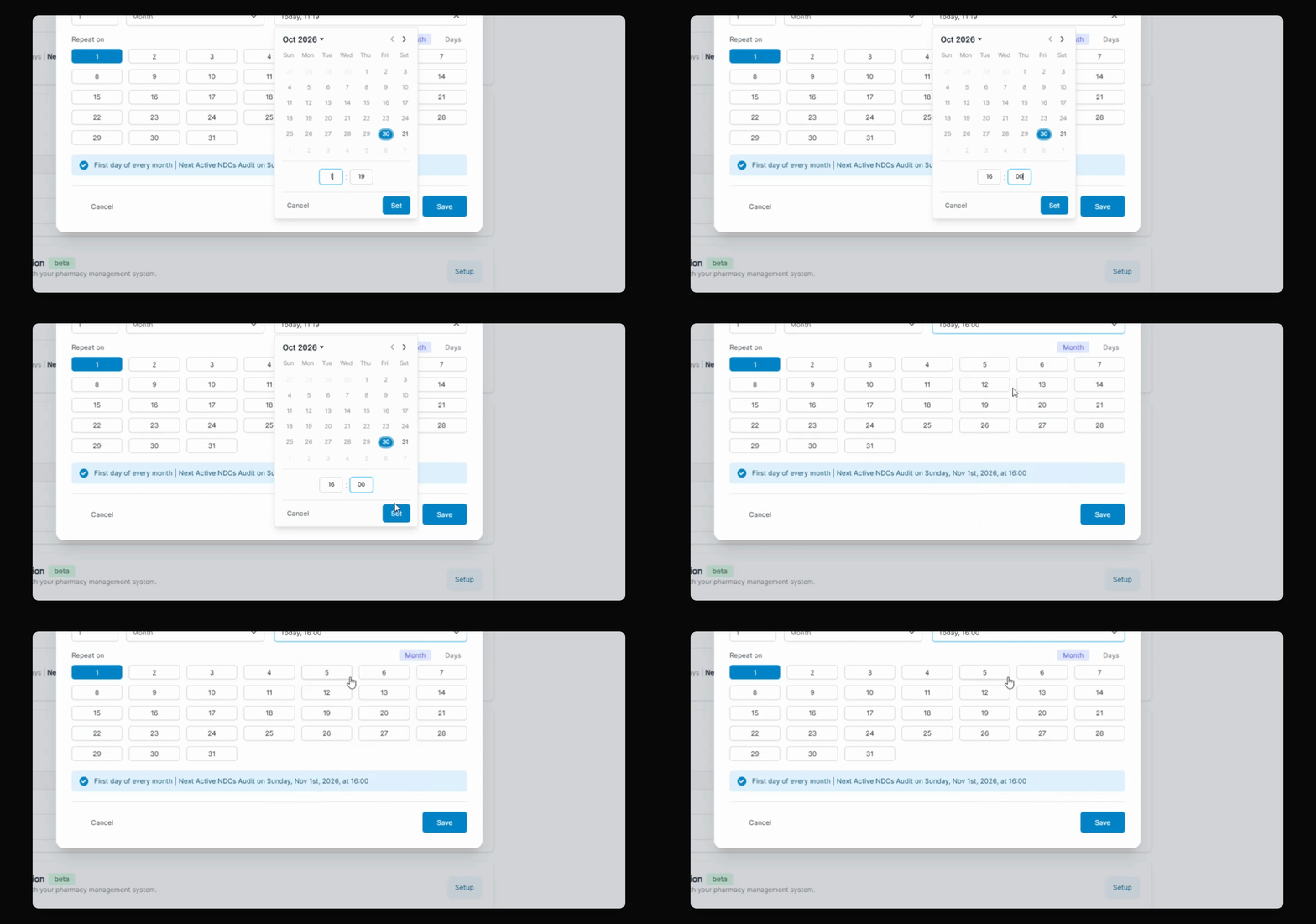
You can generate various audit types, filter by location, and configure different cadences to match your needs.
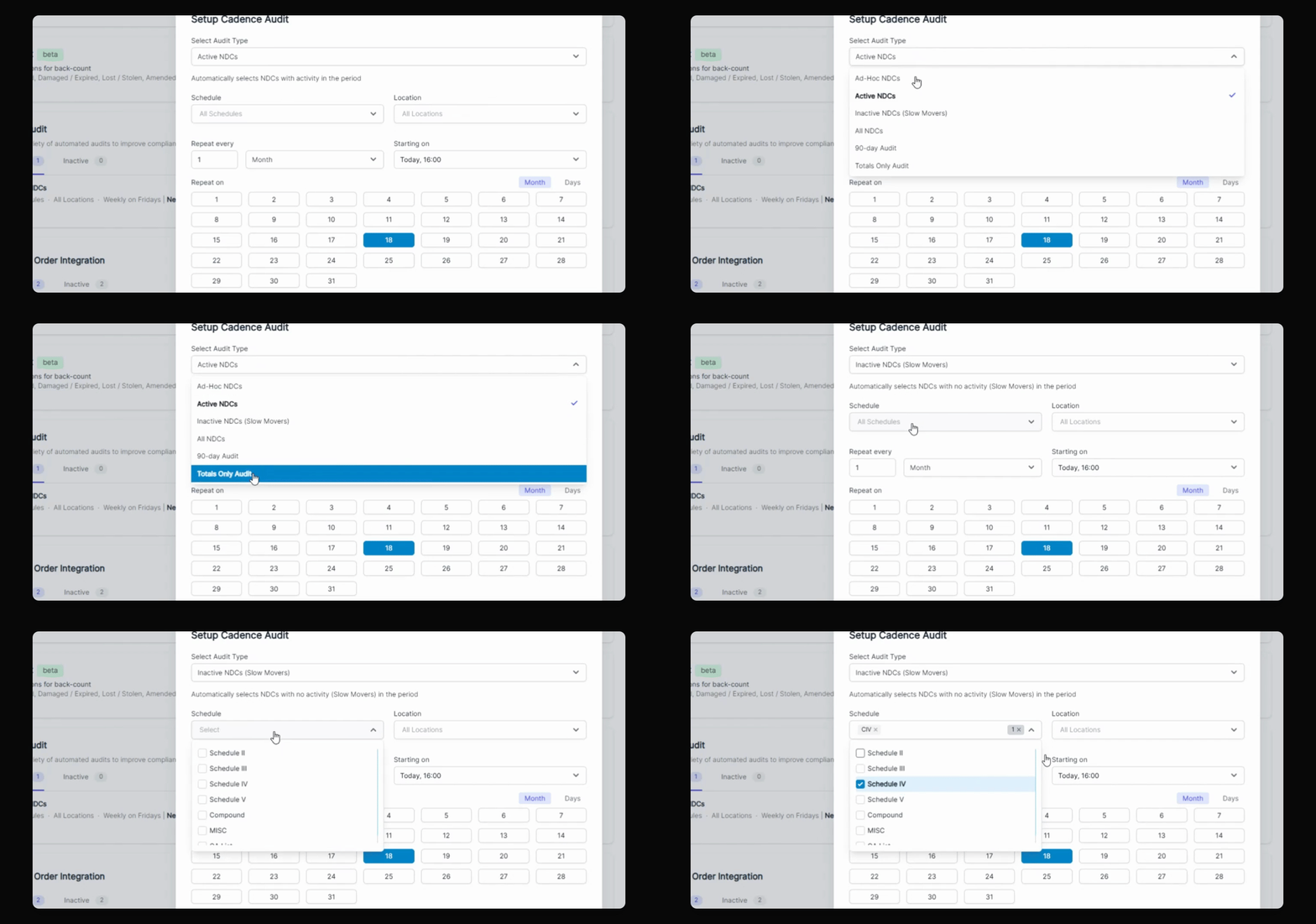
Step 7: Edit or Archive Audits
Edit previously scheduled cadence audits or archive them if you no longer want them to run.
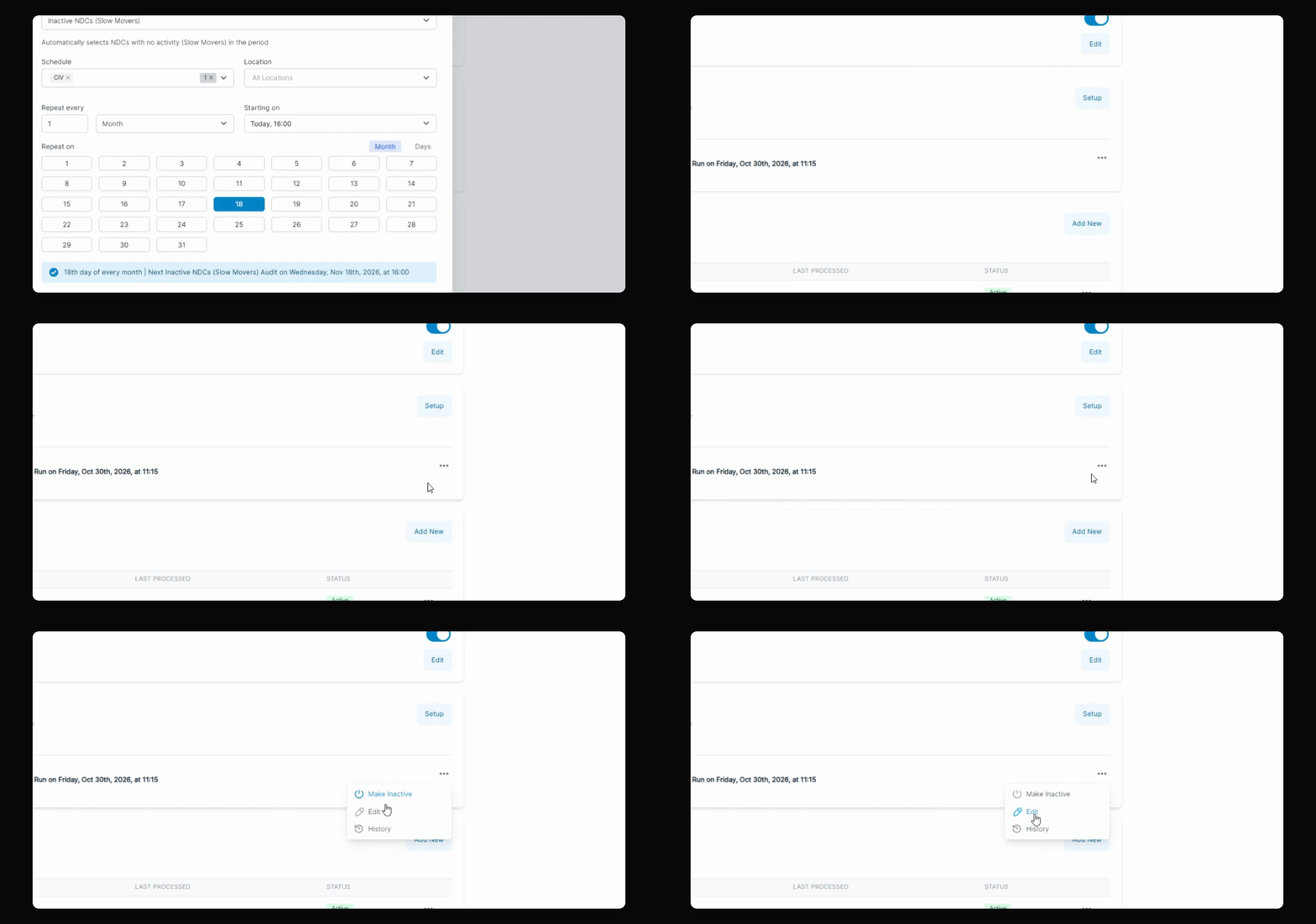
Step 8: Wait for Audit Generation
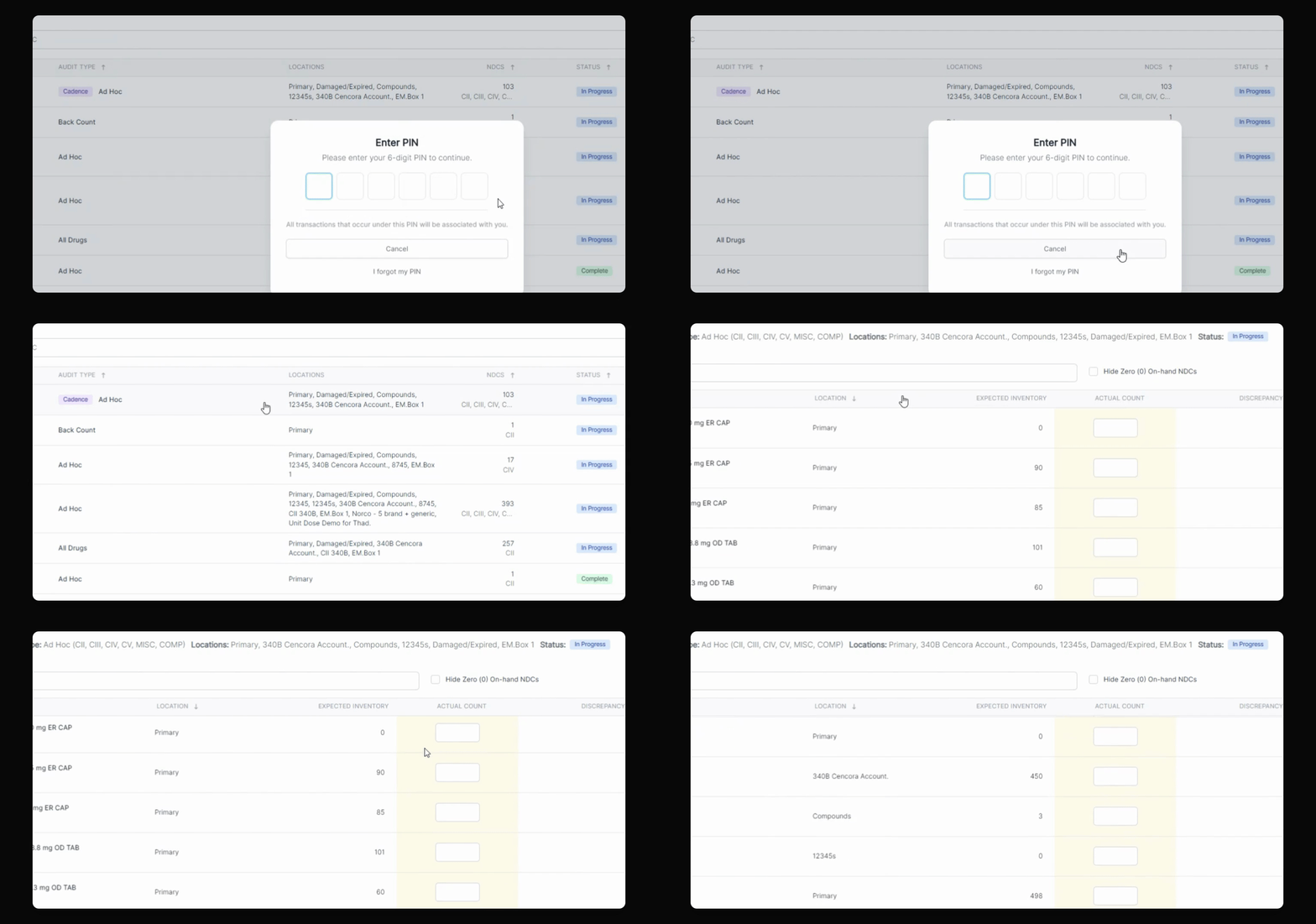
After scheduling, wait for the audit to generate at the specified time. Once generated, you'll see a new cadence audit alert and email notifications sent to all users.
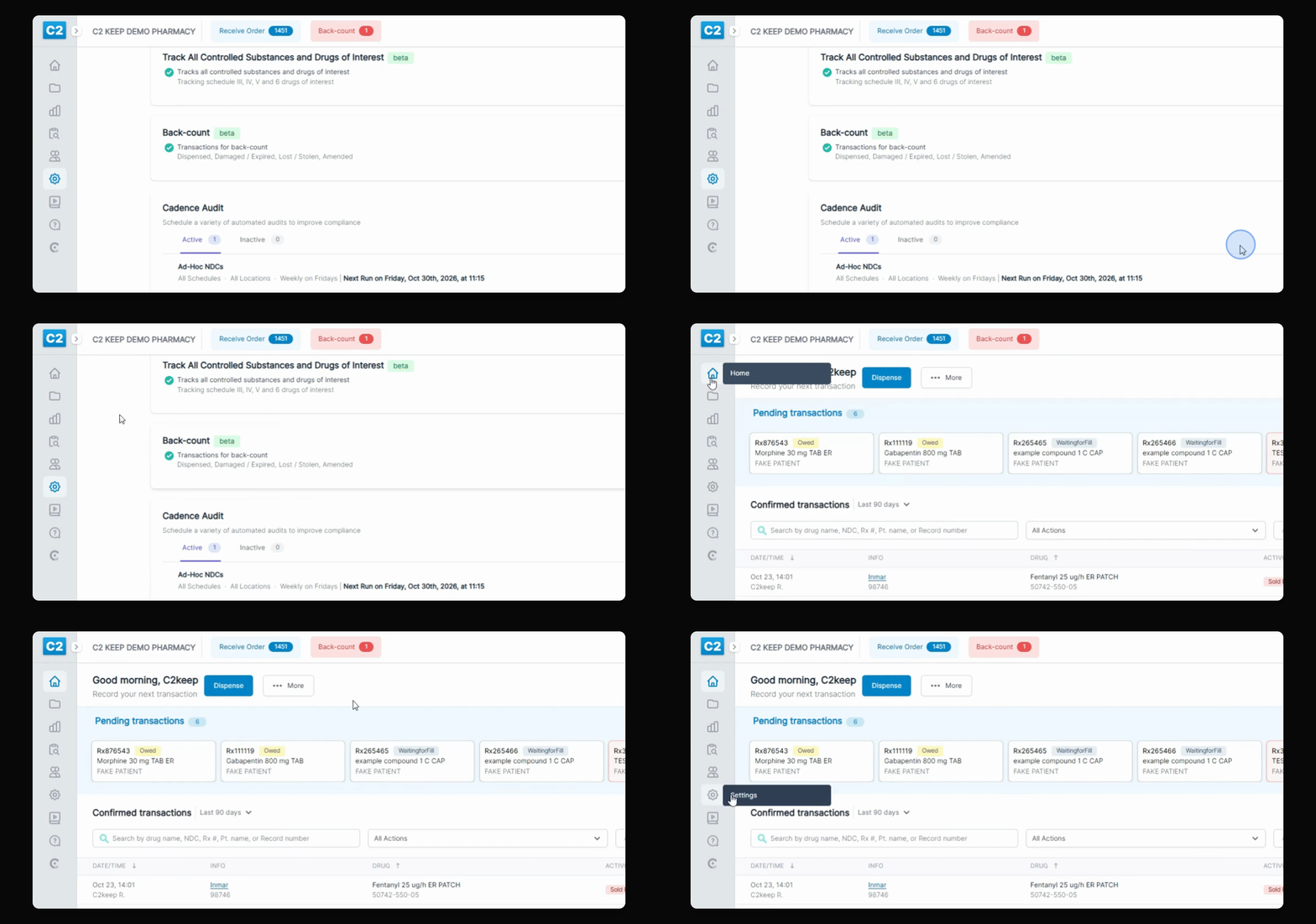
An alert will appear, and the audit will be listed in the familiar audit section labeled as Cadence Audit.
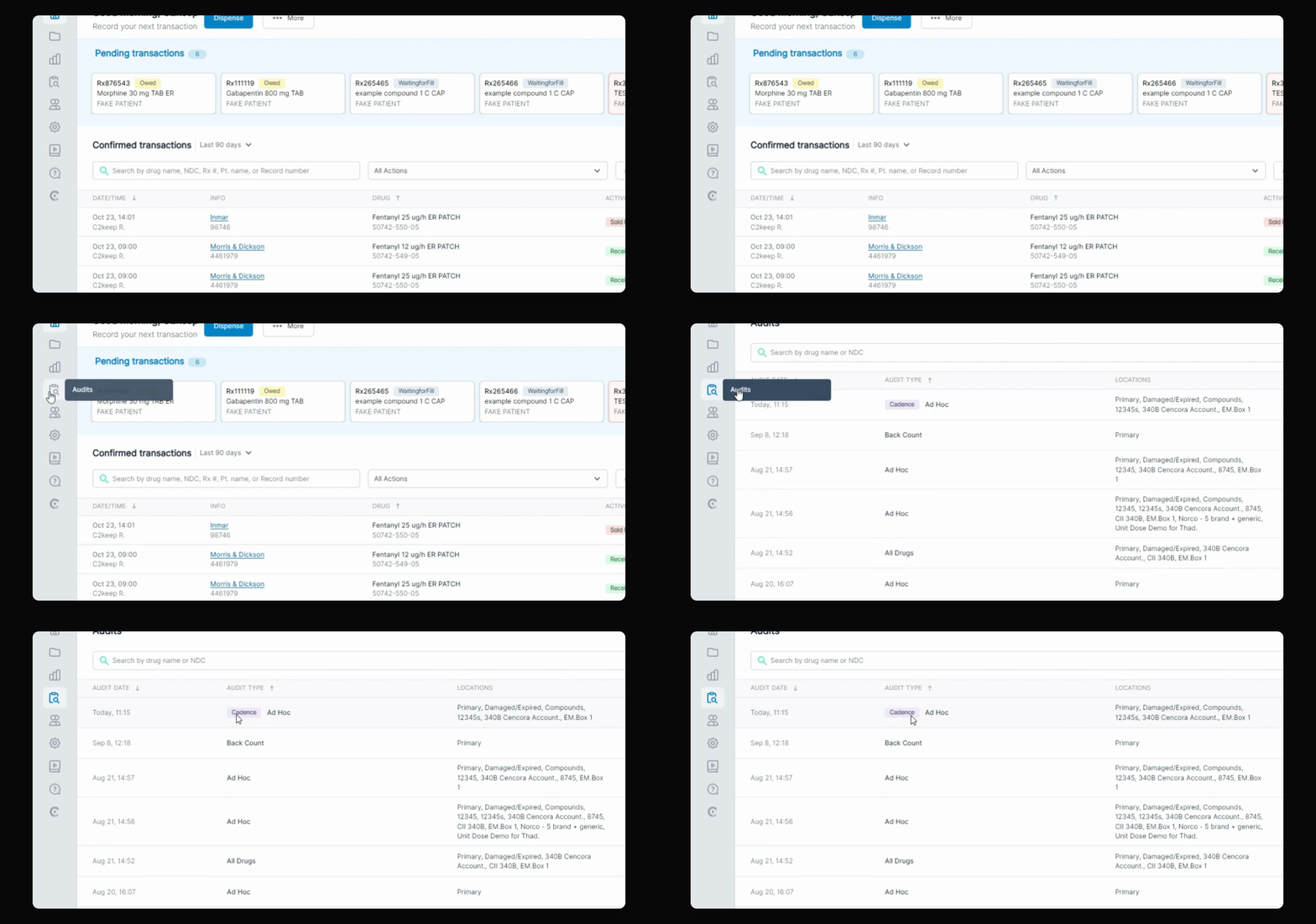
You can open and complete cadence audits just like any other audit.
This concludes the introduction to Cadence Audits.