

In this tutorial we will go over the process of creating a custom user role permission. Let's look at the steps:
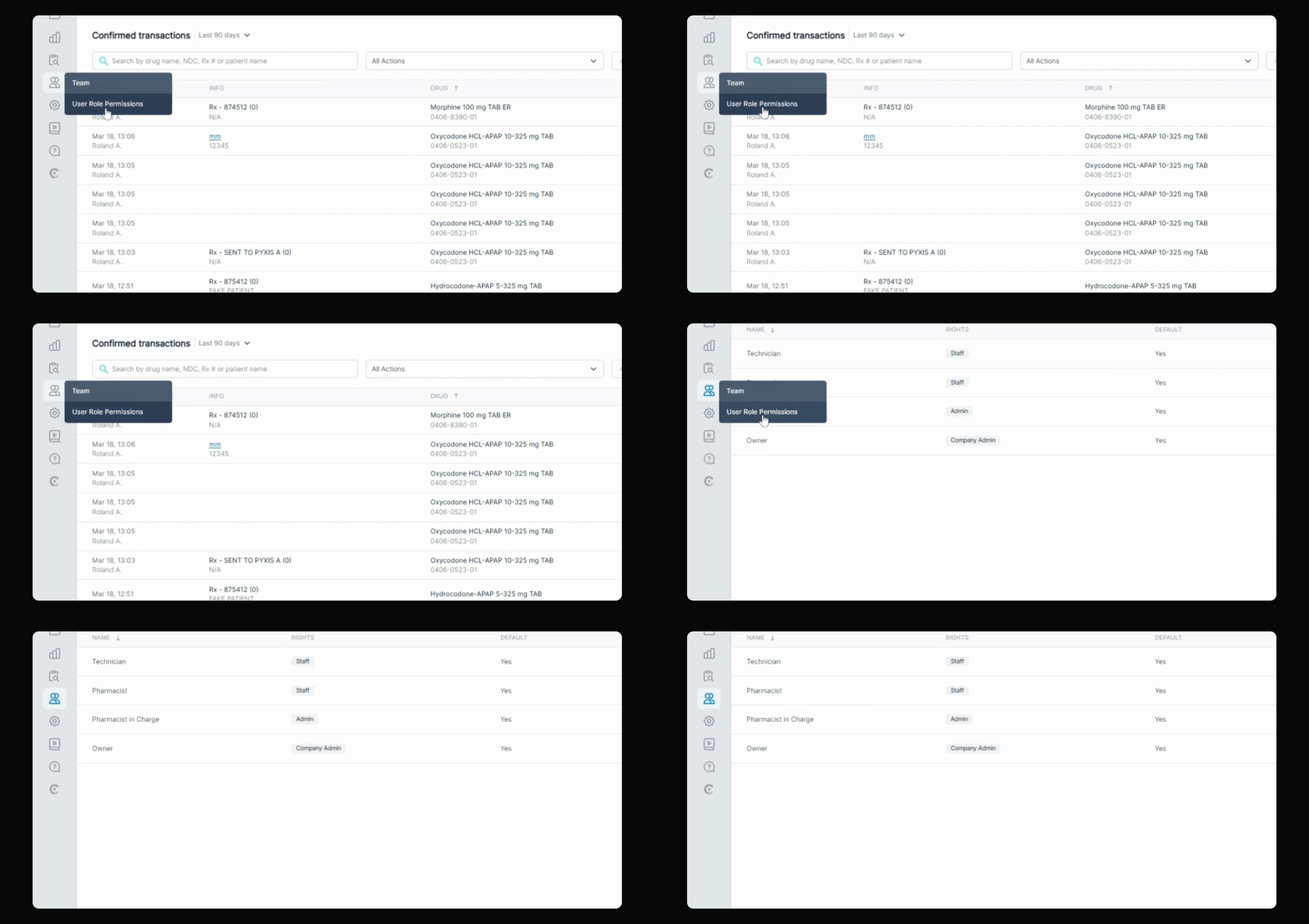
Step 1: Navigate to User Role Permissions
Go to User Role Permissions and click Create New on the top right.
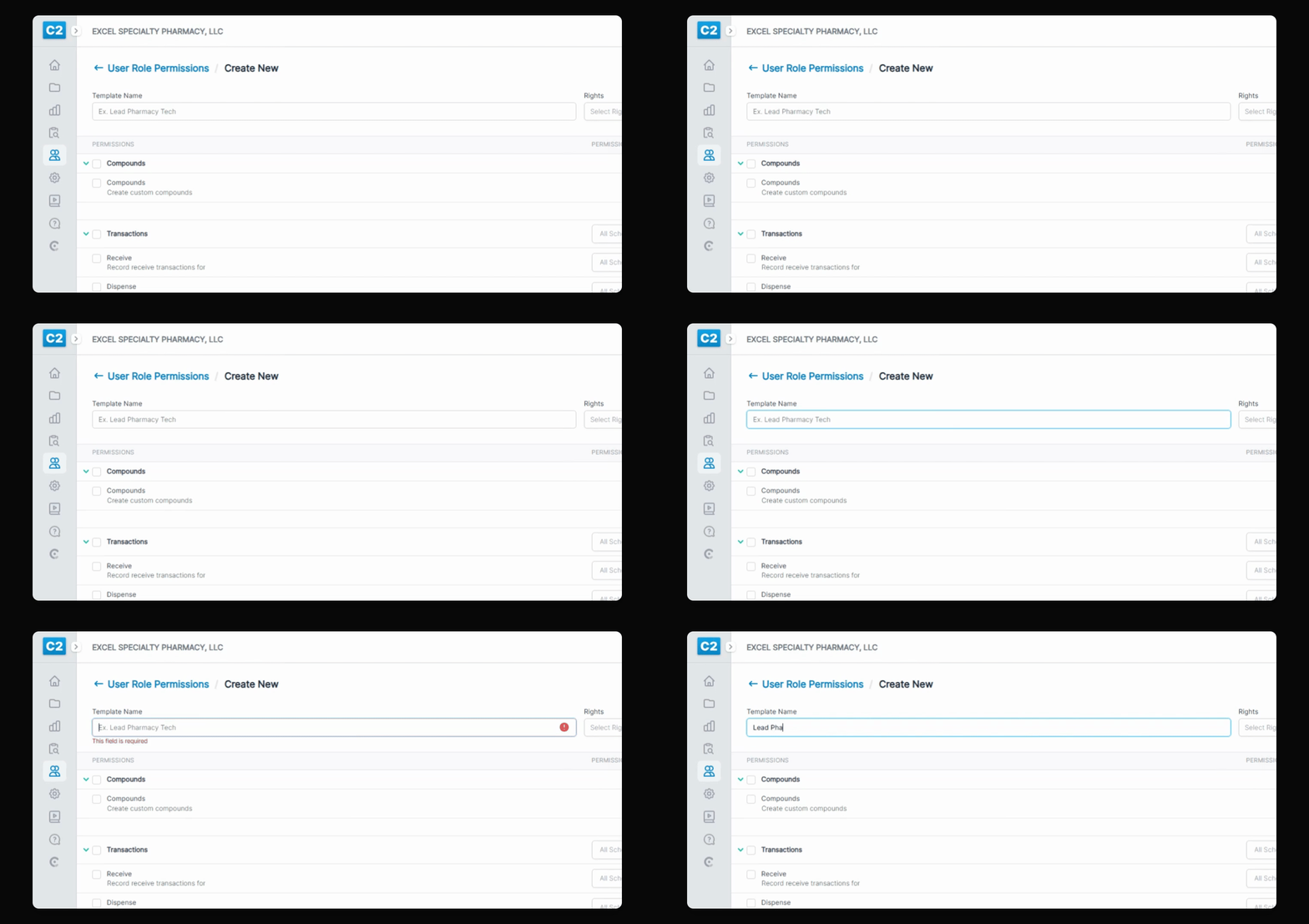
Step 2: Name the Role
Name the custom user role permission, for example, Lead Pharmacy Technician.
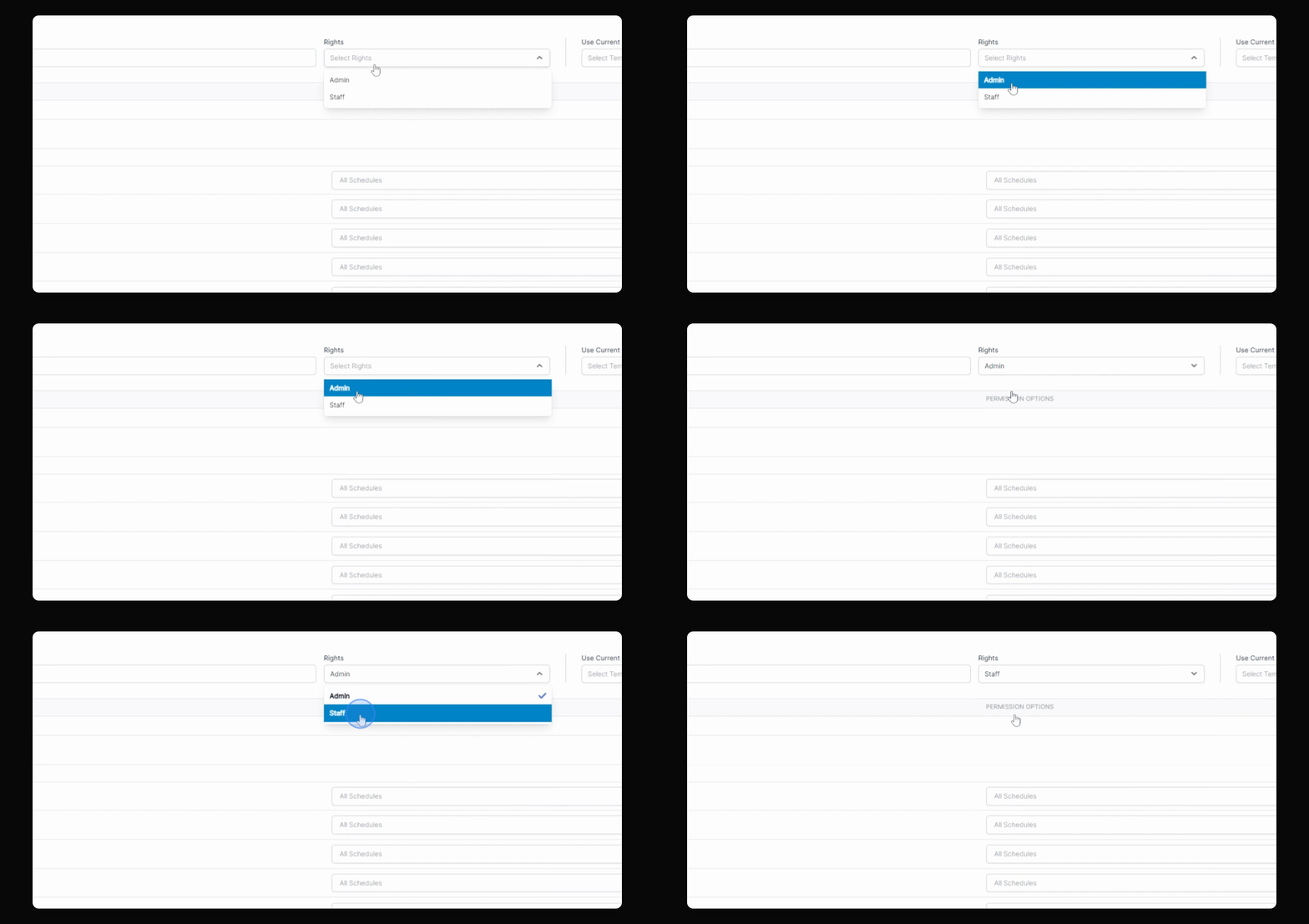
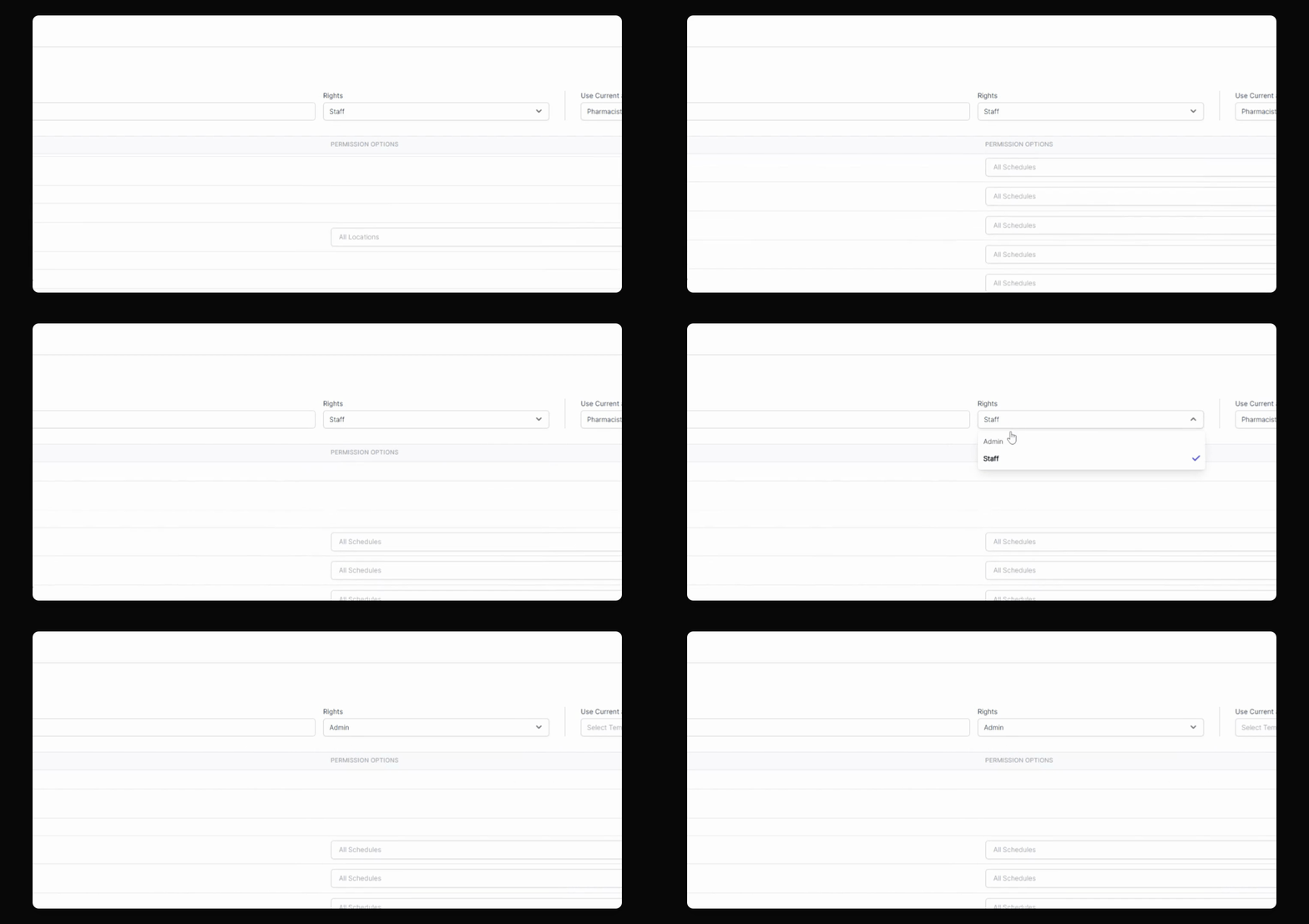
Step 3: Choose Admin Rights
Select Admin Rights for full permissions or Staff Rights for limited permissions.
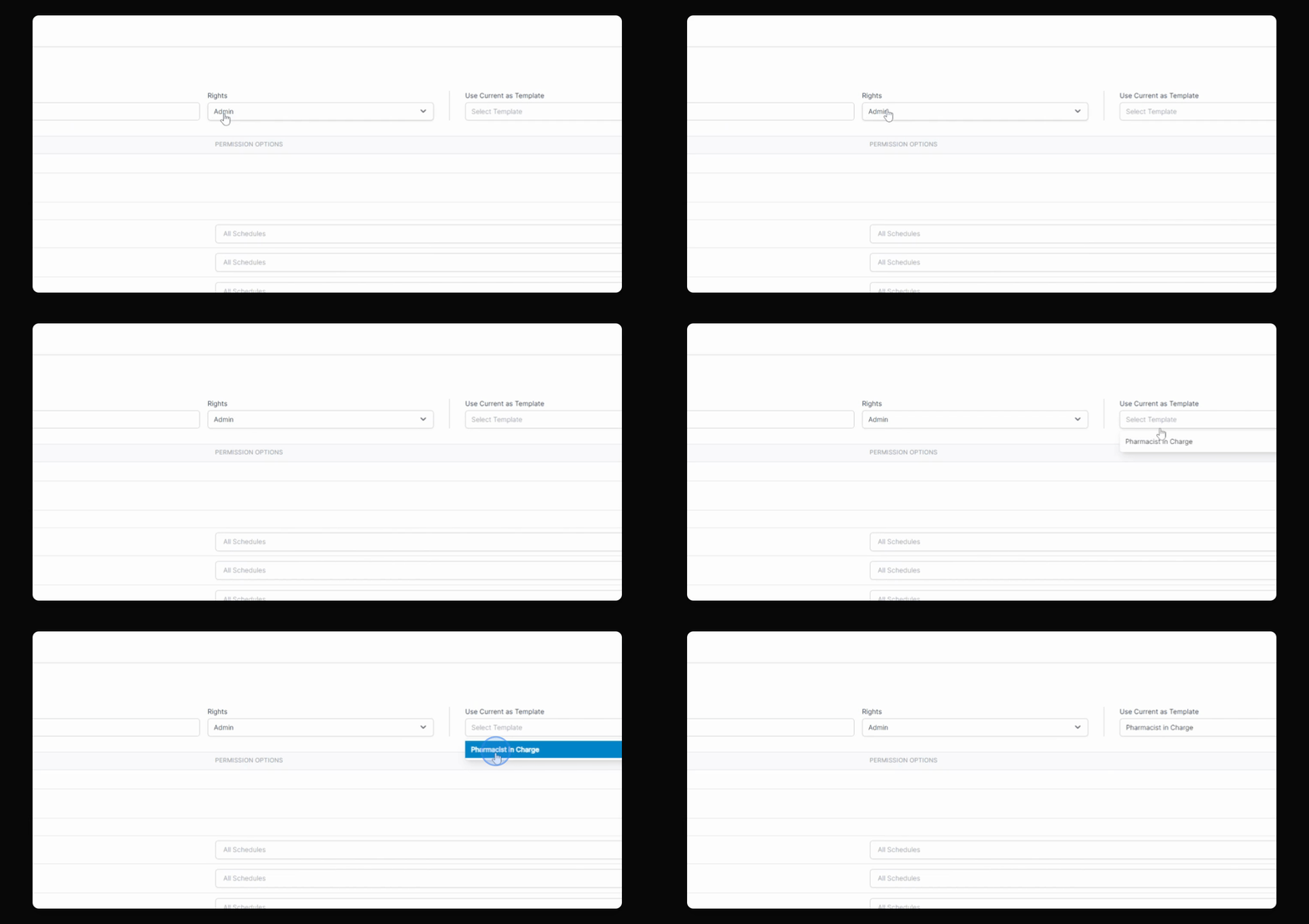
Step 4: Customize Permissions
Further customize the admin role or select a current admin template to start from.
Step 5: Add Specific Permissions
Modify the access roles and permissions as needed, such as allowing self-witnessing of transactions.
Step 6: Finalize Role Creation
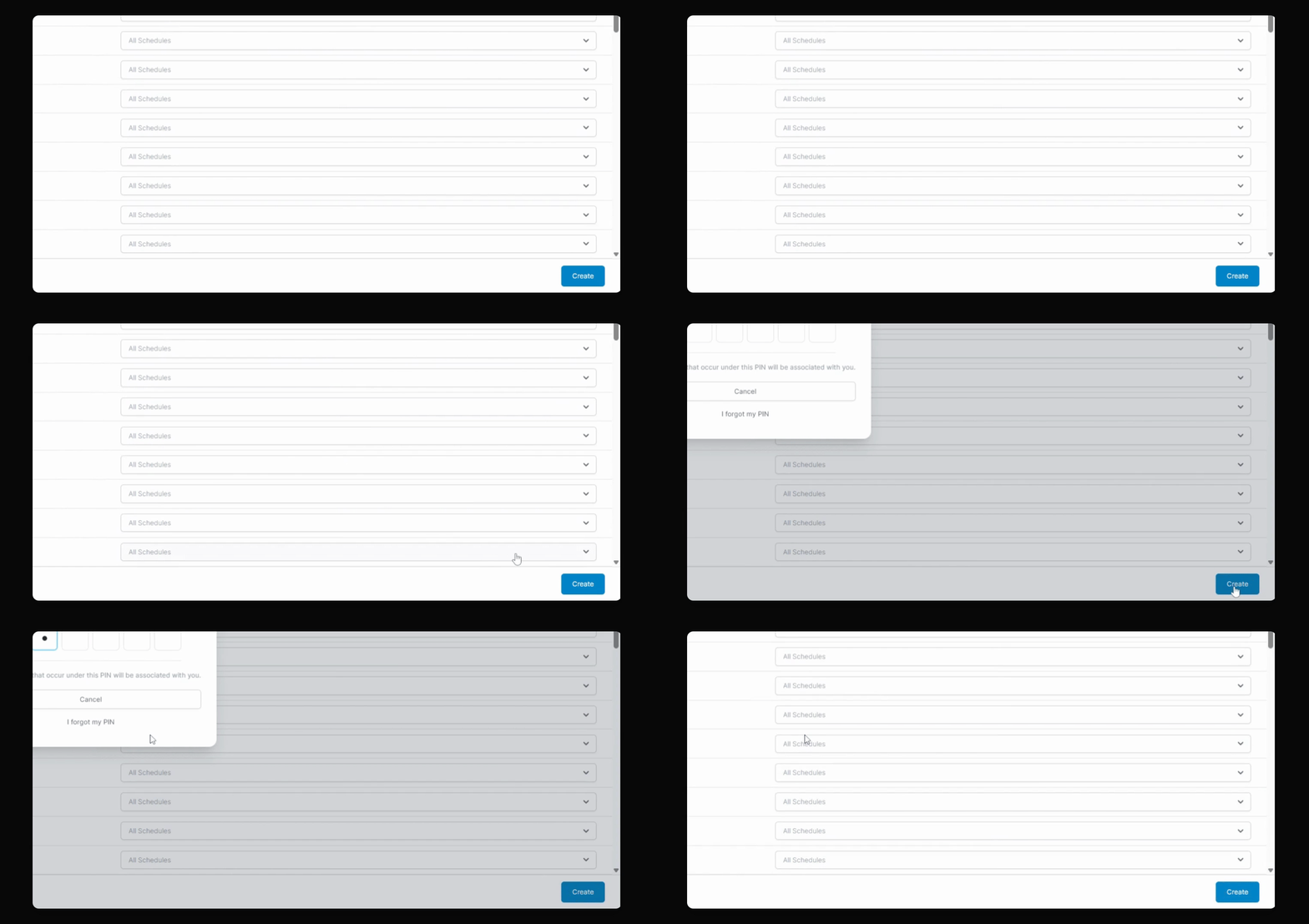
Click Create, enter your PIN, and the user role will be available for assignment.
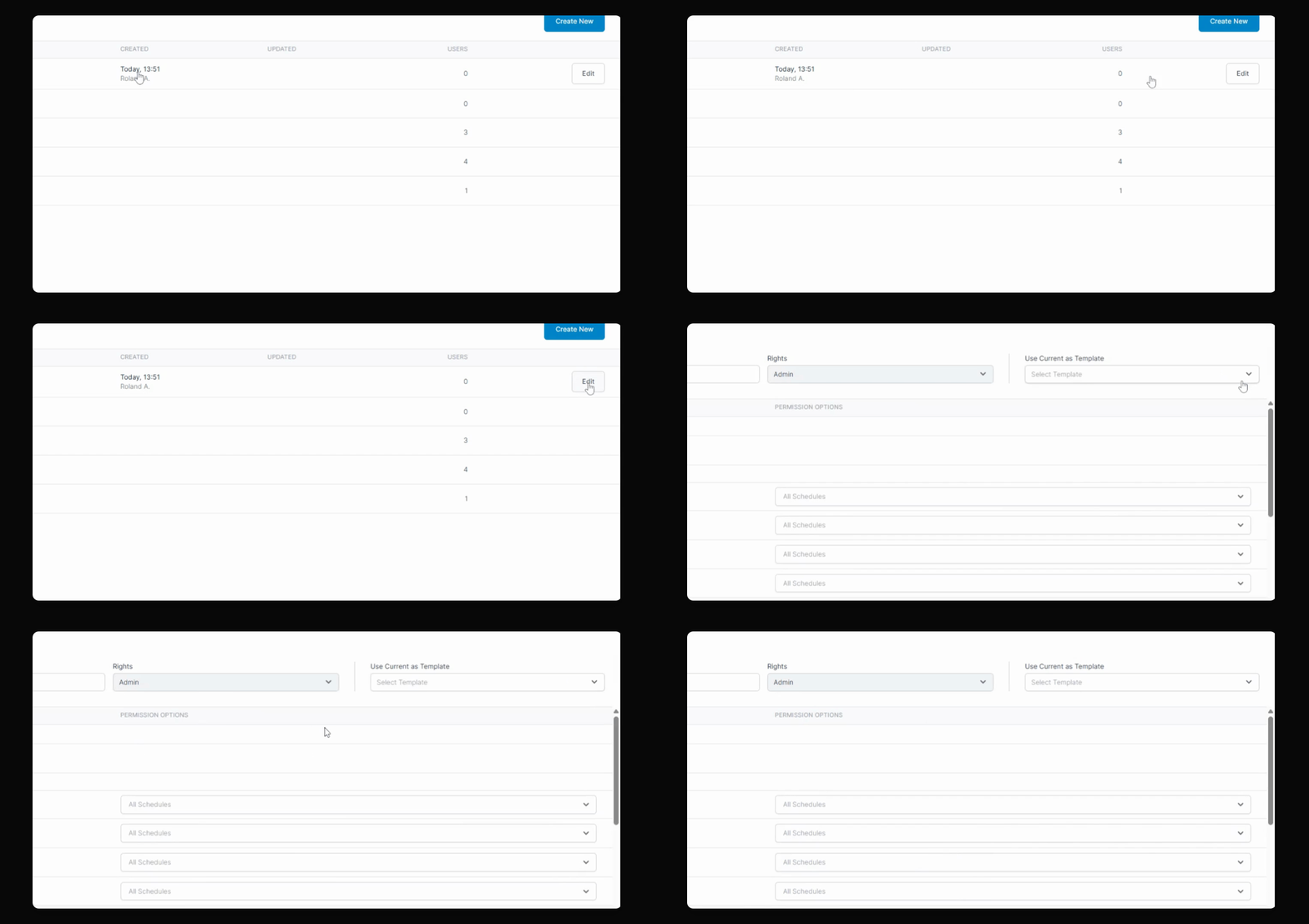
You can view information about when the role was created and its editability.
This is how you create custom user role permissions, ready for you to assign when inviting staff.