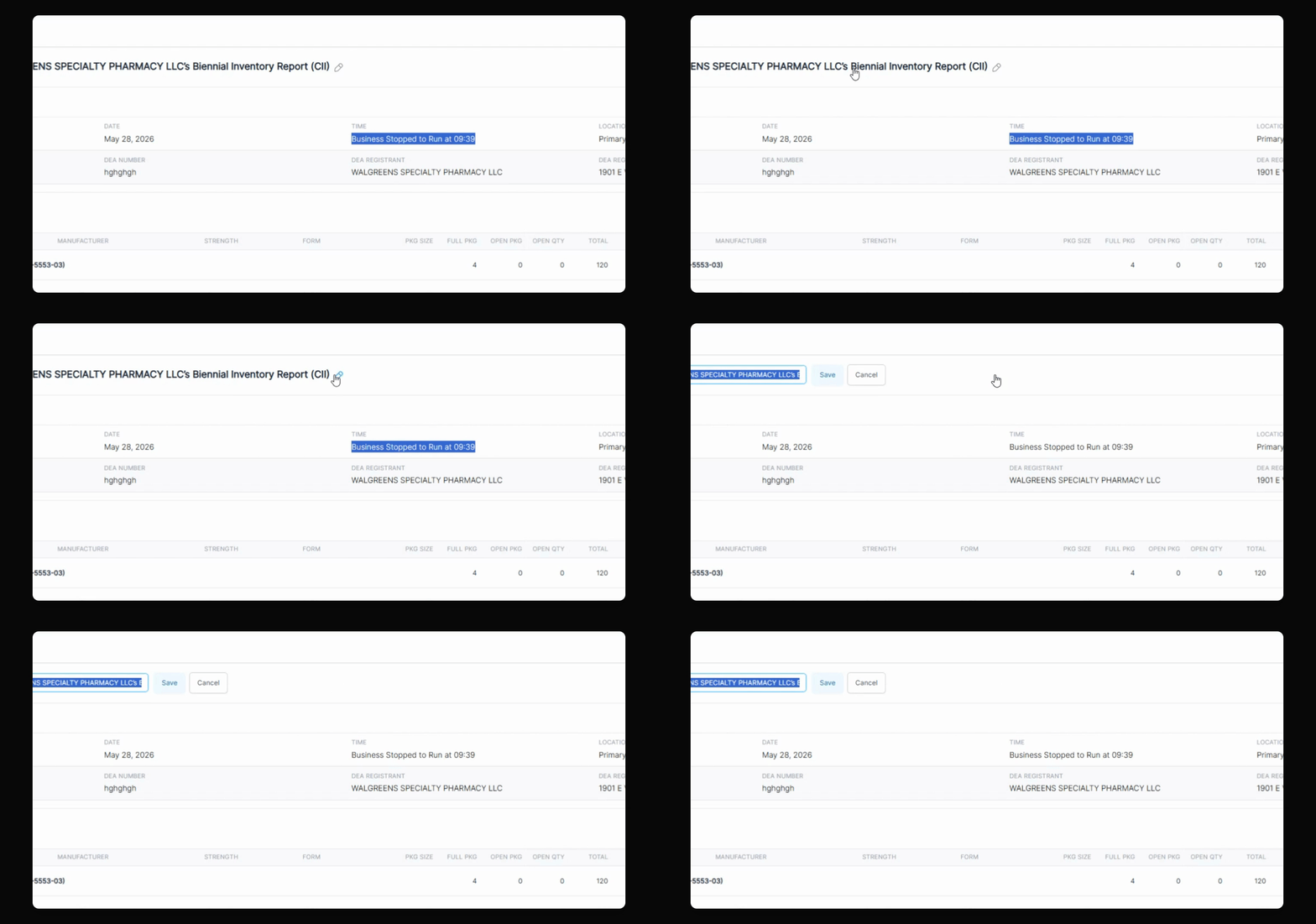
If your pharmacy operates 24/7 and needs to run a DEA compliance biennial inventory report for Controlled substances, C2 Keep now offers a streamlined process. Let's look at the steps:
Step 1: Start a New Report
Click New Report when you are ready to begin.
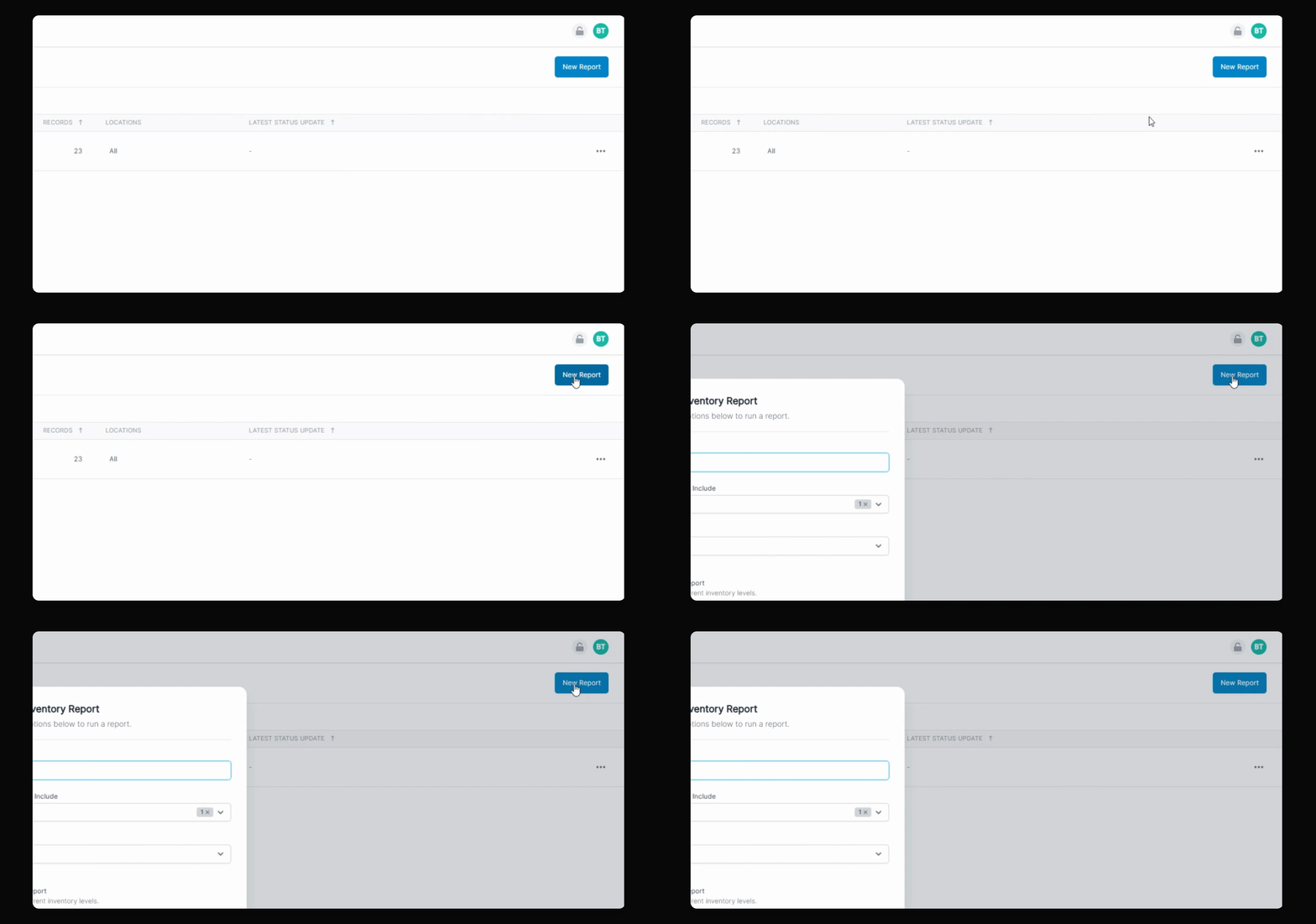
Step 2: Enter or Use Default Title
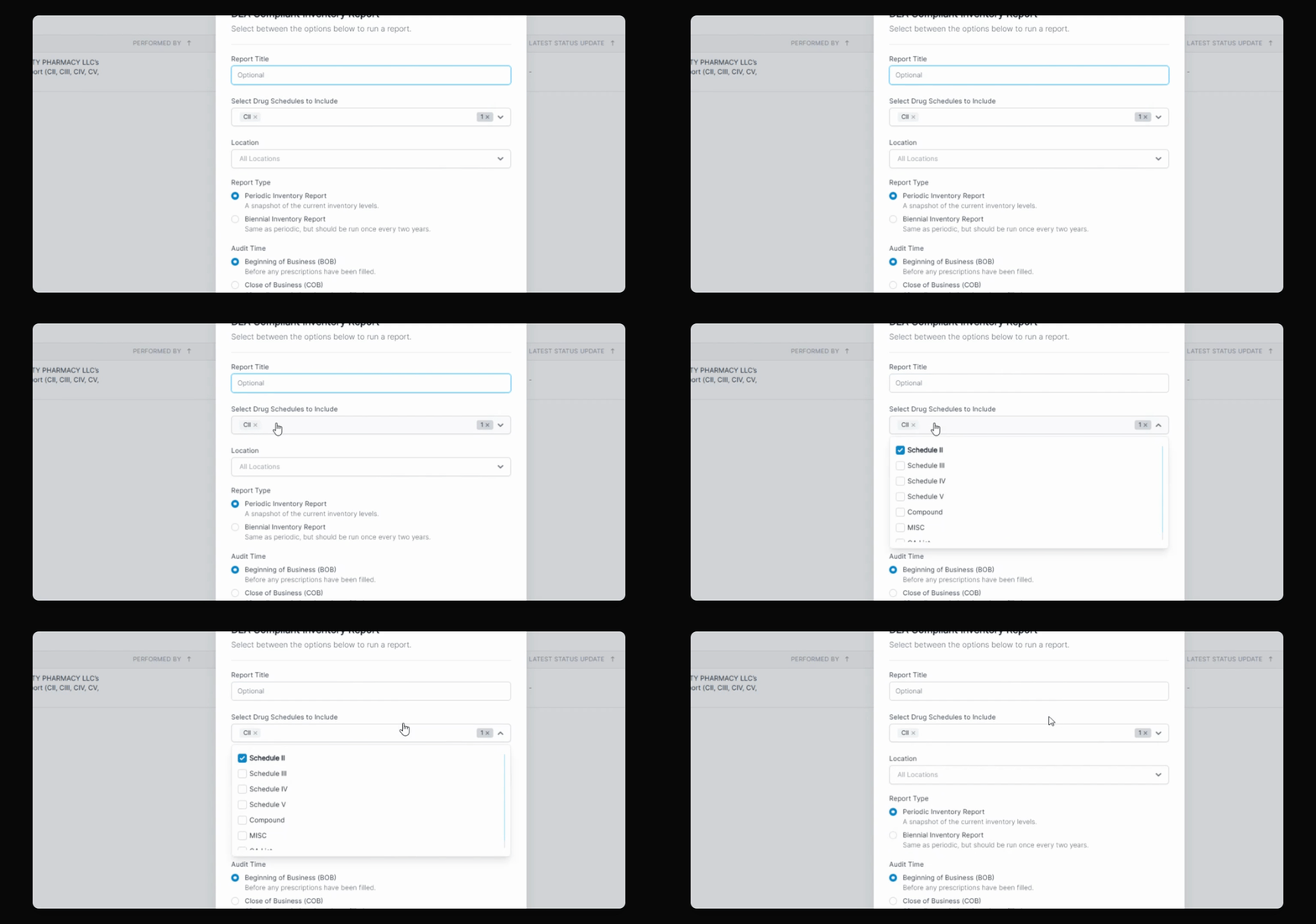
Under DEA Compliance Report, you may enter a report title. This is optional; if you leave it blank, the system will generate a title for you.
Step 3: Filter and Select Report Type
Filter out your C2s from non-C2s. Then, choose the report type: periodic or biennial.
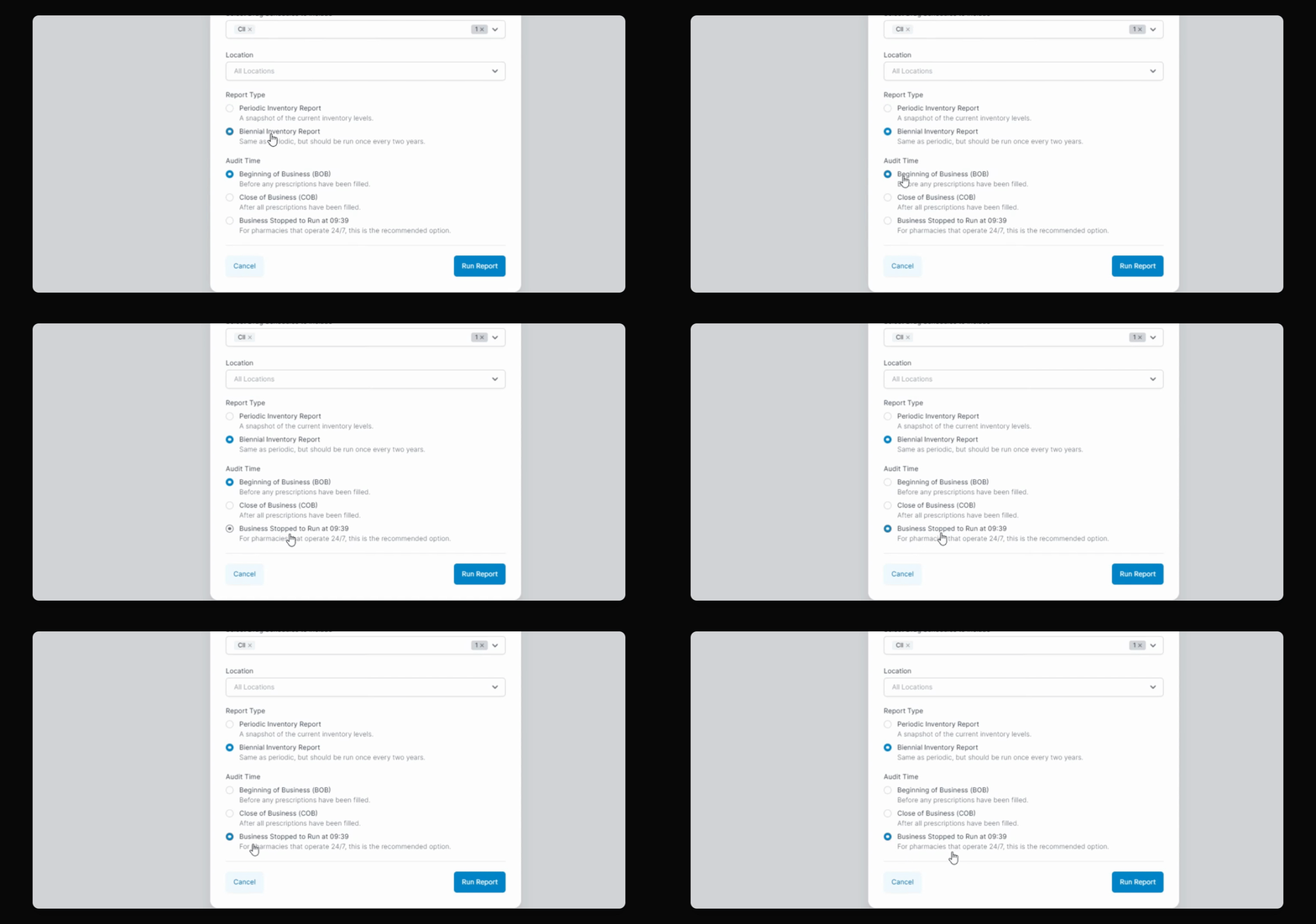
Step 4: Specify 24/7 Operation Stop Time
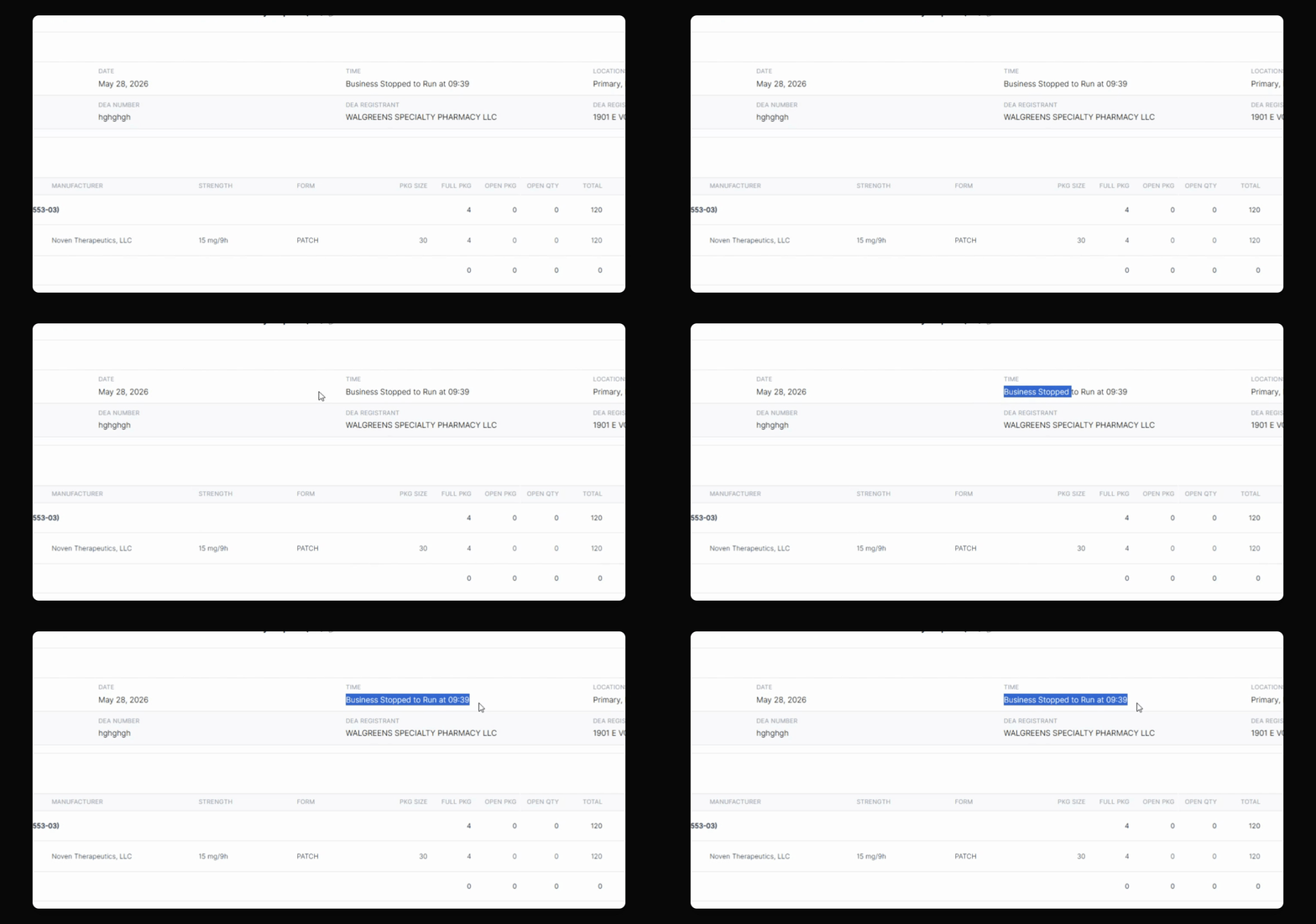
If your business operates 24/7, use the new option to notate when operations stopped. The system will input this time by default, ensuring compliance with legal requirements.
Step 5: Run and Export the Report
When you run the report, the stop time is automatically included. You can save, print, or export the report as a PDF or Excel file.
Step 6: Edit the Report Title
If you want to change the report title after creation, click the Edit button and update the title as needed.