

One of the cool things with C2 Keep is the ability to search for a buyer or seller when recording order details by their NPI Number. This works throughout the system whenever you're adding those details. Let's look at the steps with a Sale to Provider as an example:
Step 1: Create Sale
Click create sale to provider and find the drug you're going to sell. Your pharmacy is the default supplier.
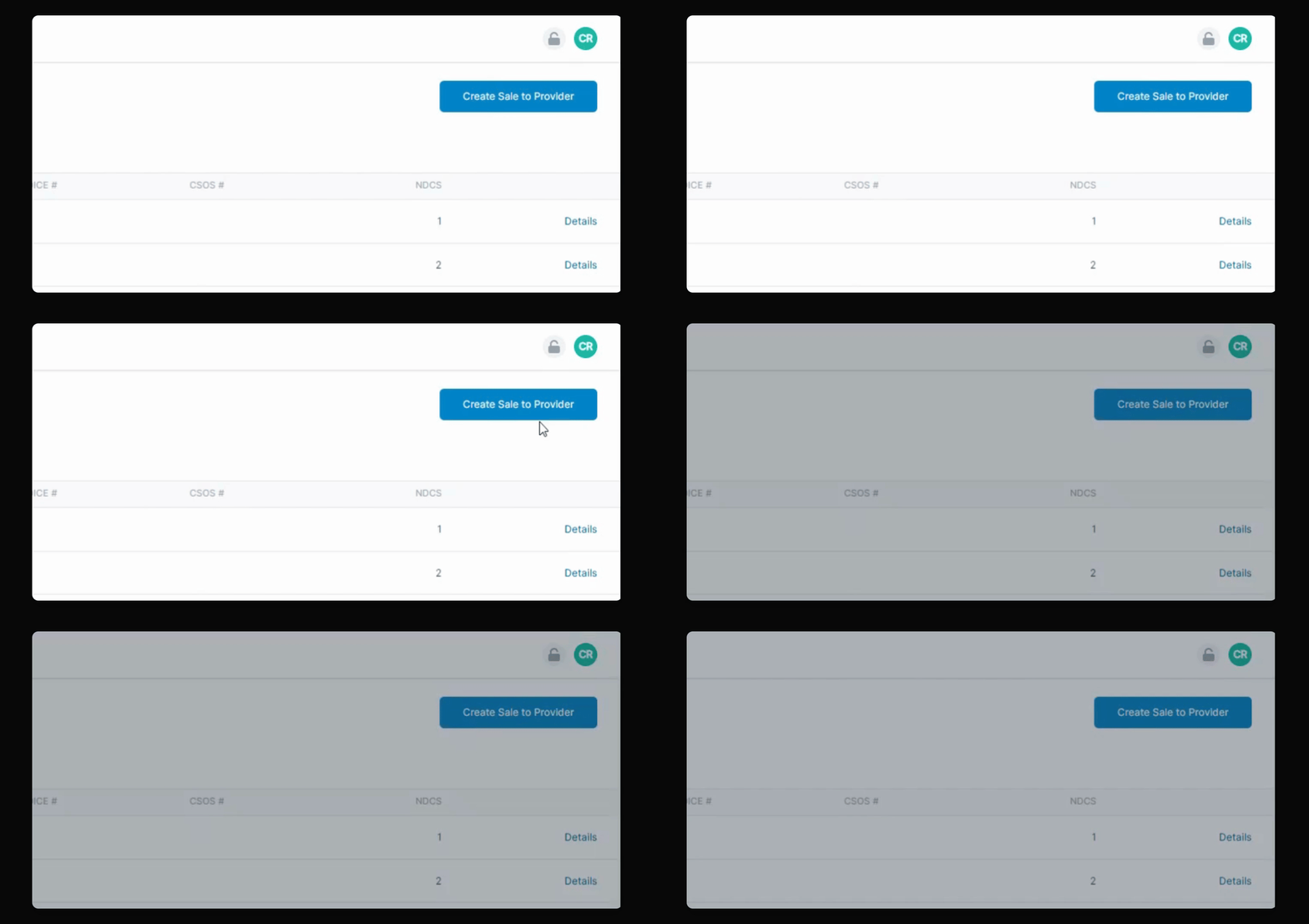
Step 2: Search the 'BUYER' by Name or NPI
Search for the BUYER by their name if it is one that you've previously sold to, or search by the NPI of that pharmacy. A dropdown reveals previous Buyers you can choose from.
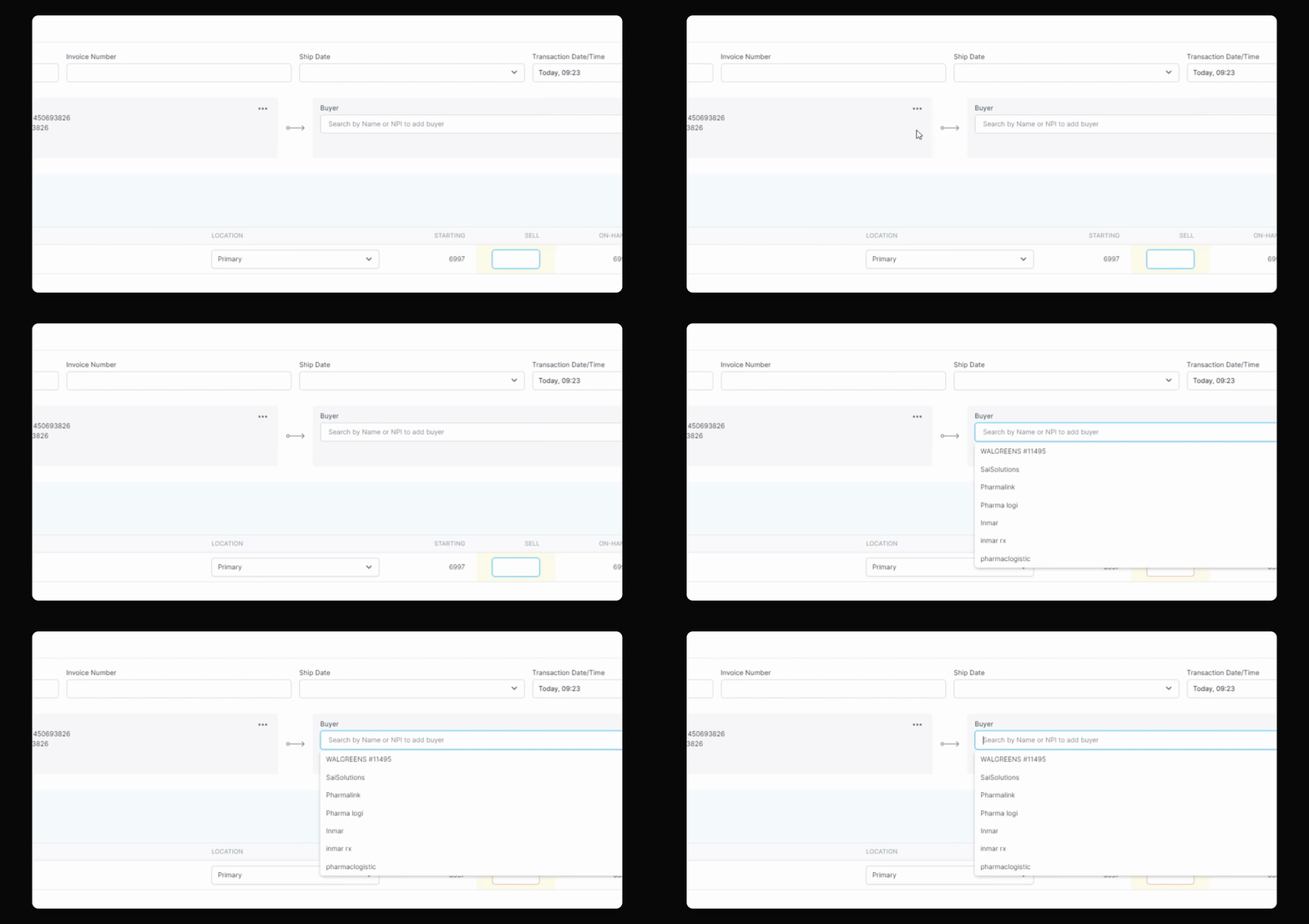
Step 3: Search by the BUYER's NPI
Enter the Buyer's NPI number and click Add to quickly find and fill out all the necessary information.
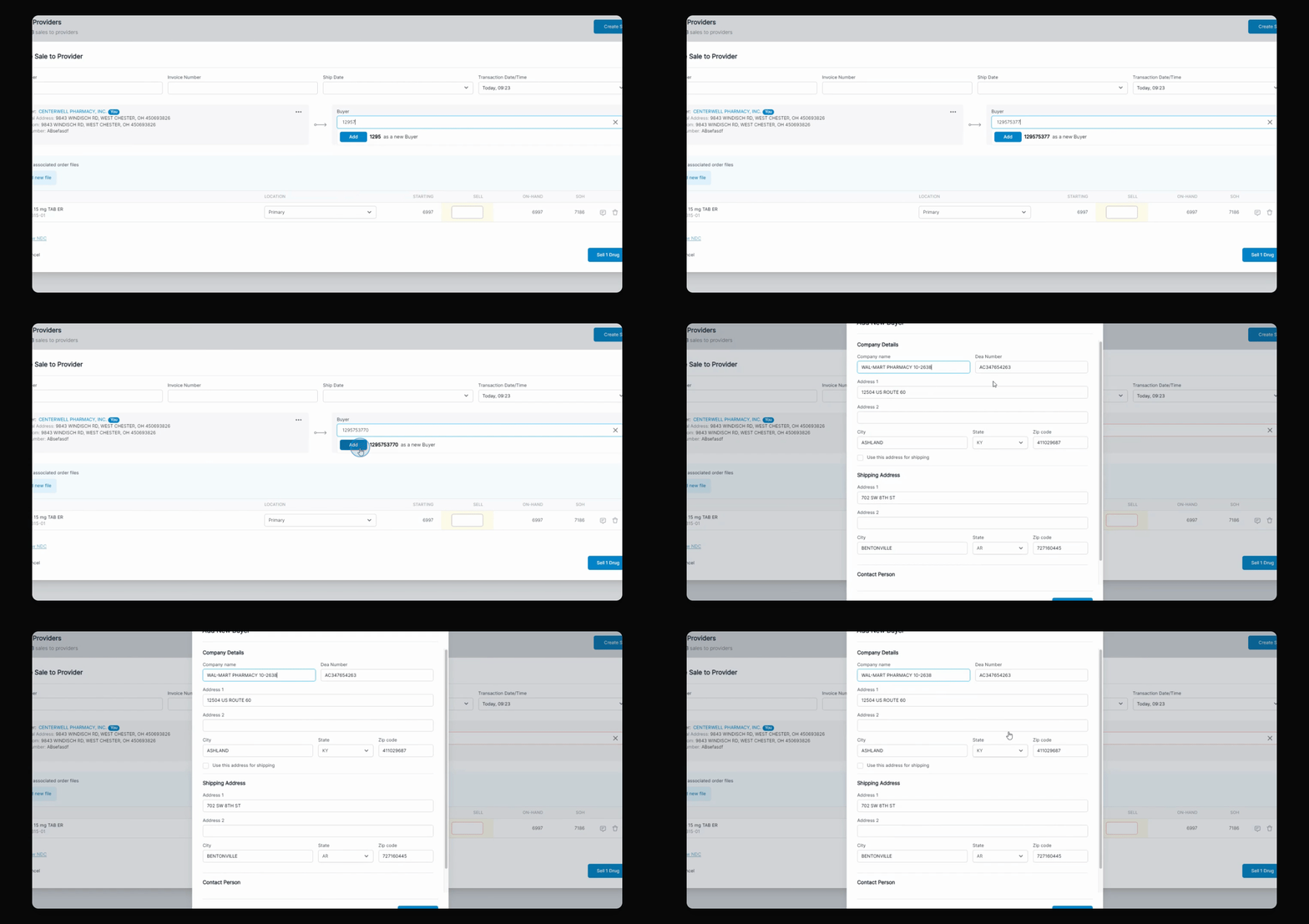
Step 4: Verify Information
Check to ensure that the information is all accurate and up to date.
Step 5: Save BUYER Details
If everything looks good, simply add BUYER, and it will save to your records.
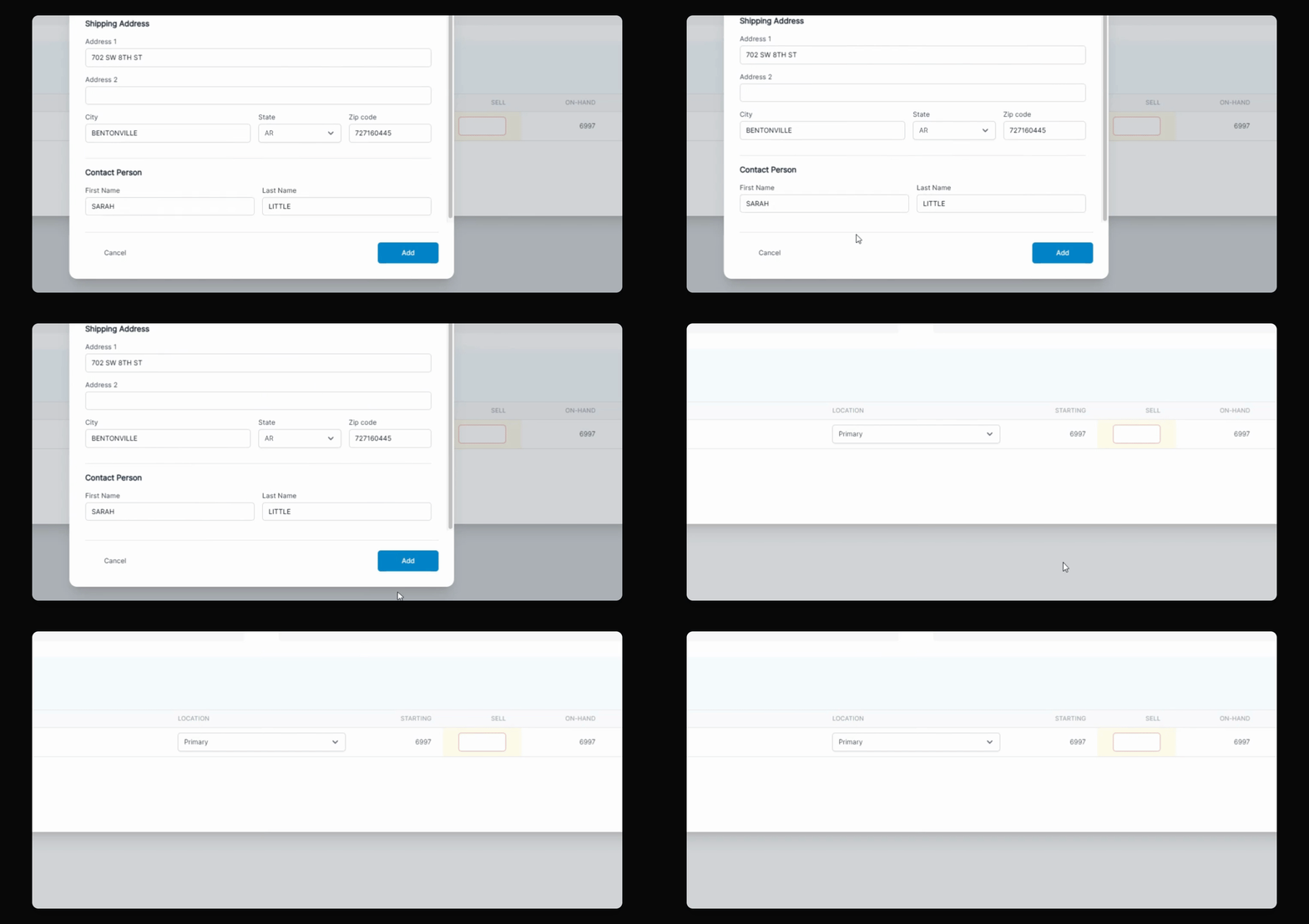
Step 6: Manage Records
You can now remove that pharmacy or edit it, and it should be available to pick in the future.
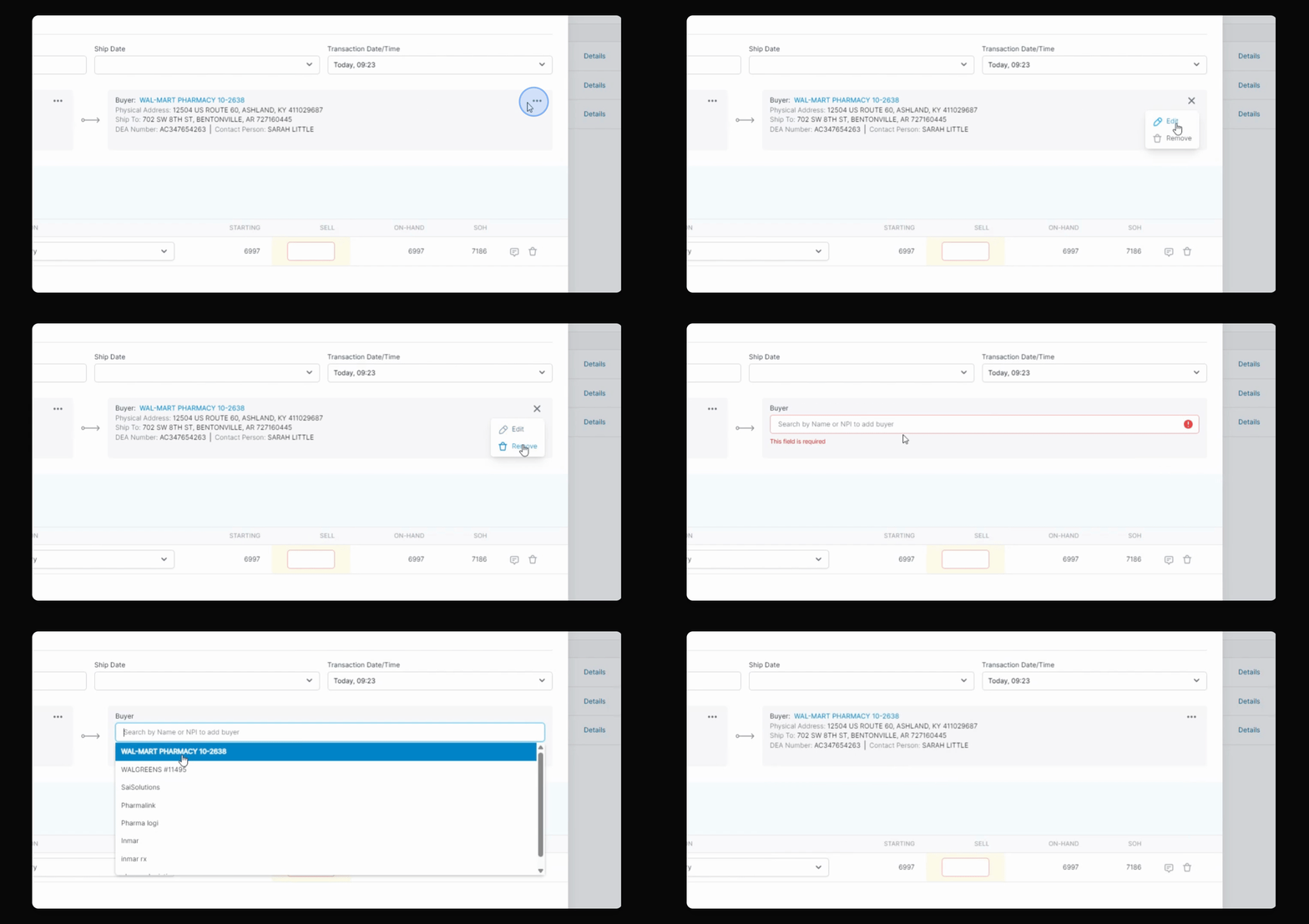
This is an easy way to find a supplier or a buyer when recording order details by searching with the NPI number.