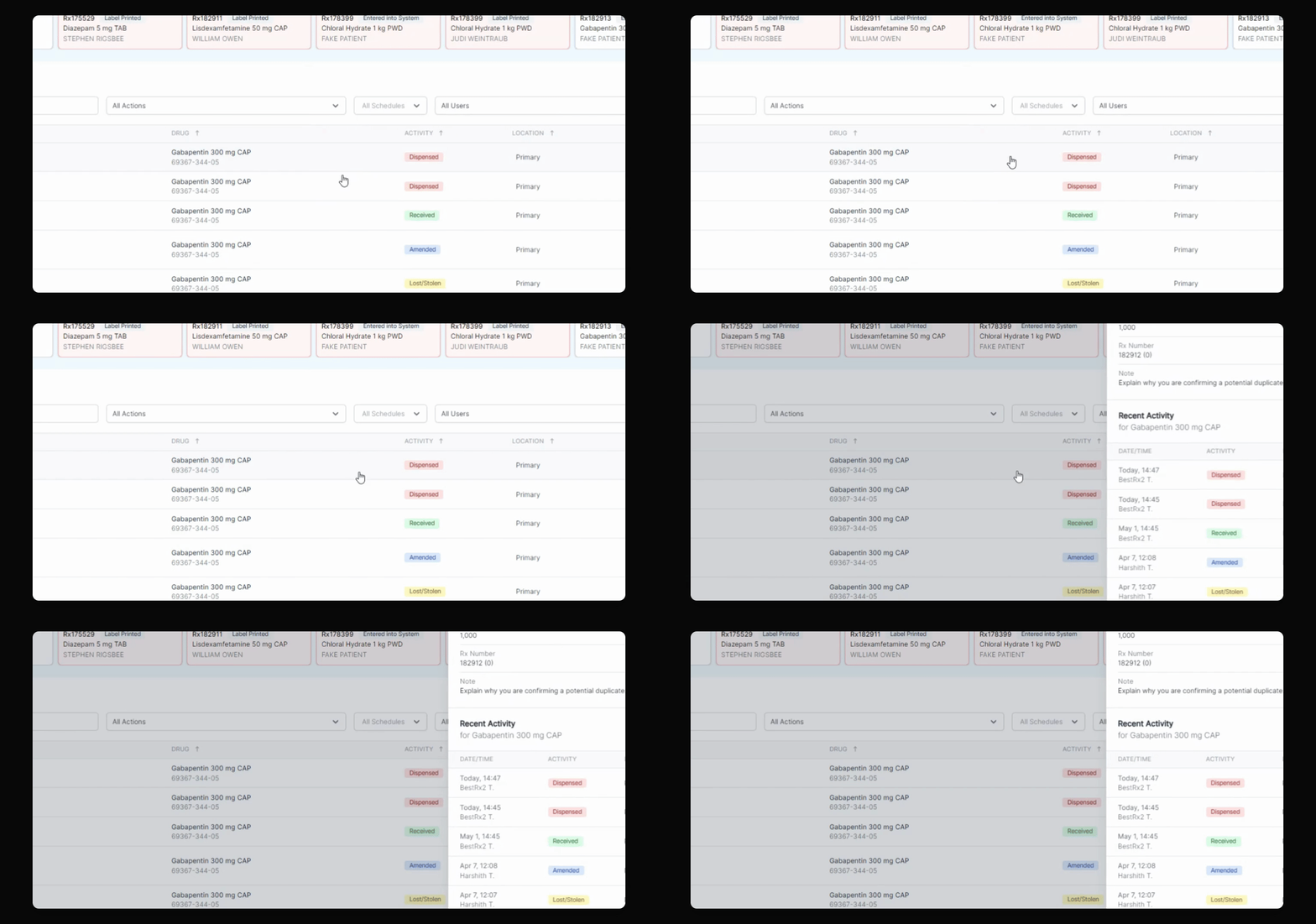
This tutorial introduces a new feature in C2 Keep designed to improve accountability and record keeping. It helps prevent staff from accidentally recording a duplicate dispense. Let's look at the steps:
Step 1: Attempt to Record a Duplicate Dispense
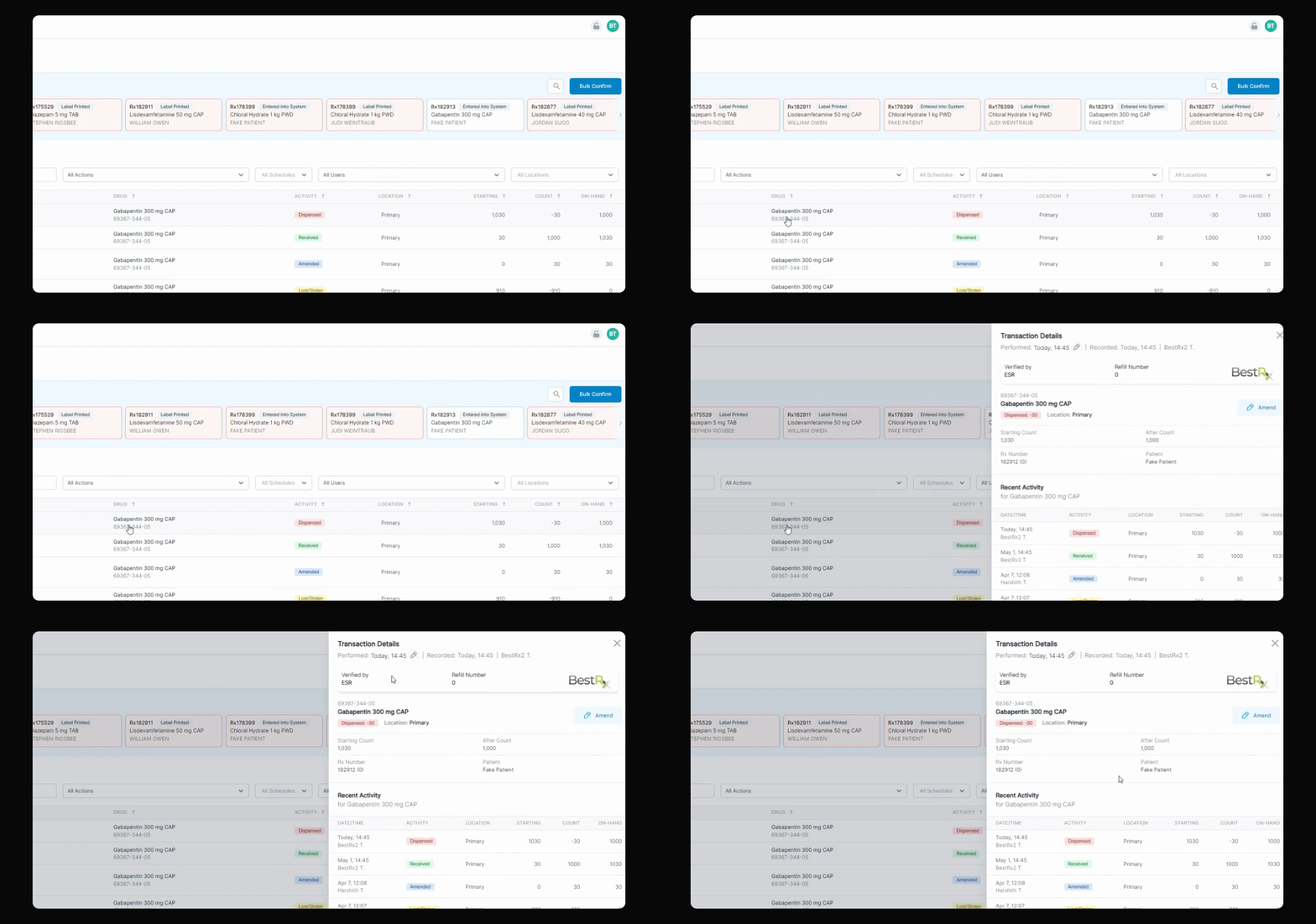
Try to record a dispense for a prescription that has already been confirmed. For example, attempt to record a second dispense of gabapentin 30 tablets for the same patient and prescription number.
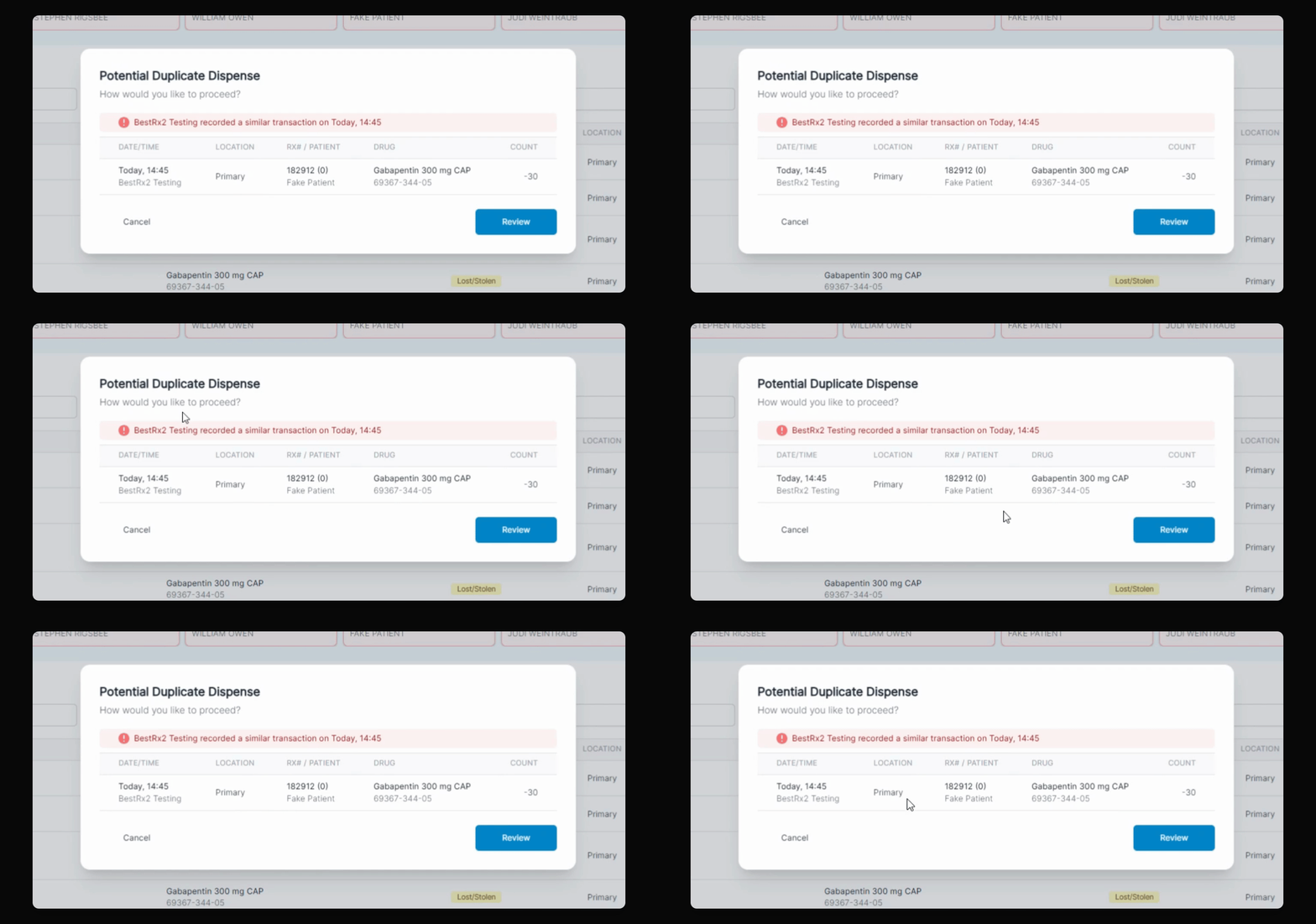
Step 2: Review the Duplicate Alert
The system will alert you that a similar dispense has already been recorded. You will see a message indicating this is a potential duplicate transaction and asking if you really want to record it again.
Step 3: Enter a Reason for the Duplicate
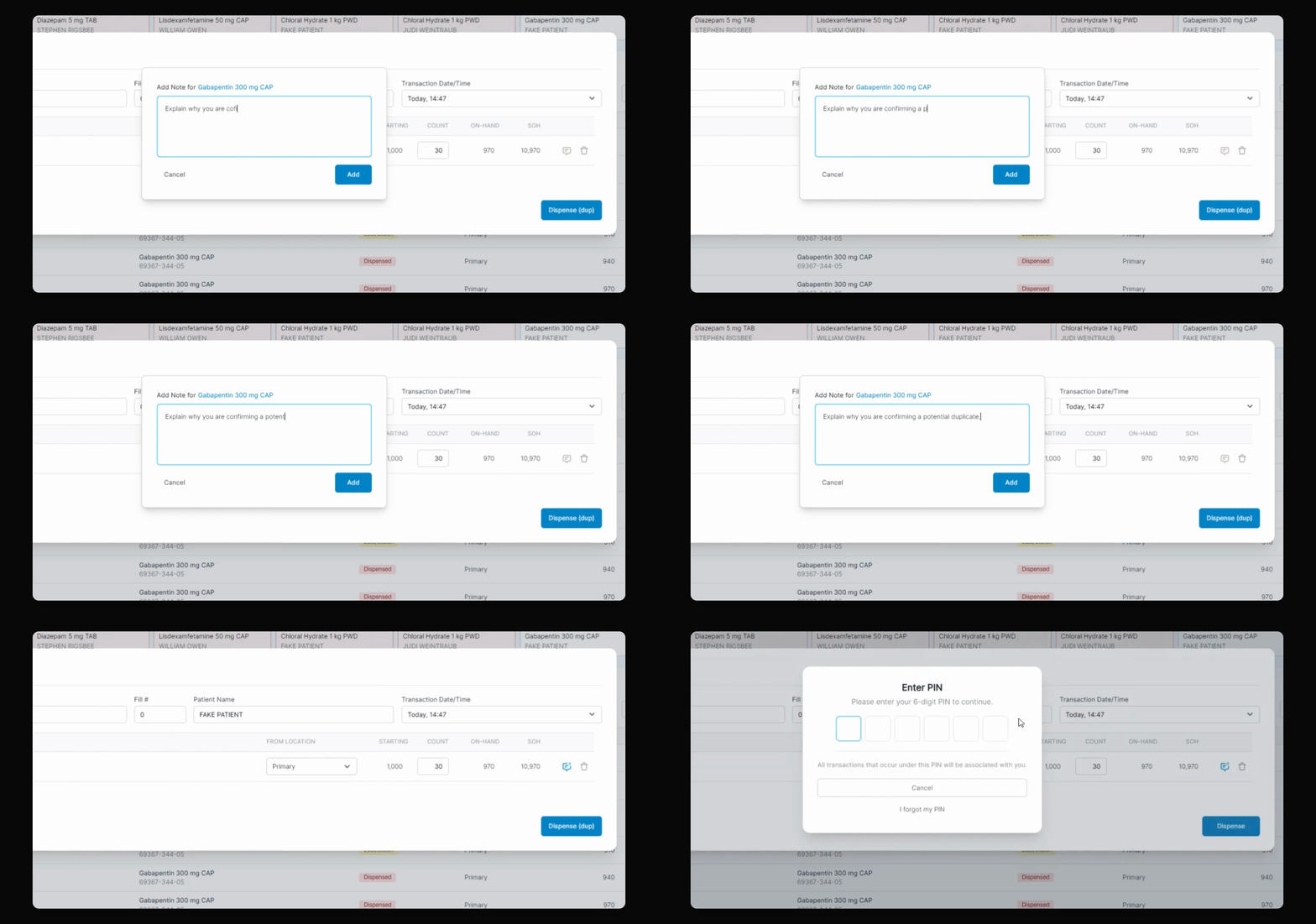
If you choose to proceed, the system will require you to enter a note explaining why you are confirming a potential duplicate dispense.
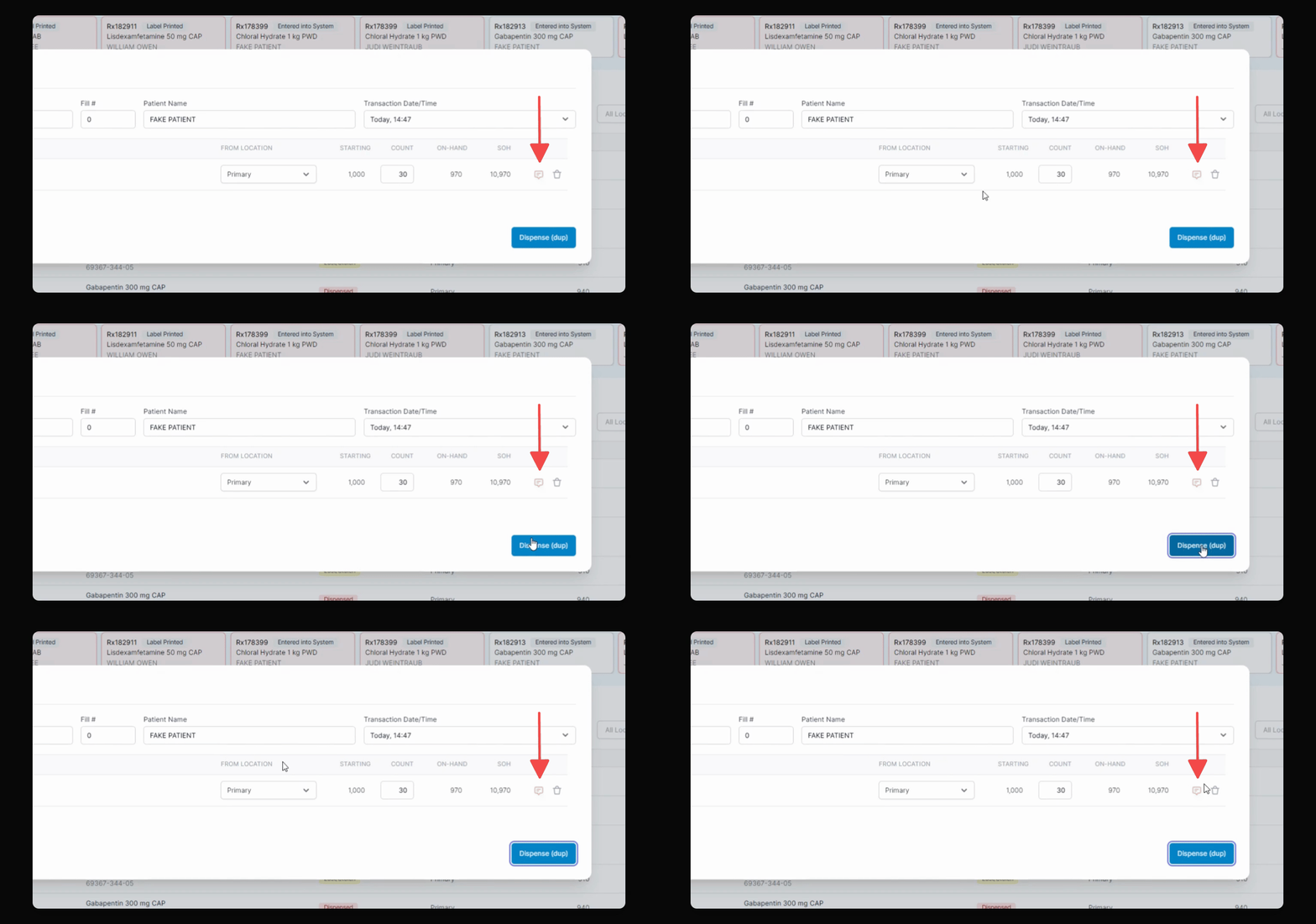
Step 4: Record the Dispense with Note
After adding your note, the system will allow you to record the dispense. This ensures accountability and provides a record of why the duplicate was recorded.
In the future, when viewing this transaction, you will see the user, timestamps, and the note explaining the reason for the potential duplicate. This enhances security and transparency in record keeping.